0:00
Hello. In today's video, I'll show you
0:03
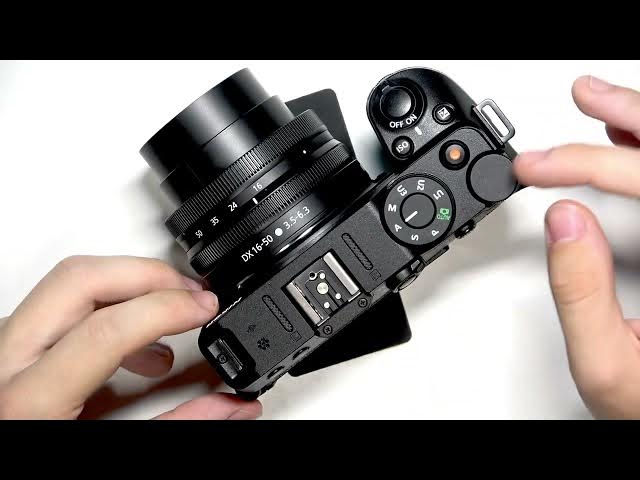
how to update your firmware on Nikon
0:13
Okay, so to begin, first let's check our
0:16
current firmware version. To do that,
0:18
click on the menu. Then you can see on
0:20
the left panel, you should select the
0:23
setup menu. And then most likely you'll
0:25
see this. So just go all the way up to
0:29
go to the very bottom or just go to the
0:32
very bottom manually. You know, I like
0:35
to go all the way up. It's easier to get
0:37
to firmware version. Then you need to
0:40
check the current version. And as you
0:42
can see, I have the version C 111 and LF
0:51
So um now uh the the newest version
0:54
available uh for C firmware is 1.20
0:59
in my case uh so I can basically update
1:03
it. Um first we will need to get to the
1:07
website uh of Nickens. So I'll just get
1:10
you to my computer. Okay. So there's my
1:13
computer. Uh to get to this website,
1:15
what I did is I just went to um
1:20
I just typed in Nick and Z30. You can
1:29
you can just do something like that, you
1:31
know, Nick and Z30 download center, then
1:34
go to the website and find firmware. So,
1:39
uh yeah, there it is, firmware. And now
1:42
you can find the download page. Now, um
1:46
I don't know if Mac OS or Windows I
1:50
don't know if there are different
1:51
versions. Um I don't think it matters
1:54
because you copy it to an SD card
1:57
anyway. So get a an SD card ready with
1:59
an SD card reader. You may either have
2:02
the full SD card reader to put it in
2:04
your computer. You also may have an SD
2:06
card reader built into your computer. I
2:08
actually have something like this is an
2:10
adapter for a micro SD. So that way I
2:13
can put it in my camera. But when I
2:15
remove this micro SD, I can put it in
2:18
this adapter and plug it into my
2:20
computer with either USB C or USB typeA
2:25
because we'll need to copy the files. So
2:28
I'll put it into this adapter for now.
2:31
Um, now let's download the file.
2:36
Okay, let's do download. save it.
2:39
And now I can go to my downloads. Let's
2:49
card reader. And now, okay, there it is.
2:53
Let's click on this file. I will click I
2:56
right click on it. Click on copy. Then
2:58
go to the uh SD card and paste it. Um
3:01
what is very important is you need to
3:04
copy it into root which means to the
3:06
topmost folder. You can't go into any
3:09
folder and paste it within that folder.
3:12
Instead you need to go to the root to
3:14
the very topmost folder. Right click,
3:17
click on paste. And that is now pasted
3:21
um right here. And then I can remove it
3:24
from my computer. Um, let's put it into
3:31
And now, uh, we'll do it. So, let's, um,
3:37
I'll unplug it. I have it plugged in. It
3:39
It's not necessary now, I think. Um,
3:43
okay. I'll get out of the menu uh, by
3:46
clicking on the menu button. Let's open
3:49
it from the bottom, like so. put the SD
3:53
card in the correct way, of course.
3:59
Okay, there it is. Um, go to the menu.
4:03
Okay, let's see what it tells me. Uh, go
4:06
to the firmware version. Uh, it should
4:09
it should say um there's a firmware
4:14
Oh, it cannot access the memory card.
4:16
Yeah, it's it happens all the time uh
4:19
with like different cameras and
4:21
different cards. In my case, I always
4:23
just I I never manage to like make SD
4:27
cards work. You know what I'll do? I'll
4:30
turn it off. I'll turn the camera off. I
4:34
may need to format the SD card. Maybe
4:36
it's an in an unreadable format for the
4:40
camera. It very likely may be. Um
4:49
the card is not formatted. Okay, it
4:52
tells me the card is not formatted. I
4:54
will need to format it otherwise it just
4:57
won't go. So I'll do the format for the
5:01
card and then uh you know I'll just I'll
5:12
Yeah. So, I'll copy the files again.
5:16
Let's remove the card. Now, it's in the
5:19
correct format, right?
5:23
And let's put it in to the
5:27
to the computer. I'll copy it and get
5:29
back to you. Okay, I have it copied now.
5:33
Uh, by the way, I can see that my camera
5:36
is dying, so I will plug it in.
5:42
once the camera is off, I should put put
5:45
it in. Uh, I'll plug it in, as I said,
5:48
to charging because I don't want it to
5:51
die uh during the process. That may
5:54
render the camera unusable.
5:57
So, let's plug it in. Let's confirm it's
6:02
It is. It shows me this. Okay. Now,
6:05
let's turn the camera on. Let's go to
6:10
Go to, of course, the setup menu. Go to
6:12
firmware version. And now I have the
6:15
option to update. So click on that.
6:18
Okay. It says low battery.
6:21
I'll find a different charger,
6:24
a stronger one. Leave it for a moment so
6:26
it charges to a sufficient level. And
6:29
then I'll get back to you. Okay. Now I'm
6:32
charged to a sufficient level. So when I
6:35
click on update, it shows me this. I
6:38
need to set it to yes. You can show you
6:40
can see current version is 1.11. It's
6:43
going to change to 1.20. Uh let's go to
6:47
yes. Click okay. Now wait. Uh do not
6:50
turn your camera off during the update
6:52
and it may take several minutes. So just
6:56
wait until it finishes. Uh I will get
6:59
back to you when it's um when it's done.
7:05
Okay. And it's almost done as you can
7:08
see. So, let's give it a moment and
7:11
it'll be done, I think.
7:15
I'm not sure. I haven't updated yet.
7:19
Yeah, it says to turn the camera off.
7:21
So, I'll I'll flip the switch. Um,
7:25
now it's off. It has blinked here. Now,
7:29
let's turn it on. And it should be all
7:32
correct. And as I can see, yeah, it is
7:36
um probably not much has changed in
7:40
terms of like seeing stuff, but probably
7:43
there were some fixes and stuff like
7:46
that, so we won't see much differences.
7:50
But yeah, the update's done. Uh you can
7:53
also, if you want, you can automatically
7:55
delete the update files by going to the
7:57
f firmware version and find delete
8:00
firmware update files. Um then change
8:04
that. Go to that. Click on yes. And uh
8:08
yeah that is that is that and one last
8:12
thing I wanted to say is that you can
8:14
also update the uh lens but mine is
8:19
currently at the newest version. Uh once
8:21
you just find the lens model on the
8:23
internet uh you know on Nikon website
8:26
you can find uh an update file for that
8:29
and do it basically the same way. Um,
8:32
but I'm at 1.02 and that's the current
8:35
newest version. So, I can't really uh do
8:38
anything further. And I hope that this
8:39
video was helpful. Don't forget to like
8:41
and subscribe and I'll see you in the