0:00
Hello. In today's video, I'll show you
0:02
how to set up your Nikon Z30 for the
0:11
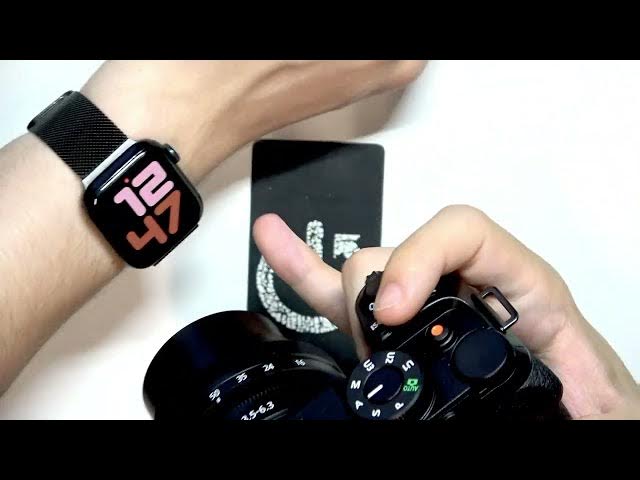
So, as you can see, the camera is right
0:13
here. And the first thing that you need
0:15
to do is, of course, turn it on by
0:17
switching this switch right here to the
0:19
right side. Now, it's already turned on.
0:22
Uh, and it doesn't really require you to
0:24
do to go through anything. Uh but let's
0:27
go to the menu because we should assign
0:29
adjust a few things um before we begin.
0:33
So the first thing that is mostly
0:36
important on cameras is going to the
0:38
settings right here. So once you go to
0:40
the menu, go down to the setup menu and
0:43
now go down until you find time zone and
0:46
date. But then you should set the time
0:49
and date so it's saved on the recordings
0:53
um in their metadata as well as maybe in
0:56
the file names. I'm not sure. Um but
1:00
yeah, it's useful. It's definitely
1:01
useful uh especially in metadata.
1:05
So uh yeah, let's go to the time zone.
1:07
Now we can set it. You can see it shows
1:10
the incorrect time. It's 2026 right now,
1:13
but um yeah, I'll set it to
1:18
I'm not really sure what the time zone
1:22
is in my place, but I'm pretty sure it
1:28
but it also changes, you know, with the
1:33
with the daylight savings.
1:36
But let's go to date and time and set it
1:38
there. So, first of the year, let's set
1:44
Then month, it's currently 6. Um, and
1:49
it's the first day of the month right
1:51
now. Now, the time it is uh 12. It's
1:56
current currently 12.
1:58
It's in military time. You can see I
2:01
don't know if it's a regional thing.
2:03
Maybe maybe in other regions it will not
2:06
be set to that. I'll also check the
2:08
seconds, you know. Um,
2:12
okay. Let's set it to like 45 and wait
2:17
until on my watch it shows um that it's
2:21
45 seconds. Then click on okay. And now
2:23
it's saved and the time is going. So, uh
2:26
yeah, you can change the date format
2:30
to year, month, day, month, day, year or
2:34
day, month, year. Um, then you can go to
2:38
daylight saving time and you can turn it
2:40
on or off. Uh, I'm I'll turn it on
2:43
because I do have daylight savings, but
2:49
If I turn it off, then if I turn it on,
2:52
I'm not I I don't really get it. Yeah,
2:55
but uh you you just check the time when
2:57
it's daylight saving you. You should
2:59
adjust it that probably. Um so this is
3:02
the the most important setting to set
3:05
after um you're there and besides that
3:09
everything is just working fine. Uh you
3:12
can um of course go uh like change the
3:15
language here um if you need it by going
3:18
to the setup menu going to the right
3:21
going to language. Uh now you can change
3:23
it. There are different ones. All right.
3:26
I leave it on English of course. Um
3:30
and um now uh the last thing that I
3:35
wanted to tell you is that when you're
3:37
starting to capture, make sure the
3:40
correct mode is set. Uh these are
3:42
different modes. Uh this one is photo
3:45
mode. So it's mainly for photos. Uh then
3:48
this one is user set one, user set two,
3:52
and user set three that you can
3:54
customize them in the settings. This is
3:58
This is an automatic mode.
4:02
This is I think like even more automatic
4:05
because it also adjust like you can see
4:08
here if I set it to auto it shows me the
4:11
aperture. I can I can technically set it
4:14
to something right. And if I set it to
4:18
S, it automatically adjusts the aperture
4:20
as well. Then P is also a different
4:23
mode. I'll probably explain it in
4:25
another video because I'm not yet sure
4:27
about all these modes. And I hope that
4:30
this video was helpful. Don't forget to
4:32
like and subscribe and I'll see you in