0:00
Hello! In this video I want to show you how to use all system gestures and motions on Honor X8
0:13
And to do this first we'll need to open our settings, then scroll down and find accessibility features
0:19
And right here we have shortcuts and gestures. First option is take a screenshot and there's many different features here
0:28
And let's start with this one, so knock twice the screen with knuckle to take a screenshot
0:35
Make sure to enable all of this right here. And the screenshot was just made
0:43
We can move to the next one. Partial screenshot. So if we draw O with our knuckle it should begin to make a partial screenshot
0:56
or actually you can draw a portion of the screen you want to make like that
1:02
Next feature is scroll shot. Knock S and draw S to take a scrolling screenshot
1:13
And enable it right here. Now again. But we need a page that is able to scroll down and this one doesn't have this feature so let's move on
1:28
Three fingers screenshot. Swipe three fingers down to take a screenshot. It should work like this
1:43
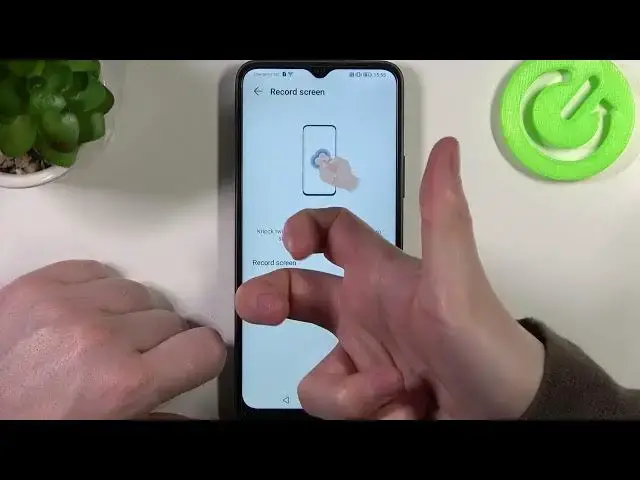
And that was the last screenshot. Let's go back and move to record screen
1:48
Here if you knock twice you'll be able to begin screen recording. Just like that and it begins automatically
1:54
You don't need to press start. Let's stop it for now. And move to wake screen
2:01
Here you can enable raise to wake and double tap to wake
2:05
And if you raise your device and it should turn on the screen
2:09
If you put it down it should turn it off. And another one is double tap to wake
2:14
And if we double tap in empty space it doesn't lock. But if we lock our phone and double tap it wakes up
2:26
Last is mute ringtone. And if you enable it you can flip your phone to mute incoming call
2:32
So place your phone upside down or when you're handling it then just put it down like that
2:39
And it should mute all incoming calls. And that's it for this video. Hope you like it
2:45
Please consider subscribing to our channel. Leave a like and a comment below