0:00
Hi everyone, in front of me I've got a
0:01
Motorola Edge 70 Pro and let me share
0:04
with you how to change the three-button
0:05
navigation to the gestures and gestures
0:07
to three-button navigation.
0:14
So, let's begin with opening the
0:16
settings and here we have to scroll down
0:19
and find this section gestures and tap
0:23
Now, let's simply tap on system
0:24
navigation and as you can see here we've
0:26
got our two options. So, if you prefer
0:28
to have three-button navigation, simply
0:30
tap on the three-button here and as you
0:33
can see your device will immediately
0:34
display them. You can decide whether you
0:36
want to use the circle to search, it's
0:38
up to you and tap on the settings icon
0:42
to change the button order so you can
0:43
reorder the back button and the recents
0:45
or you can hide the navigation bar so
0:49
here we've got the information that you
0:50
need to swipe down after long press to
0:52
hide the navigation bar. So, if you want
0:54
to use it, let me actually try it.
1:01
Oh, it kind of works. All right. So,
1:04
this is if you want to use this option,
1:07
you can do it here. I mean turn it on.
1:11
All right, and if you've got the
1:12
three-button navigation and you'd like
1:13
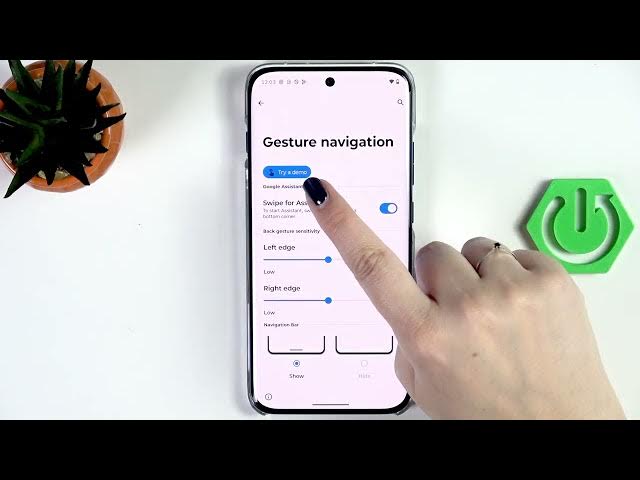
to set the gestures, just tap on the
1:15
gesture navigation, your device will
1:17
immediately show this line instead of
1:20
It is responsible for some actions, for
1:22
example, circle to search.
1:25
so basically it works just like the home
1:27
button, let's say in this case. Uh, we
1:30
can also open the settings. Here you can
1:32
go through a demo and learn how to use
1:34
the gestures. You can decide whether you
1:36
want to swipe for assistant. Here we've
1:38
got the back back gesture sensitivity
1:40
and to be honest, I highly recommend to
1:42
get back to this option after a while of
1:44
using the gestures so you will be able
1:46
to decide whether you need the
1:47
sensitivity to be higher or lower. It
1:49
depends what whether your using case. It
1:51
depends whether you want to avoid
1:53
unintended gestures, etc. Uh, here you
1:56
can also decide whether you want to show
1:58
or hide navigation bar. However, this
2:00
option is inactive big because the
2:02
circle to search is turned on. So, if
2:04
you don't don't really use this option,
2:07
you can then hide this line. And I think
2:10
I will do it. All right. So, now a quick
2:12
tutorial of how to use the gestures. So,
2:14
if you'd like to get back to the
2:15
previous page just like by using the
2:17
back button, you have to swipe your
2:18
finger from the side to the center. And
2:20
if you can see this arrow, you can
2:22
release the finger. And the same
2:23
situation from the right side. Again,
2:26
we've got the arrow so we can release
2:27
the finger. So, it's really really
2:28
convenient. If you'd like to get it back
2:31
directly to the home page, all you need
2:33
to do is to swipe your finger from the
2:34
bottom to the center. And make sure that
2:37
this motion is quick and short. So,
2:40
And if you'd like to open the recents,
2:42
repeat the gesture. So, from the bottom
2:44
to the center, but hold your finger
2:45
somewhere here. Like that. And here
2:47
we've got the recents. Moreover, there
2:49
is also an option to quickly change
2:52
between the apps without the need to
2:53
open the recents, swiping it, etc. All
2:56
you need to do is to swipe your finger
2:57
from the left to the right at the
3:00
Like that. And as you can see, I'm
3:06
All right. So, that will be all. Thank
3:07
you so much for watching. Please hit the
3:09
subscribe button and leave the thumbs