0:00
Hi everyone. In front of me I've got
0:01
Xiaomi 17T, and let me share with you
0:04
how to change the ringtone on this
0:11
So, let's begin with opening the
0:13
settings. And here we need to scroll and
0:16
find a sound and vibration.
0:19
Now, let's tap on this ringtone section.
0:22
And as you can see, we will be
0:23
immediately transferred to this ringtone
0:25
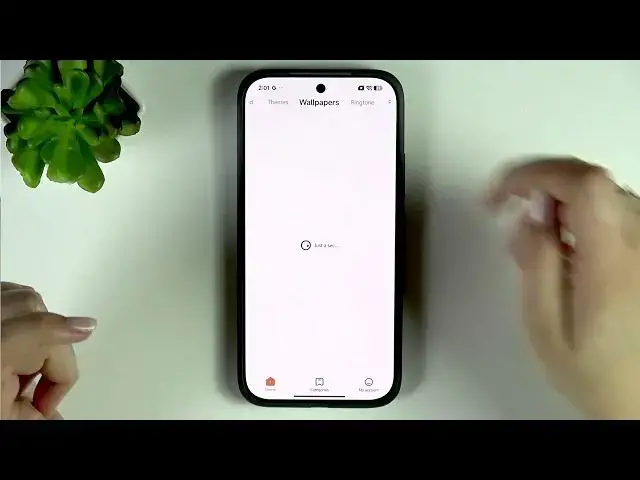
section in themes. So,
0:28
make sure that you've got the internet
0:29
connection to be able to actually check
0:34
ringtones that from which you can
0:37
But, if you want to, you can also choose
0:40
something from local ringtone and
0:42
pre-installed ringtones. So, you do not
0:43
really need to use the online ringtone.
0:46
If you will tap on choose local
0:47
ringtone, your device will show you the
0:51
the sections like, for example, your
0:54
files, your recorder, music, etc. So, if
0:58
you've got something recorded or
0:59
downloaded, it should appear somewhere
1:01
here, and you should be able to apply it
1:03
as your ringtone. And if you prefer
1:05
pre-installed ringtones, just tap on
1:07
this section here. Go to ringtone, and
1:09
here you've got pre-installed ringtones.
1:12
If you want to listen how the particular
1:13
ringtone sounds, you need to tap on it,
1:15
and your device will immediately apply
1:17
it. So, be aware about that. You do not
1:19
need to confirm anything. It will
1:21
immediately set the ringtone as your
1:24
So, for example, I've got this ice latte
1:27
All right. So, this is one way um
1:32
the ringtone [clears throat] that is
1:33
pre-installed. And now I'd like to share
1:35
with you how to use the ringtone that is
1:38
So, here you've got different
1:39
categories. For example, you can tap on
1:41
it. And as you can see, we've got alarm,
1:42
chill, club, dance, electronic, fashion,
1:45
etc. So, let me go maybe to this one.
1:49
Just choose the category. And as you can
1:51
see, within each category you've got
1:53
plenty of options to choose from. Really
1:54
a lot of things to do
1:56
to do, to check, etc.
1:59
It's quite overwhelming to be to be
2:02
All right, and all you need to do to
2:03
listen how the particular ringtone
2:08
Oh my god, that was really loud. You
2:11
need to tap on it and then decide
2:13
whether you like it or not.
2:15
So, let's pretend I'd like to set this
2:17
one as my ringtone. So, all we need to
2:20
do is to tap on this bell icon next to
2:22
it. Now, select where we want to apply
2:24
it. So, I'll apply ringtone. Your device
2:26
will download it and as you can see,
2:28
we've got this information that it was
2:29
applied successfully. We can check it.
2:32
Let's simply go back to the settings and
2:34
as you can see, in our ringtone section,
2:37
oh my god, let me go back. In our
2:39
ringtone section, we've got the name of
2:40
the ringtone that we've just set and it
2:42
means that from now on our device will
2:44
simply use it whilst informing us about
2:49
All right, so that will be all. Thank
2:50
you so much for watching. Please hit the
2:52
subscribe button and leave the thumbs