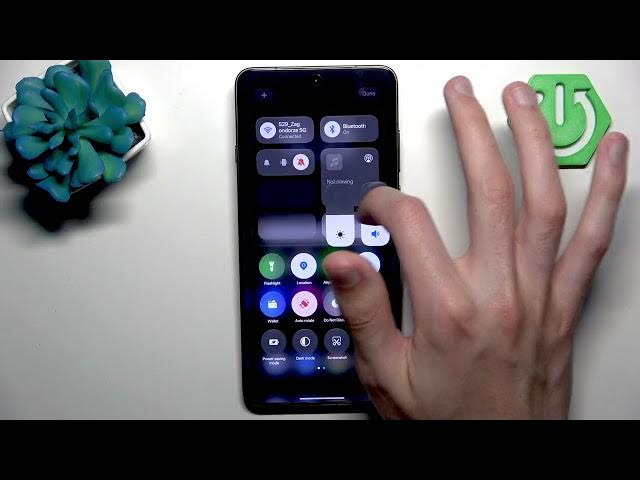

OPPO Find X9 Ultra - How to Customize Quick Settings Panel
Jun 14, 2026

In this video I show how to customize the Quick Settings Panel on the OPPO Find X9 Ultra. You will learn how to open the Quick Settings, enter Edit Mode, reorder tiles, remove toggles you don't use, add hidden tiles (Motion Cues, Live Caption, High Performance and more) and save your new layout. This guide uses the ColorOS Quick Settings on the Find X9 Ultra and is ideal for new users or anyone who wants faster access to the features they use most. Follow along and make your Quick Settings work for you.
How to customize Quick Settings Panel on OPPO Find X9 Ultra?
How to add or remove tiles on OPPO Find X9 Ultra Quick Settings Panel?
Where is Edit Mode in OPPO Find X9 Ultra Quick Settings?
0:00 Intro
0:09 Open Quick Settings (swipe down)
0:22 Tap the pencil icon to enter Edit Mode
0:35 How to reorder tiles (press and hold)
0:47 How to remove tiles (tap minus)
1:32 How to add tiles back (tap plus)
1:59 Example extra tiles (Motion Cues, Camera Permission, Live Caption, High Performance)
2:16 Save changes - tap Done
2:27 Outro / Subscribe
#OPPOFindX9Ultra #QuickSettings #AndroidTips #OPPO
Find out more:
https://www.hardreset.info/devices/oppo/oppo-find-x9-ultra/
Show More Show Less #Science