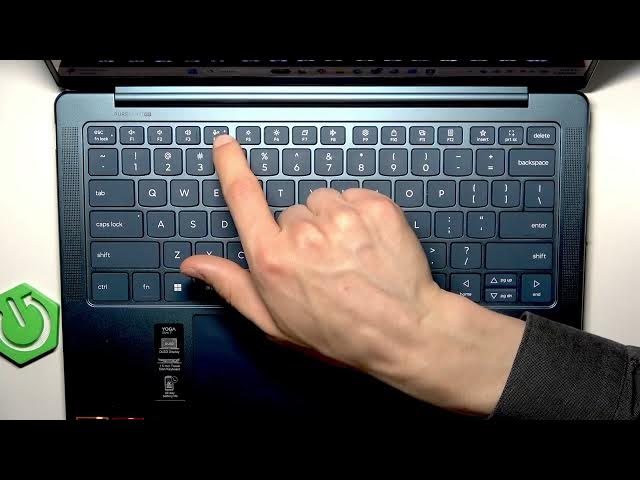

LENOVO Yoga Slim 7 – How to Use Function Keys
Jun 7, 2026

In this short video I show how to use the Function Keys on your LENOVO Yoga Slim 7 keyboard. You will learn where the F1–F12 keys live, the difference between primary Function Keys and the secondary Action Keys, how to enable or disable Fn lock, and exactly what each Action Key does — sound controls, brightness, airplane mode, Lenovo Connect, calculator, screenshot and more. This guide is perfect if you want faster navigation, better keyboard control, or to fix Fn key behavior on your Yoga Slim 7.
How to use Function Keys on LENOVO Yoga Slim 7?
How to enable Fn lock on LENOVO Yoga Slim 7?
How to take a screenshot with Function Keys on LENOVO Yoga Slim 7?
0:00 Intro – What this video covers
0:05 Where the Function Keys are on the Yoga Slim 7 keyboard
0:18 Primary Function Keys vs Action Keys explained
0:58 Common primary F-key uses (F1, F5, F11, F12)
1:16 How to toggle Fn Lock and switch modes
1:28 Sound controls with Action Keys (F1–F4)
2:01 Brightness, projection and airplane mode (F5–F8)
2:24 System settings, lock, Lenovo Connect, calculator (F9–F12)
2:52 Insert and Print Screen – take screenshots and customize
3:00 Outro – Tips and subscribe request
#Lenovo #YogaSlim7 #FunctionKeys #KeyboardShortcuts
Find out more:
Show More Show Less #Science