Up next in 10


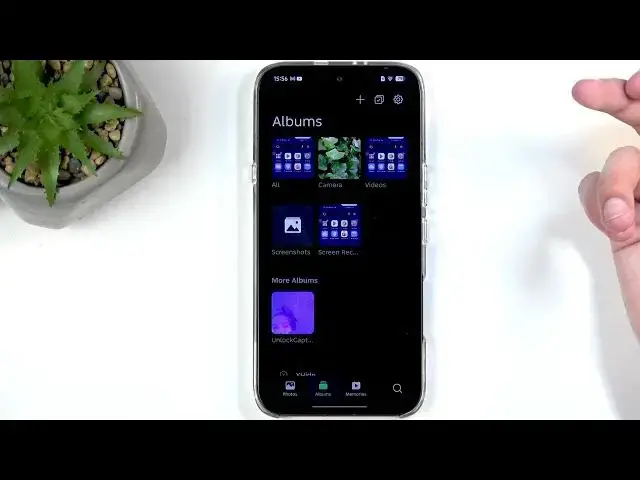
This video shows how to record the screen on the INFINIX Note 60. I walk you step-by-step through opening Quick Settings, adding the Screen Recorder toggle, and adjusting recording options like resolution and frame rate. You’ll learn how to enable touch effects, Do Not Disturb, and record microphone or device sound (and why using headphones can prevent echo). I also explain where to find your saved screen recordings and why some apps like Netflix block screen capture, plus a browser workaround and legal notes.
How to record screen on INFINIX Note 60?
How to change screen recording settings on INFINIX Note 60?
How to record internal audio on INFINIX Note 60?
0:00 Introduction - What we’ll cover
0:10 Open Quick Settings and locate the Screen Recorder toggle
0:33 Add the Screen Recorder toggle and access settings
1:03 Change resolution and frame rate (2K, 60fps recommended)
1:42 Enable touch effects, Do Not Disturb, and audio options
2:40 Start and stop recording - where to find your files (Albums → Videos/Screen recordings)
4:25 Why some apps (Netflix, banking) block screenshots and recordings
7:12 Browser workaround and search tips to view content that allows recording
10:07 Legal notes on fair use, subscriptions, and piracy
11:50 Outro and call to action
#Infinix #InfinixNote60 #ScreenRecording #AndroidTips
Find out more:
Show More Show Less View Video Transcript
0:01
Welcome. In front of me, I have the
0:03
Infinex Note 60 and today I will show
0:06
you how you can record screen on this
0:09
device.
0:16
So, to get started, you will first want
0:20
to swipe down from the top of your
0:22
screen. Now, make sure you do it from
0:23
the right side as that's where our
0:25
toggles are. And somewhere in here, we
0:27
should hopefully have our screen
0:29
recorder. I believe it's this toggle
0:31
right here, a little camera. Now, if you
0:34
can find this anywhere, you can actually
0:35
click right here on this icon
0:39
and scroll down and you will find all
0:41
the uh toggles that you can add in
0:43
addition to the ones that we already had
0:45
added. So, from here, you can look for
0:48
your screen recorder. Let's see if I was
0:49
actually correct. Yep, Screen recorder.
0:51
As you can see, we have labels in here.
0:53
So, makes a little bit easier to figure
0:55
out what the hell is what. So, anyway,
0:58
uh from here, when you have the toggle
1:00
added, I recommend holding it the first
1:02
time, and this will quickly take you to
1:04
the settings or you can first thing do
1:07
is change the resolution. If it's not
1:09
set to at least 1080p, do change it to
1:12
that or to uh 2K if you want to. I'll
1:15
choose 2K just for the uh better image
1:18
quality. Now there is no bit rate. So it
1:21
seems like it's just intrinsically
1:24
assigned to the resolution. So kind of
1:27
one option less to mess around with. We
1:30
also have frame rate right here. And we
1:32
have 24. Believe it or not, it's not
1:34
cinematic. So we're going to be changing
1:35
it to 60. And we have some other options
1:39
that can add. So show top uh effect. So
1:42
this will record a semi-transparent
1:44
grade gray out whenever your finger was
1:46
touching the display. It's just showing
1:49
it exactly where your finger was
1:50
pressing it. So on the recording it's
1:52
visible. Now we also have do not disturb
1:55
mode that would automatically get
1:57
enabled if you toggle this on when you
1:59
are recording.
2:01
And uh furthermore we have record
2:03
microphone sound and device sound. Now
2:06
you can record both of them at the same
2:07
time but I would recommend using
2:09
headphones for that because when the
2:12
system sound is being recorded it will
2:13
be recorded internally then it's going
2:15
to get played through the speakers after
2:17
it's already been recorded at which
2:19
point microphone might pick it up the
2:21
second time which would create an
2:23
unwanted echo effect while using
2:25
headphones would basically prevent that
2:27
from happening or we can just maybe mute
2:29
the sound al together here and it still
2:32
will will be recorded I believe
2:35
Anyway, so once everything is set up, we
2:37
can just close this and we don't ever
2:38
have to go back there again. And let's
2:40
just find the title once more and this
2:41
time around we're going to tap on it.
2:43
You can see it automatically begins
2:45
recording. So whatever you'll do right
2:47
now for the most part will be recorded.
2:49
So I'm going to open up something like a
2:50
calendar right here. Yes. So I can just
2:52
mess around
2:56
and also
2:58
let's open up something that probably is
3:01
here. Yeah. No, apparently no. Okay.
3:06
So, I guess I can show something that I
3:08
believe it normally I think is installed
3:10
here, but I could be wrong. So, anyway,
3:13
I'm going to stop the recording now by
3:15
interacting with this right here and
3:17
clicking on the square. Now, what I was
3:19
looking for is actually Netflix for
3:21
reasons that I will go into in a moment.
3:22
But first, let's open up that screen
3:25
recording that we have captured. Now you
3:27
can open up your screen recording
3:28
through either photos application from
3:30
Google or uh through the
3:34
AI gallery. What's so AI about it? It's
3:38
a freaking gallery only. Anyway, so in
3:41
here you will be able to see your screen
3:43
uh recordings in the main photos tab.
3:46
Apparently not enough AI to to know that
3:49
this isn't a photo,
3:52
but whatever, I guess. Uh but what I
3:55
actually recommend doing instead of
3:56
going into the photo stops is actually
3:57
getting used to navigating to the
3:59
albums. And in here you'll find album
4:01
called either videos or screen
4:03
recordings. Both of them have it. So
4:05
here you can see here's a screen
4:07
recording
4:08
and it's already playing.
4:12
Now, um, the reason why I wanted to open
4:15
up Netflix specifically was for a
4:18
demonstration of something that any kind
4:21
of phone like this Android phone or even
4:23
a iOS one will come with, which is the
4:26
ability for applications to block screen
4:28
recordings and also screenshots. They
4:30
both operate in the same exact way. Uh,
4:33
so they applications when they're being
4:36
created have the option to just prevent
4:37
that from being used when that said
4:39
application is open. This is done to
4:41
protect the privacy and security of the
4:43
user. And as an example, if you are
4:45
opening up your bank application, which
4:47
also blocks this uh and uh you may or
4:52
may or may not have some kind of malware
4:53
on your device that is trying to use
4:55
screenshots or screen recordings to see
4:57
what kind of pins or passwords you enter
4:59
when accessing your bank application.
5:00
You can imagine how that would be very
5:02
detrimental to the security of your
5:05
bank. So therefore, banks do block it,
5:07
which is good. And typically you would
5:09
want to capture something in a bank that
5:12
is akin to a confirmation of a payment
5:14
which banks luckily if we go into
5:17
something like gallery as an example
5:19
right here. uh bank applications. When
5:20
you open up your uh transfer that you
5:23
want to capture, typically give you like
5:25
these three dots somewhere where you can
5:26
click on it and from there you can
5:28
select an option that would say
5:29
something along the lines of download
5:30
confirmation or download PDF file or
5:33
something like that. That would
5:34
basically uh download a file that is a
5:37
confirmation of that payment. So you
5:38
don't need to take a screenshot or
5:40
record screen for that. You can just
5:41
literally have the application create a
5:43
document for that purpose.
5:47
Now, uh, the reason why I want to open
5:49
up Netflix is because Netflix does the
5:51
same exact thing. Every streaming
5:52
platform and that does movies and shows
5:54
will also block this for not your
5:57
privacy and security. Even though it's
5:58
your device, it's going to be blocking
6:00
it for its own privacy and security.
6:03
Uh, and you might be wondering, why the
6:06
would I allow anything to be using my
6:10
hard-earned money to protect something
6:12
that I couldn't give up class? and you
6:14
would be absolutely correct to ask this
6:16
question. Now, I have massive problem
6:18
with this and I'll be showing you how we
6:20
can potentially circumvent this
6:22
because I have never consented to this.
6:25
Uh, most of the time Netflix as an
6:27
example as the most prominent
6:29
application comes pre-installed with a
6:31
lot of devices because Netflix just does
6:33
deals with these brands, right? Like
6:35
Samsung's or other ones. So, when an
6:38
application like Netflix comes
6:39
pre-installed, I have never downloaded
6:41
it. when opened, I have never given it
6:45
any permission to do anything. It did
6:47
never asked me to to allow anything and
6:50
I never owned
6:52
a Netflix account. Therefore, I have
6:53
never agreed to terms of service or use.
6:55
So, I see no reason, zero whatsoever,
6:58
for an application to have the ability
7:00
to change how my device works
7:01
whatsoever. It never asked for this. It
7:04
never even stated that we'll be doing
7:06
this uh beforehand, and it never asked
7:09
for uh the ability to be given it to it.
7:13
So, for this reason, we're going to be
7:15
opening a browser because I want to show
7:16
you how we can circumvent this. Now,
7:19
Netflix and every other streaming
7:20
platform blocks it for piracy reasons.
7:22
Believe it or not, capturing a
7:24
screenshot or recording a screen of an
7:25
application isn't automatically piracy.
7:28
It's what you do with that that could be
7:30
considered as piracy. So, they're
7:32
basically trying to prevent you from
7:33
being able to utilize fair use, which we
7:36
have for a reason. Um, by automatically
7:40
considering you as a filthy criminal
7:42
that will be pirating their content and
7:44
distributing it. Uh, yeah, that's not
7:48
everyone. That's probably very small
7:50
percentage. And I find it absolutely
7:52
annoying that a company automatically
7:54
treats you as though you're the goddamn
7:56
thief of their content just because you
7:59
might want to capture a screenshot,
8:00
which you're goddamn right to do so. So,
8:03
for this purpose, we're going to
8:04
actually be showing you how you can find
8:05
this content outside of their platform
8:07
for free.
8:09
I mean, they didn't give me any other
8:10
choice. So, um, what I'm about to search
8:14
for is going to be Preamov alternatives.
8:17
And for people that are wondering what
8:18
the hell that is, it it used to be a
8:20
site that I was showing as basically
8:22
alternative to Netflix, uh, but that
8:24
site no longer works, but the
8:26
information behind it still exists. And
8:27
you can do search like that or any other
8:29
search along the lines of, for instance,
8:31
free alternatives to Netflix or some
8:33
other streaming platform, and it should
8:35
all be good. So,
8:45
there we go. Now, I do want to point out
8:48
one important thing. I do recommend
8:50
using Google search for this specific
8:52
inquiry as Google search gives you
8:54
results from Reddit, which is what we're
8:56
looking for. You most certainly don't
8:58
care about this crap right here. This
8:59
can go screw itself. Uh we care about
9:01
this and other search uh engines might
9:04
not give you any kind of Reddit results,
9:06
which is what we're primarily interested
9:08
in.
9:10
And depending on what you searched for,
9:12
what the search term was, you might find
9:14
different
9:16
uh different results for this. Usually,
9:18
it's going to be r/ piracy, though, keep
9:20
in mind that is not exactly piracy what
9:22
we're about to do. Um, so you have
9:26
couple things that I can visit right
9:28
here. Uh, I don't know if any of them
9:29
works to be honest. I know that the
9:31
first one doesn't and I wouldn't
9:32
recommend using anything that is called
9:34
ether
9:36
uh or any ether uh versions of this
9:39
because uh these conniving cons have the
9:42
audacity to not only distribute it
9:44
pirated content but then give you
9:46
obnoxious odds anytime you click on a
9:48
display
9:50
you can find better. Um so in any case
9:55
uh you can utilize any of these um and
9:57
because any content that you would be
9:59
opening up through these sites is going
10:01
to be viewed on the browser. Browser
10:04
does not block screenshots or screen
10:05
recordings. Whatever the content will be
10:08
opened on it cannot change that. So you
10:10
can then capture your screenshot or
10:12
screen recording freely. I do also want
10:14
to talk about legality of this um just
10:17
as far as I understand it. So, if you
10:20
own a Netflix subscription as an
10:21
example, we're not limited to this, but
10:23
we're going to be using that as an
10:24
example for this purpose. So, let's say
10:26
you own a Netflix subscription and you
10:28
want to capture a screenshot or record
10:30
just a portion of, for instance,
10:31
Stranger Things, which is a Netflix
10:33
exclusive, right?
10:35
If you own that subscription, you can go
10:37
here and view this content and capture
10:40
it and you will be perfectly in your
10:43
legal right to do so. As as far as I'm
10:45
aware, I'm not a lawyer though, keep
10:47
that in mind. Um, distributing that
10:50
content, meaning sending it to your
10:51
friends uh and whoever else is also
10:55
potentially fine if it's under 30
10:57
seconds, which would be covered by fair
10:59
use. Anything above that uh could be
11:01
then uh subject to copyright claims.
11:05
So, that's one. Now, if you were to open
11:07
up any content here on any of these
11:09
sites without owning an active
11:12
subscription for uh for whatever you
11:15
would be viewing, this would be legally
11:18
considering a
11:21
piracy uh piracy basically. So, piracy
11:24
isn't distributing at least not only it
11:27
can also be viewing copyrighted content
11:30
without
11:31
well without actually paying for it in a
11:33
way, right? So just be aware of that.
11:36
Technically I I have the approach to it.
11:38
Uh if buying is an owning then piracy
11:40
isn't stealing, but that's just me. Uh
11:43
so I do want to make you aware of this
11:45
just in case. So anyway, with that being
11:48
said, I hope you found this video
11:50
helpful and if you did, don't forget to
11:52
hit like, subscribe, and thanks for
11:54
watching.
#Science