0:01
Hello everyone and welcome back to our
0:03
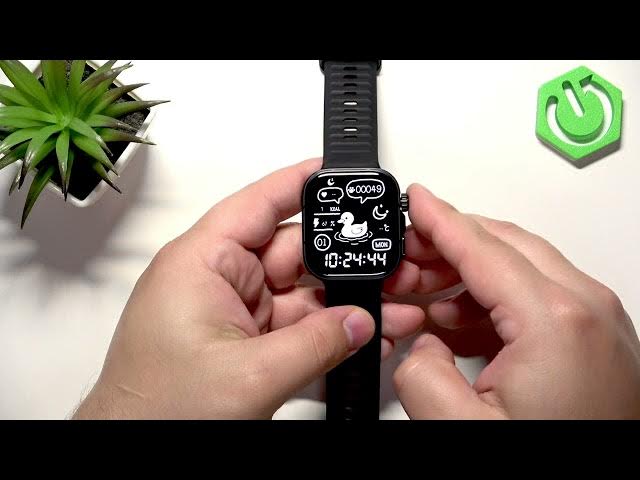
channel. In front of me I have uh Huawei
0:06
Watchfit 5 Pro and today I'm going to
0:08
show you few hidden tricks on this
0:11
watch. So let's get started.
0:18
First thing I want to show you is the
0:20
button shortcut. And by default it
0:22
basically opens the workout menu if you
0:25
press it once. the lower button. I
0:28
already changed it to something else.
0:30
And the double press opens the payment
0:32
application, but you need to have a
0:34
payment application installed on your
0:36
watch. And to change the shortcut, you
0:38
go to the settings. So, open the menu,
0:40
tap on settings icon, find the down
0:43
button. And here you have press once and
0:46
press twice. Press once can be assigned
0:48
to a lot of things as you can see or we
0:52
can assign a lot of things to press
0:53
once. uh and we have like whole list and
0:57
like like I mentioned before workout is
0:59
by default assigned uh option. So if you
1:03
don't have anything changed and you
1:05
press the lower button once it will open
1:07
the workout menu but you can change it
1:08
to something you like. For example, you
1:10
can open music menu. So if you press the
1:13
button once on the watch face, it will
1:15
open the music menu. Uh and the press
1:18
twice, you can't really change it. You
1:20
can just change the payment application
1:22
right here. So if you have any payment
1:24
applications installed, you can choose
1:26
between them and then the press twice
1:28
will open your favorite payment
1:30
application and you can use your watch
1:32
to pay uh wirelessly.
1:35
Another uh thing I want to show you is
1:37
the option to lock the touchcreen on
1:40
your watch and that could be useful in
1:41
cases like if you want to swim with your
1:43
watch on or take a shower with your
1:45
watch on on your wrist. Basically, uh it
1:48
will lock the touchcreen and it's very
1:50
useful when it comes to water because
1:52
water is conductive. So, it will make
1:54
your touchcreen go haywire and if you if
1:57
you just lock it, it won't affect it.
1:59
And to lock the touchcreen, you open the
2:01
quick panel by swiping down on the top
2:03
of the from the top of the screen. Then
2:05
swipe down like this to open whole
2:08
panel. And here we have lock screen. You
2:10
can tap on it. And now the touch screen
2:12
is locked. So nothing will happen if you
2:14
touch the screen. So you can take a
2:16
shower with your watch on the on your
2:17
wrist or you can take a swim with with
2:19
your watch and it won't be affected. And
2:22
once you're done and you want to unlock
2:24
the screen, you simply rotate the crown
2:26
button like this and the screen will be
2:30
And another water based trick is the
2:33
drain water from your speaker. So if you
2:36
manage to get your watch wet, I it's
2:40
recommended to basically drain the water
2:42
from the speaker right here. And to do
2:44
it, you can open the quick panel. And
2:46
here we have the drain icon. You can tap
2:50
It will start playing a sound uh from
2:53
your speaker on your watch. And it will
2:55
help taking off the water uh from the
2:58
speaker. You can also tilt it and shake
3:01
it to help it drain a bit better or
3:04
faster. Uh another thing I want to show
3:06
you is the uh palm to turn off the
3:09
screen. Usually uh the screen will turn
3:11
off automatically on your watch after
3:13
some period of time. But let's say you
3:14
just want to check something quickly and
3:16
then immediately turn off the screen.
3:18
You can do that. You simply grab uh not
3:20
grab but you simply wake up the screen,
3:22
do something and then if you want to
3:23
turn off the screen, you press the palm
3:25
of your hand on the screen and it will
3:27
turn off immediately. It's quite neat
3:29
when you're in some places you don't
3:30
want to disturb anybody or stuff like
3:33
that, you can just quickly check
3:34
something and then immediately uh turn
3:36
off the screen. And the last thing I
3:38
want to show you is the flashlight. It's
3:44
useful. I mean, it is useful in some
3:46
cases, but there's not many uh cases
3:50
that you could use it. Basically, dark
3:55
spots. Uh usually your phone's
3:57
flashlight will be a lot better than the
3:59
watch flashlight, but let's say you
4:00
don't have a phone. You're in the dark
4:02
area. You need some kind of light. You
4:04
can always turn on the flashlight. And
4:05
to do it, you wake up the screen, swipe
4:07
down from the top of the screen, and
4:08
here we have the flashlight icon. You
4:10
can tap on it, and right here, you can
4:13
increase or decrease the brightness of
4:14
the flashlight by using the crown
4:16
button. And actually, it gets quite
4:18
bright even though it's just the screen
4:20
uh glowing. So, uh it's not as bright as
4:24
some of the flashlights on other watches
4:26
that are basically physical flashlights,
4:28
but this one is quite bright. When it
4:30
comes to skin flashlight, it's quite
4:32
bright. And you can also customize it.
4:36
You can swipe up on the home screen or
4:38
on on the flashlight flashlight screen.
4:40
And here you can change the color. So
4:41
you can adjust the color to your liking
4:44
which is quite neat. And you can also uh
4:47
turn on the flash mode. So you can
4:48
basically make it flash slow or fast.
4:56
And that's about it. And if you found
4:59
this video any helpful, please consider
5:01
subscribing to our channel and leaving a
5:03
like on the video. Thank you for
5:04
watching and see you in the next one.