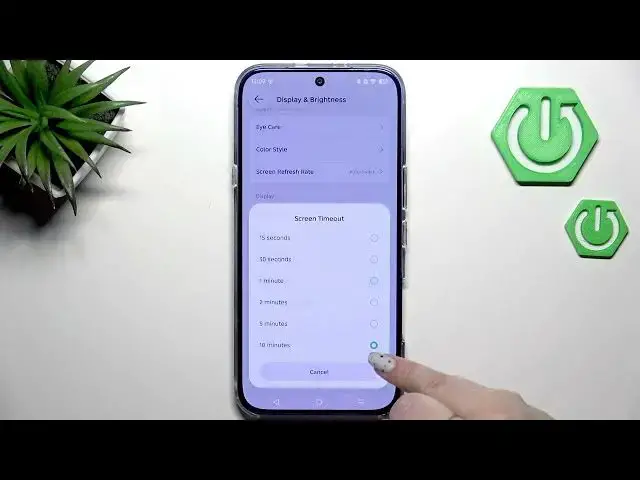

INFINIX Note 60 Pro – How to Change Screen Timeout
Jun 30, 2026

In this short and clear video you will learn how to change the screen timeout on the INFINIX Note 60 Pro. We walk through the exact steps: open Settings, go to Display & Brightness, find Screen Timeout and pick the time you want (short options up top or up to 10 minutes at the bottom). This quick tweak helps you save battery by shortening the screen sleep time or keep the display on longer when you need it. The steps shown work on the INFINIX Note 60 Pro running standard Android settings and are perfect for new owners or anyone adjusting screen sleep behavior.
How to change screen timeout on INFINIX Note 60 Pro?
How to set Screen Timeout on INFINIX Note 60 Pro Display & Brightness?
Where is Screen Timeout in INFINIX Note 60 Pro settings?
0:00 Intro
0:06 Open Settings and find Display & Brightness
0:18 Scroll to Screen Timeout
0:24 Choose the timeout length (short options to 10 minutes)
0:40 Confirm change and what it means (screen will turn off after selected time)
#Infinix #InfinixNote60Pro #ScreenTimeout #AndroidTips
Find out more:
https://www.hardreset.info/devices/infinix/infinix-note-60-pro/screen-timeout/
Follow us on Instagram ► https://www.instagram.com/hardreset.info
Like us on Facebook ► https://www.facebook.com/hardresetinfo/
Tweet us on Twitter ► https://twitter.com/HardResetI
Show More Show Less #Science