Up next in 10


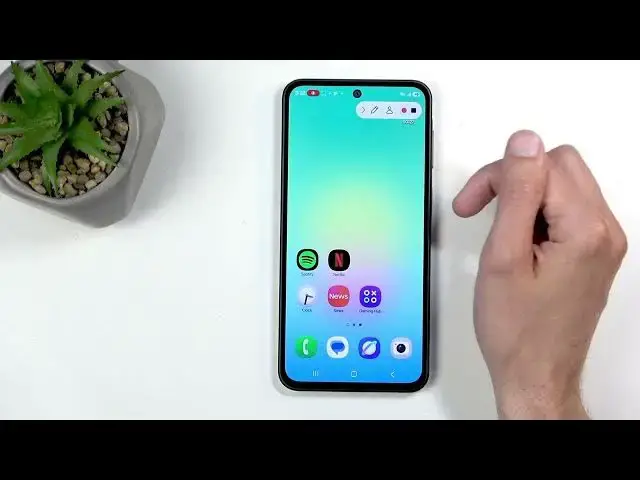
Learn how to record the screen on your SAMSUNG Galaxy A27 step by step. In this video we show how to open Quick Settings, add the Screen recorder toggle, customize recording quality, audio source, selfie overlay and touch indicators, then start a full or partial screen recording. You’ll also get tips to avoid echo (use headphones or lower volume), where to find saved recordings in Gallery, and what apps may block screen capture like Netflix.
How to record screen on SAMSUNG Galaxy A27?
How to enable the Screen recorder toggle on SAMSUNG Galaxy A27?
How to find Screen Recordings on SAMSUNG Galaxy A27?
0:00 Intro - What we’ll cover
0:10 Open Quick Settings (swipe down)
0:29 Expand toggles and locate Screen recorder
0:41 Add or rearrange the Screen recorder toggle
0:46 Screen recorder settings: quality, audio, selfie & touches
3:50 Start recording: full screen or partial area and countdown
4:17 In-record controls: selfie overlay, move, pause & resume
6:00 Where to find recordings in Gallery (Screen Recordings album)
7:02 Apps that block recording (Netflix, banks) and browser workaround + legality notes
13:19 Outro & final tips
#Samsung #GalaxyA27 #ScreenRecording #AndroidTips
Find out more:
Show More Show Less View Video Transcript
0:01
Welcome. In front of me, I have the
0:03
Samsung Galaxy A27
0:06
and today I'll show you how can record
0:09
screen on this device.
0:18
So to get started, you will want to
0:20
swipe down from the top of your screen.
0:23
Now here, let me just check. Yep, it
0:25
doesn't matter. We'll need to do it from
0:26
the top right side which gives us the
0:28
toggles. And in this section, you want
0:30
to swipe down again, which will extend
0:33
the list of toggles and also show you
0:36
the labels for them and also hopefully
0:38
reveal the screen recorder toggle. If
0:41
you don't see it in this list, you can
0:42
actually add it by clicking on the
0:44
pencil. And due to some changes with the
0:47
one UI, uh we get to click on the edit
0:50
now.
0:51
All right. No, my the hell was it? All
0:55
right, it's not on the edit. Sorry. Like
0:57
I said, it changes. I'm still getting
0:59
confused by this. Going to click on this
1:01
one. Add a control.
1:03
And from here, you'll be able to find
1:05
your screen recorder. It's right here
1:07
for me. As you can see, it is grayed out
1:09
because uh it's already added.
1:12
Now, typically, when you add your uh
1:15
toggle, I just I'm going to use the
1:17
screenshot as an example. it will get
1:18
added to the bottom of the list instead
1:20
of where it's supposed to be, which is
1:22
right here. So, you can now grab it.
1:25
There we go. Grab it, drag it above, and
1:28
drop it here. So, you need to do extra
1:30
steps because apparently Samsung decided
1:34
uh that's usually not where you would
1:36
want your toggles to be. Anyway, let's
1:38
click on done. And you can see it's now
1:40
added to this list. So, uh from here,
1:43
first time around, hold the screen
1:45
recording toggle. This will quickly take
1:46
you to the settings where you will be
1:48
able to customize uh some of the
1:49
options. So, for instance, right here we
1:51
have video quality which is set to 1080p
1:53
which is the highest one and that that's
1:54
good. I recommend keeping it at that and
1:57
changing it to 1080p if it's not
1:59
already. Uh
2:02
audio to record.
2:04
We have media non media and mic. Uh, for
2:07
some reason, I guess Samsung considers
2:09
that uh there is no conceivable idea
2:11
that you might just want to record mic
2:14
without the audio. If you're that
2:16
person, I well, sorry, you can't really
2:20
do much. Uh, now, uh, I do want to
2:24
quickly just give a little bit of info
2:26
for this. If you're planning to record
2:28
media and mic, I would recommend using
2:31
some kind of headphones because what
2:33
might happen is the media sound that the
2:36
phone would play back is going to be
2:38
recorded by the screen recording
2:40
internally through software and then
2:43
that sound is going to get played
2:44
through the speakers at which point
2:46
microphone which is like speaker is
2:48
here, microphone is here might pick it
2:51
up the second time around creating an
2:52
unwanted echo effect on that recording.
2:55
So using headphones or maybe just
2:57
turning down the volume on on your phone
3:00
would solve that problem. Uh now
3:03
scrolling further down, we have uh
3:05
selfie video size. This circle right
3:07
here is going to be the actual size on
3:09
your screen if you choose to enable your
3:11
uh front-facing camera for that uh
3:14
screen recording which it will be a
3:16
visible toggle in overlay.
3:19
And uh we also have show tops and
3:21
touches which will record a
3:23
semi-transparent gray dot wherever your
3:25
finger was interacting with the display.
3:27
I'll turn that on just so you can see
3:28
how that looks like. And that's really
3:31
everything that there is. As you can
3:32
also see, there was no options for uh
3:35
things like frame rates and so on. So
3:37
this is technically all we have once you
3:40
set it all up. There's nothing to click
3:43
save on or anything like that. It's
3:44
automatically changed. So we can just
3:45
close this. Find the toggle once more
3:48
and tap on it this time around.
3:51
It will give you this popup. So area to
3:54
record. We have full screen or partial
3:56
screen. So you could just kind of like
3:57
crop where you want to record it. Uh and
4:00
you also have again the options for
4:02
recording sound which right now it's
4:04
media and also tops are enabled. So I'm
4:06
going to now start recording. So begins
4:08
at 3 second which come down with track
4:09
in skip and I can now do whatever I want
4:13
I want to record. And I have some
4:15
toggles here to utilize as well.
4:21
Here the self selfie. There we go.
4:26
Oh, and you can also
4:29
move this around.
4:36
Now you also have the option to pause,
4:40
resume,
4:42
and uh
4:44
because Samsung has so gracefully uh
4:48
done deals with Netflix, uh I'm going to
4:51
use this as a as an example because it
4:53
is going to be great one. But first,
4:55
let's start off with something that is
4:56
going to be a good example of screen
4:58
recorder.
5:02
What the hell do I want to use?
5:06
Whatever. Screw it. Facebook
5:09
update. Wow. Okay, that wasn't a great
5:11
option. Instagram. Nope. I need to
5:13
update it, too. Fantastic. Can I use
5:15
something without updating it?
5:16
Calculator. Look at that. I can use
5:18
calculator. So, anyway,
5:21
uh that's one option. And I also want to
5:23
put this up. By the way, this phone has
5:25
been just set up and this is the first
5:26
time it's being turned on like this
5:29
application. Anyway, let's just try that
5:31
again. We are connected to network. You
5:33
can see right here. And I am not signed
5:36
in to the Netflix account. I don't even
5:40
own a Netflix account, nor have I ever
5:42
actually owned one. Uh, the application
5:45
itself didn't bring up any kind of
5:46
pop-ups to allow anything like you
5:47
usually get. Some annoying Um,
5:50
so this is the first time it's being
5:52
opened. And
5:55
let's close this up.
5:58
And we can now stop the recording. Now,
6:00
I did deliberately open up this
6:02
application for a showcase of something
6:04
that I find uh unacceptable, but I'll
6:07
get to that in a second. Let's first
6:08
find our screen recording, which you can
6:10
do so by going into your gallery
6:12
application. And in here, you will be
6:14
able to find it in the photos tab, which
6:16
we're in, or you can navigate to albums.
6:19
And in albums, you'll find one called
6:21
screen recordings. So, click on it. And
6:24
there we go.
6:27
It also looks like the screen recording
6:29
is being recorded at 60 frames, which is
6:31
pretty nice. Now, um you can record for
6:36
the most part most applications. Now,
6:39
some will have the ability to uh when
6:42
they're being created to basically
6:43
disable uh I think it's called screen
6:45
pinning. It doesn't really matter what
6:47
it's called to be uh truthful. The
6:49
feature, what it does, that's what
6:51
matters. which what it does is prevents
6:53
you from being able to record your
6:55
screen when the application is open.
6:58
So, the reason I brought Netflix up in
7:00
here is because that's one of the
7:02
applications that does this. Now, the
7:03
application never asks for permission to
7:05
do so. And uh it's uh this feature is
7:08
designed to protect the privacy and and
7:10
security of the the user. Now, when you
7:13
open up Netflix, that will block your
7:16
ability to use your device the way you
7:17
want to. Do you feel nice, safe, and
7:19
secure inside? because I sure as
7:21
don't. Um, now just to give you a
7:24
example where this is actually being
7:26
used correctly, it's going to be with
7:27
bank applications. They also block this,
7:29
but they do it to actually protect you
7:31
like the feature is designed to do so.
7:33
And uh, as a hypothetical situation, you
7:36
have some kind of malware on your phone,
7:38
and that malware uses uh, screenshots or
7:40
screen recordings to try to see what
7:42
kind of pens and passwords you insert to
7:46
access your bank. Now you can imagine
7:48
how that would be very bad for the
7:49
security of your bank. So when it's
7:51
blocking it, that malware just straight
7:54
up cannot see anything just like we
7:55
cannot see now Netflix. That's basically
7:58
what uh the malware would be able to see
8:00
which is uh nothing.
8:04
Now if you thinking, well, okay, that's
8:07
all nice and dandy, but Netflix isn't
8:09
really protecting my privacy and
8:11
security, right? And you'd be right.
8:13
It's protecting its own privacy and
8:15
security on your behalf on your device
8:17
which you pay them subscription for
8:19
which I consider to be absolutely
8:20
unacceptable because you're being
8:22
treated as a pirate
8:26
by trying to record screen in their
8:28
application and they're automatically
8:30
like whoa whoa whoa you can't you no we
8:32
we're not allowing it to this I'm sorry
8:34
but you never even allow asked me
8:37
to be able to around with the
8:39
device and what it can do so for this
8:42
purpose I will showing you how we can
8:44
still record shows and movies because
8:47
you know what? You have the goddamn
8:48
legal right to do so. You have fair use
8:51
for a reason. And just because Netflix
8:54
doesn'ting like it tough Um so
8:58
we're going to open up our browser and
9:00
we're going to go to Google specifically
9:02
uh because well Google gives us results
9:05
from Reddit which is what we will need.
9:08
And you can search for anything along
9:10
the lines of free alternatives to
9:11
Netflix or any other streaming platform.
9:13
Or I'm going to use something else like
9:15
Pstream. So
9:17
stream ovs.
9:23
There we go. Now the reason I'm
9:25
searching for some arbitrary weird kind
9:27
of site like Preamov is because this is
9:30
a site that I used to show for this
9:31
purpose. Um but that site no longer
9:34
exists. So now what I'm doing is uh
9:36
showing you how to find these sites, any
9:39
of them or all of them instead of giving
9:42
you one because when the site gets taken
9:43
down, it's kind of useful useless to you
9:46
to for me to give you a link to
9:47
something that by the time you're
9:49
watching this might not even be
9:51
operational, but the knowledge will
9:53
always work. So uh you want to scroll
9:56
down till you see I just clicked on
9:58
something. Let's go back till you see
10:00
Reddit one. Now we have some ask Reddit
10:03
your favorite sites to stream movies uh
10:05
without downloading. Now that's not
10:07
really what I'm looking for.
10:20
Wow. Did uh
10:27
let's try adding Reddit.
10:30
Oh, there we go. Any reliable?
10:34
Now, you can see this is on a domain
10:36
r/piracy.
10:39
What do we got here?
10:43
Okay, this is just one site.
10:46
It's weird that the other one
10:48
evaporated. There was like a other one
10:49
that I was usually showing.
10:52
So, let's see what else we got. We got
10:54
some more.
10:56
Oh, site list.
11:03
Oh, would you look at that? There is a
11:06
heap of them here. So, yeah, you can
11:08
search for something along those lines
11:10
and hopefully through Reddit you'll
11:12
find. Now,
11:14
uh because the reason why this would
11:16
work, what I'm showing you here, uh in
11:19
the application like Netflix, you cannot
11:21
capture it because Netflix disables the
11:23
ability to do so without ever consulting
11:26
you about this. And uh Chrome on the
11:29
other side or or any kind of browser
11:32
does not block screenshots or screen
11:34
recordings. So the content that you
11:35
would be viewing through it which
11:37
anything that you you see right here
11:39
seen right here would be running through
11:41
the browser it cannot change what the
11:44
browser will be doing. And if browser
11:46
out of the box doesn't block it then
11:48
it's not going to block it no matter
11:49
what the content is.
11:51
So from there you can capture your
11:53
screenshot or screen recording of a show
11:55
or movie that you wanted to share with
11:56
your friends. Now I do want to talk
11:58
about quickly about the legality of this
11:59
in a way that as far as I understand
12:02
this and I'm in no way a lawyer. So if
12:05
you own a subscription to Netflix I
12:07
think uh from what I understand it's
12:09
fine to view content on these sites and
12:12
sharing it is as well to a certain
12:15
extent. If uh you record I don't know 30
12:19
seconds or less uh fair use does allow
12:22
you to to utilize this. I believe it's
12:23
30 seconds. Do check it just to be
12:26
certain. uh and you can share that
12:28
because that's what for your use is for.
12:30
Uh screenshots obviously don't really
12:32
have the same problem because it's just
12:33
a single image. Um so in this kind of
12:37
way you're good. Now, if you were to go
12:38
to one of these sites without an active
12:40
subscription and view content in there
12:43
and then also capture it, share it. But
12:45
even if we don't even look at share,
12:48
capturing and sharing, just viewing it
12:50
would actually be considered as piracy
12:51
without an active subscription because
12:54
piracy is not just sharing copyrighted
12:57
content. It's also viewing it. Now, if
13:00
you have an approach that if buying is
13:02
an owning, then piracy isn't stealing,
13:04
then that's fine. I'm not here to police
13:05
you about it. I'm just here to give you
13:07
some knowledge and also
13:10
let you know like what the
13:13
legality of this is as far as I'm aware
13:15
of it. So use this at your own risk. Um
13:18
so yeah, so that's about it. Now, if you
13:21
found this video helpful, don't forget
13:23
to hit like, subscribe, and thanks for
13:26
watching.
#Science