0:01
Hello everyone and welcome back to our
0:03
channel. In front of me I have Google
0:05
Fitbit Air and today I'm going to show
0:08
you how to pair this uh band with your
0:11
Android phone. So let's get started.
0:19
So if you want to pair your Fitbit Air
0:21
with a phone, you will need to download
0:23
and install the uh Google Health
0:25
application on that phone. So, open the
0:27
Play Store and and of course, search for
0:31
Google Health in it. I just wanted to
0:33
increase the brightness a bit. So, open
0:34
the Play Store, tap on search, tap on
0:36
the search bar, and type in uh Google
0:44
and tap on search. And you should see
0:45
this application, Google Health. And as
0:47
you can see, it's even Fitbit. It was
0:49
formerly a Fitbit application. Tap on
0:58
And then you can open it after it's done
1:00
installing. In the app, you will need to
1:02
sign in with the Google account. You can
1:04
also sign in with Fitbit account, but it
1:06
will tell you to merge the accounts
1:07
together. Basically, I'm going to use
1:14
Apparently, I need to fill in some stuff
1:16
here. So, let's just put in some random
1:19
stuff. Uh like this, then that. and save
1:43
Right here we can scroll down, tap on
1:48
you can uh agree to the uh basically
1:52
staying updated with the Google health
1:54
with the emails. I'm just going to tap
1:56
on that now. I don't need it. And now
1:59
you should see this page and basically
2:01
and we can connect our device right
2:03
here. We can tap on connect a pixel or
2:05
Fitbit. Select our Fitbit Air.
2:09
Tap on start setup. Scroll down and tap
2:14
And basically what we need to do is to
2:15
grab the charger that was provided with
2:17
our Fitbit Air and we need to plug in
2:19
our device to charger. So here I have
2:21
our charger. It's plugged into power.
2:23
I'm going to plop it into our tracker
2:28
like this. And now we can tap on
2:31
continue. Allow the required permission.
2:41
It might take a while for it to search
2:45
I'm just going to place it like this.
2:46
It's going to be easier. Like that.
2:51
Don't scare away. Stay here.
2:56
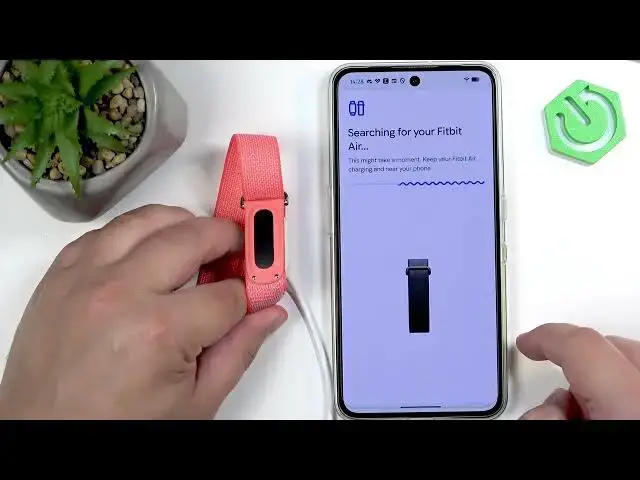
Okay, it's still searching. This might
2:58
take a while. Unfortunately, it's not
3:31
It's taking longer than I expected. So,
3:33
I'm going to Oh, never mind. Something
3:36
went wrong. So, let's try again. I'm
3:38
gonna replug it like this and try again.
3:43
And if it won't go further,
3:49
reopen the app basically. But as you can
3:52
see, it's taking a while. So, I'm going
3:53
to come back to you once it's connected.
3:56
Or maybe not. Let's wait.
4:39
Okay, this time it went through. So, we
4:46
allow the required permission here. Tap
4:48
on continue, allow the required
4:51
permission. It will also bring you to
4:52
this page and it will want the access
4:54
for all the time. Uh otherwise, it will
4:56
bother you. So, I'm going to allow it.
4:58
If you don't want to, you can always
5:00
keep it at all only while using the app.
5:02
But like I said before, it will bother
5:03
you about the permission for the
5:06
And here we can uh enable the
5:09
notifications from the Google Health
5:14
As you can see, we have limited
5:15
warranty. We can select the country
5:19
uh like this. Then tap on continue.
5:22
And then we can tap on get to, you know,
5:24
your Fitbit. You can check basically
5:27
learn how to use it here. Here's how you
5:30
check the battery and how you switch the
5:38
Then we can tap on done.
5:41
And at this point, we should see the
5:43
today page. And if you tap right here,
5:45
you should see your Fitbit Air and
5:47
should say it's synced or connected. And
5:50
that means that the devices are paired
5:52
together. And that's how you pair this
5:55
smart band uh with your phone. So, if
5:58
you found this video helpful, please
6:00
consider subscribing to our channel and
6:01
leaving a like on the video. Thank you
6:03
for watching and see you in the next