0:00
Hello and welcome back to hard info. In
0:02
this video, I will show you how to fix
0:04
your Opin X9 battery draining too fast.
0:14
So, first of all, we want to simply go
0:16
into our settings. Then you want to
0:18
scroll a little bit down and enter
0:20
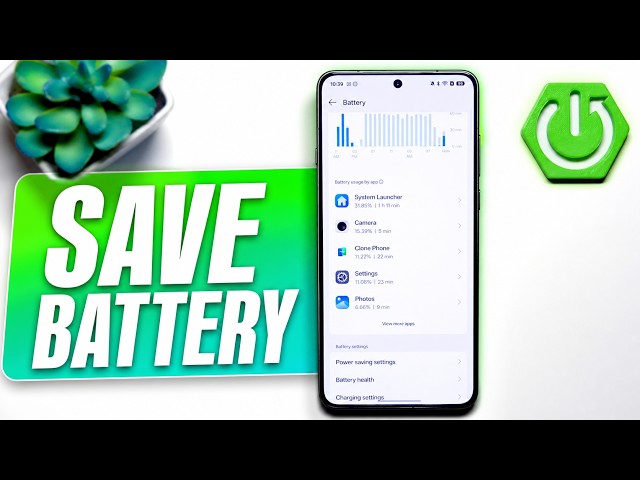
battery. In here, we can see a battery
0:22
usage per application. As you can see,
0:25
for me it's the system launcher, camera,
0:27
and settings because I am the tutorial
0:29
guy. But chances are that yours is
0:32
completely different. Maybe there are
0:34
some social media applications, maybe
0:36
there are something else. So, it is no
0:39
like surprise that almost like okay,
0:43
it's second place that the second place
0:45
of highest battery usage is the
0:47
applications. I will mention uh the
0:49
first place in a moment. And how can we
0:52
fix those applications that are really
0:54
hungry for our battery? Well, we want to
0:56
go into power saving settings. And at
0:59
the very bottom, we have app battery
1:01
management. We want to go there. And for
1:04
example, let's say that Facebook was on
1:07
the top of our list for highest battery
1:09
usage per application, which is not
1:12
really that far from truth. If you are
1:14
actually a Facebook user, then you will
1:17
have a lot of battery eaten by Facebook.
1:19
And in order to fix that, we want to
1:21
head into Facebook. And as you can see,
1:24
oh actually it was set um by default it
1:26
is set to recommend it which is the
1:29
smart mode which is like the middle
1:31
ground. And the other side of the
1:33
spectrum is allow background activity
1:36
which will just make it so Facebook is
1:39
uh free real estate and he can do they
1:42
can do whatever they want with your
1:43
battery. And as you can see, even the
1:46
even the phone itself says that power
1:48
consumption will increase. So I wouldn't
1:51
really advise that. However, what I do
1:54
advise is restricting background
1:56
activity for problematic applications.
1:59
Now, if you like really need those
2:02
Facebook notifications or like whatever
2:04
else, then you probably don't want to do
2:07
that since notifications might be
2:10
delayed or they might not show at all or
2:13
the app will, I don't know, work
2:15
slightly slower. But trust me, it won't
2:18
really matter. You won't probably see a
2:20
difference and Facebook won't run in the
2:22
background and won't be stealing your
2:24
data, which is a nice win always. So,
2:27
I'm going to go into Okay. And
2:29
congratulations, we have fixed the
2:31
battery drain almost because I only
2:34
mentioned about second place and that's
2:37
applications that are power hungry. But
2:39
the first place is something we actually
2:42
been looking at for the past 2 minutes
2:44
and 45 seconds. It's the screen like our
2:48
screen. it in order to actually display
2:50
our things and show us the brightness
2:53
and all of that, it requires a lot of
2:56
energy and luckily we can optimize it
2:59
pretty well. First, we want to head into
3:03
battery one more time. That is not
3:05
battery, sorry. And we want to go back
3:08
into those power saving settings. Now,
3:11
first of all, we want to automatically
3:13
go into power saving mode whenever we
3:15
drop below certain percentage of our
3:16
battery. I do believe that 20% is a good
3:20
threshold. And with that, I would also
3:23
advise you to enable auto dark mode.
3:25
Now, why dark mode is essential? Well,
3:27
this is because most screens are
3:29
actually OLED screens, meaning that they
3:31
need more energy to display brighter
3:33
pixels. And in dark mode, the ratio
3:36
between brighter pixels and darker
3:37
pixels is literally switched. So, uh our
3:41
battery consumption should be slightly
3:44
lower. Also, I would advise you to go
3:47
into sleep standby optimization. So, it
3:50
will basically put to sleep the
3:52
applications that are kind of running in
3:54
the background, but you're not really
3:56
using them right now. I do believe that
3:58
it is very useful and just a nice thing
4:02
to have because trust me, this simple
4:04
setting has saved me a lot of power
4:07
battery. Now the unfortunate thing is
4:09
that if you have something running in
4:11
the background, chances are it will
4:13
basically turn off and when you return
4:15
to your application by for example doing
4:17
this, you will need to open it from the
4:19
very beginning. But if you don't really
4:21
have a problem with that, then
4:23
everything should be fine. And lastly,
4:25
we have something called video battery
4:27
saver, which as you can see
4:29
automatically optimizes battery usage
4:31
when a supported video app is draining
4:33
the battery. This may impact video and
4:35
audio quality. If you don't really care
4:38
about that, then you can just enable it
4:40
since most people are just scrolling
4:42
mindlessly for Tik Tok anyway and they
4:43
don't really see that. Uh oh, actually I
4:47
see slightly less pixels than usually.
4:49
So yeah, we we can just ignore that. And
4:52
with that, with all those settings
4:54
enabled, also we can just forcefully go
4:58
into power saving mode. But I think this
4:59
is pretty obvious. we should
5:03
successfully fix the draining battery
5:05
problem that you might have on your Oppo
5:08
X9 Ultra. Now, if you have some other
5:10
tips and tricks for how to deal with
5:12
that problem, make sure to leave them
5:14
down in the comments below. And yeah,
5:16
that's actually all from me. If you
5:19
found this video useful, make sure to
5:20
leave a like, subscribe, and as always,
5:22
thanks for watching. See you next time.