0:00
Welcome. In this video, I will show you
0:02
how to resolve overheating and
0:04
performance drop issues on Motorola Moto
0:14
So, uh, if you want to quickly, uh, cool
0:19
down your smartphone, the best idea
0:21
would be to simply turn it off by
0:26
holding down power button and volume up
0:27
keys, selecting power off option on the
0:30
screen, and then leaving it without a
0:32
protective case uh, somewhere with uh,
0:36
well ventilation. So, make sure to place
0:38
your device in a room in a well
0:41
ventilated area and just leave it like
0:44
this for about 15 minutes until it cools
0:47
down. Then you can relaunch it. And now,
0:50
um, if you don't really care about
0:54
performance and you don't just don't
0:56
want your smartphone to warm up too
0:58
much, then what you can do is simply go
1:04
settings and select battery.
1:08
Enable battery saver like this.
1:12
This will prevent your battery from
1:16
uh both in short and longterm periods.
1:20
Uh if you are experiencing the
1:23
overheating during charging, use battery
1:28
by switching this toggle on and
1:30
selecting smart schedule
1:33
and also enable the adaptive battery.
1:37
And this should uh slow this should um
1:43
resolve the overheating issue while your
1:46
while your device is charging. Now uh if
1:49
it's not resolving the issue uh then
1:51
it's most probably because your
1:53
smartphone is charging uh in a
1:55
protective case. In such case uh just
1:58
remove uh remove it from your smartphone
2:01
and uh continue charging it uh
2:04
uh after a while the heat dissipation
2:08
should improve. Now if you really want
2:12
to keep the performance steady while uh
2:15
reduce the overheating of your device,
2:18
we have to go through a couple of simple
2:20
steps. First of all, we have to go to
2:23
display settings, enable dark theme like
2:27
this and also lower the refresh rate. To
2:32
do that, we're going to need to
2:35
find a refresh rate on the list
2:39
and select efficiency first.
2:46
we also have to go to personalize
2:56
we're going to need to find
3:00
we're going to need to find the uh
3:06
Let's just uh let's just search for
3:15
Okay. So, it seems that it's called
3:17
somewhat else on this smartphone.
3:21
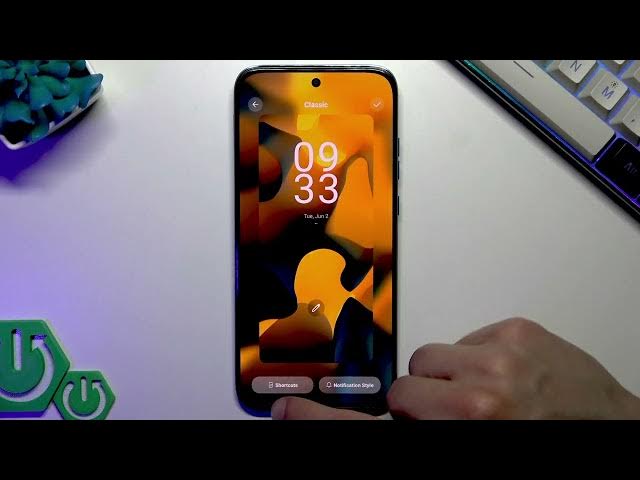
Okay. So, it's called a screen saver and
3:24
it is available in display section. Just
3:27
go to display section. Then select
3:29
screen saver and disable it as it also
3:32
takes your batteries your light uh your
3:35
smartphone's battery life and it also
3:39
increase the hitting effect. Then also
3:47
and let's disable the haptics.
3:51
To do that let's go to vibration and
3:53
haptics and disable this feature.
3:57
Okay. And so over time, your phone will
4:03
as much as it used to. Also, remember
4:07
not to use your phone for gaming while
4:10
it's charging because it also damages
4:12
your devices battery and it uh worsens
4:15
the overheating issue.
4:19
And that's pretty much it. Thank you for
4:21
watching this video. If it helped you,
4:22
please consider subscribing to our
4:23
channel. Leave us a like and a comment
4:25
below. And I'll see you in the next one.