Up next in 10


In this video I show six important settings you should change on your AMAZFIT Cheetah 2 Ultra to make the watch more convenient, personal, and battery friendly. I cover how to customize the shortcut buttons, adjust screen brightness and auto-brightness, set screen timeout for general use/workouts/watch face, change individual sound volumes, schedule Do Not Disturb, and pick color & theme style. Follow along on your AMAZFIT Cheetah 2 Ultra to quickly apply these tweaks and get a better daily experience with fewer interruptions and improved battery life.
How to change shortcut buttons on AMAZFIT Cheetah 2 Ultra?
How to change screen timeout on AMAZFIT Cheetah 2 Ultra?
How to schedule Do Not Disturb on AMAZFIT Cheetah 2 Ultra?
0:00 Intro — what we’ll change
0:11 Customize shortcut buttons — open Settings → Preferences → Shortcut buttons
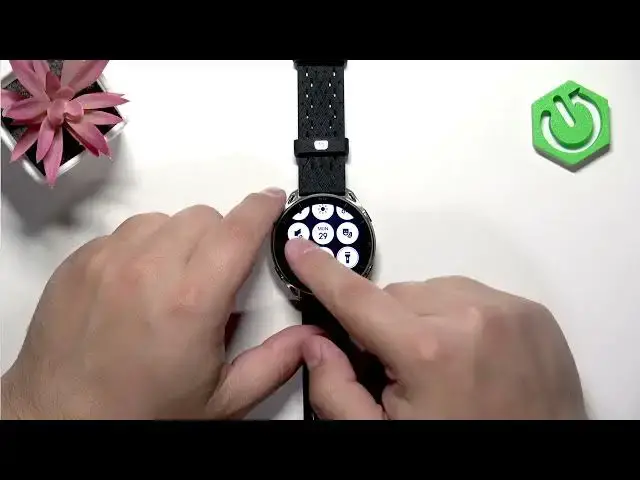
2:51 Adjust screen brightness and auto-brightness from the quick panel
3:59 Change screen timeout (general, workout, watch face)
5:25 Set sound volume levels (alarm, media, workout, system, voice)
6:43 Schedule Do Not Disturb: manual, scheduled, or smart DND
8:39 Change screen color style and theme style
9:31 Wrap up & final tips
#AMAZFIT #AmazfitCheetah2Ultra #SmartwatchSettings #WatchTips
Find out more:
https://www.hardreset.info/devices/amazfit/amazfit-cheetah-2-ultra/6-settings-you-must-change-on-your-watch/
Show More Show Less View Video Transcript
0:00
Hello everyone and welcome back to our
0:02
channel. In front of me I have MS
0:04
Cheetah 2 Ultra and today I'm going to
0:06
show you a few settings I recommend to
0:08
change on your watch. So let's get
0:11
started.
0:17
And the first thing I recommend to
0:18
change is the shortcut uh buttons.
0:21
Basically, we have some shortcuts
0:22
assigned to the buttons on our watch and
0:24
you can customize them to make your
0:26
watch more personalized, more easy or
0:29
convenient to use. And to customize it,
0:31
open the menu, then tap on the settings
0:33
icon in settings, find the option called
0:36
preferences and select it, of course.
0:39
And here we need to find the um shortcut
0:42
buttons option and tap on it. And as as
0:45
you can see, we have the list of
0:46
shortcuts right here. And we have long
0:48
press the select button. So this one.
0:50
Press the select button. Long press the
0:52
but down button. So this one right here.
0:54
And double press the back button. So
0:56
this one right here. And press the back
0:58
button. And we can assign different
1:00
functions for these uh buttons. So we
1:02
can tap on long press select button. And
1:04
here you have the list of functions you
1:06
can select or choose from.
1:09
So find the function you like. For
1:10
example, I want to open the I don't know
1:13
maybe
1:17
to-do list by pressing uh and holding
1:21
the button. Next, we have the press. So,
1:23
I'm going to use it to open I don't know
1:25
maybe
1:28
uh
1:32
weather. Then we have the down button.
1:36
So, let's open something like stress.
1:39
Uh, double press the bug button. So,
1:43
maybe let's open the
1:46
settings with it. If we can find the
1:48
settings right here on the list.
1:51
There should be somewhere here.
1:53
Settings. Settings. Settings. Settings.
1:57
Where are you hiding settings? Oh, here
2:00
we have it. So, it's already selected
2:01
and I was looking for it. My bad. And
2:04
then we have the press debug button once
2:06
and let's say I want to use the uh
2:10
offline voice with it. Okay. So now it's
2:13
complete. We can now use our shortcuts.
2:16
And to do it you simply
2:18
uh use them by uh going to watch face
2:22
and performing the shortcut. This one
2:24
opens the weather. This one opens the
2:28
to-do list. This one opens the voice
2:32
commands uh or starts the voice
2:34
commands. And this one
2:37
uh we need to press and hold it. So my
2:39
bad. Press and hold the down button
2:41
opens the stress. So as you can see the
2:44
shortcuts work are working and you can
2:46
customize it to your liking. Make your
2:48
watch more uh convenient to use. Next, I
2:52
recommend to check the screen brightness
2:53
or change the screen brightness. By
2:55
default, I believe it's going to be auto
2:58
brightness. But to change it, you simply
3:00
uh open the quick panel by swiping down
3:02
from the top of the screen. Then swipe
3:04
again to open the whole list of uh icons
3:07
and find the sun icon, which is the
3:09
brightness icon. You can tap on it.
3:12
And here uh you can adjust the screen
3:14
brightness on your watch by swiping on
3:16
the slider. You can increase it,
3:18
decrease it. You can also enable and
3:20
disable the auto brightness which
3:22
basically will adjust the brightness
3:23
automatically according to the
3:25
surrounding light of your watch. There's
3:27
a sensor on your watch and basically it
3:29
will adjust adjust the brightness
3:30
automatically.
3:32
But um be aware though if you enable the
3:35
automatic brightness, it will change uh
3:38
constantly according to the surrounding
3:39
light. So if you prefer to have the
3:41
brightness to stick at the specific
3:42
level, you can change it manually and it
3:45
will stay at the specific level for you
3:47
and the one that you set. It won't move
3:49
at all. So take your poison, select the
3:51
option you like and then you can press
3:53
the back button to go back to watch
3:55
face. Next uh thing I recommend to
3:58
change is the screen timeout. Basically
4:00
how quickly the screen turns off after
4:01
you stop touching the buttons or the
4:03
screen on your watch. Uh by default it's
4:05
quite short. So the screen turns off
4:07
quite quickly but you can change it by
4:10
going to settings uh display and here we
4:13
have screen on duration and uh tap on
4:16
it.
4:18
In this menu we have general workout and
4:20
watch face basically free states of the
4:22
watch. General is when you're using your
4:24
watch normally. Workout is when you're
4:25
tracking a workout. So we have some
4:27
activity going. And then we have the
4:29
watch face when you're basically on the
4:30
watch face on your watch.
4:33
And you can change them separately if
4:35
you want to. Or you can basically set
4:37
the general and then select set rest to
4:39
follow the general as you can see. And
4:41
to change it, you simply tap on one.
4:43
Scroll through the list of durations. As
4:45
you can see, we have 5 seconds, 8
4:46
seconds, 15 seconds, 20, 25, and 30. So,
4:49
select the one you like by tapping on
4:51
it. I recommend something like eight or
4:53
15 seconds. Nice nice durations. 20 is a
4:56
bit longer and the longer ones um
4:59
basically use more battery life on your
5:01
watch because the screen stays on for
5:02
longer. So be aware of that. And once
5:06
you select something like by tapping on
5:08
it, you can go back. Then we have the
5:10
workout. Like I said before, you can
5:11
follow generals or just select something
5:13
else if you like to. And then we have
5:16
the watch face as well. And once you're
5:19
done, you can press the um back button
5:22
to go back into watch face.
5:25
Another thing I I recommend to change is
5:28
the sound volume settings. Basically,
5:30
you can adjust how loud your watch gets
5:32
with certain in certain scenarios and
5:35
you can open the quick panel like this.
5:38
Find the speaker icon with the cog on
5:40
it. Tap on it. This will bring you to
5:42
the volume menu. And here we can adjust
5:44
the sound volume on our watch. And we
5:46
have alarm, media, workout system, and
5:48
voice assistant. If you're not sure what
5:50
these options mean, you can always tap
5:53
on this check mark right here at the
5:54
bottom of the menu. And you have the
5:56
description what it does. And alarm
5:57
basically changes the volume for the
5:59
alarms and timers. Uh media changes this
6:01
volume for the music, uh voice memos,
6:04
and stuff like that. And workout changes
6:07
the voice for the workout broadcast.
6:10
system adjust the volume for the call
6:12
notifications, notifications, calendar
6:14
events, and stuff like this. Assistant
6:16
changes the volume for the uh voice
6:19
responses for the assistant.
6:22
And you can adjust each of them by
6:24
tapping on one and then swiping on the
6:27
slider to adjust the
6:30
volume itself.
6:34
Okay.
6:39
And of course, once you're done, you can
6:40
press the back button to go back to
6:43
watch face. Another thing I recommend to
6:45
check and change is the schedule for the
6:48
do not disturb mode. By default, it is
6:50
disabled, but you can basically enable
6:52
schedule for your do not distur mode.
6:54
And what it does, it will make your do
6:56
not distur mode on your watch turn on
6:58
automatically at specific time and turn
7:00
off automatically at specific time,
7:02
which is quite nice. Uh if you're
7:04
sleeping with your watch on your wrist
7:07
or maybe you don't want to be disturbed
7:09
at work, you can also set up the
7:11
schedule for your working time and stuff
7:13
like this. So I recommend to change it
7:15
and use it. To to use it, you need to
7:17
open the do not disturb mode settings.
7:19
So open the settings, go to the uh
7:22
preferences
7:24
and tap on do not disturb. And like I
7:26
said, by default it will be disabled but
7:28
basically we need to tap on auto enabled
7:31
or not enabled but auto enable. And here
7:34
we have manual scheduled DND and smart
7:36
DND. Manual is the default one which
7:38
basically means that you need to turn on
7:40
the do not desire mode manually. So you
7:42
need to do it each time you want to turn
7:44
it on and turn it off each time you want
7:45
to turn it off. Then we have scheduled.
7:48
We can create our own schedule and it
7:49
will follow that schedule basically. And
7:51
finally, we have the smart DND. Smart
7:54
DND basically turns on the do not
7:55
disturb mode uh when you go to sleep and
7:57
your watch detects that you're sleeping
7:59
and it will turn it off when you wake
8:01
up, but
8:04
I don't know how well it works. And of
8:05
course, you need to wear your watch
8:06
during the sleep for it to work. So, I'm
8:09
going to just set up the scheduled one.
8:11
So, to do it, you simply select the
8:12
scheduled option. It will bring you with
8:14
the uh start time and you can set the
8:16
start time by swiping up and down on
8:18
minutes and hours. Then we have the end
8:20
time. Again, you can set it by swiping
8:23
up and down on the minutes and hours.
8:25
And once you done once you're done, you
8:27
will have your schedule created. And
8:28
mine will turn on at 10:30 p.m. and turn
8:31
off at 8:30 a.m. My bad. So quite nice
8:35
schedule for sleeping, I would say.
8:38
Okay.
8:40
And the last thing I recommend to change
8:43
is the uh color and themes for our
8:47
watch. To go to do it, go to display
8:50
settings on your watch. And right here
8:52
at the bottom, we have screen color
8:53
style and theme style. Screen color
8:56
style changes the uh way that the colors
8:58
are being displayed on the screen of
9:00
your watch. And we have natural, which
9:01
is less saturated uh colors. And then
9:04
the vivid, which is the more poppy, more
9:05
saturated colors. So, select the one you
9:07
like
9:09
by simply tapping on it. And finally,
9:12
the themes. Again, you go to display
9:14
settings. We have the theme style. And
9:17
basically, this allows you to change the
9:18
style of the icons on your uh watch. And
9:21
we have default, a business, and a
9:24
vibrant. Select the ones you like and
9:26
the changes should be applied as you can
9:29
see. And that's about all. So, if you
9:32
found this video any helpful, please
9:33
consider subscribing to our channel and
9:35
leaving the like on the video. Thank you
9:37
for watching and see you in the next
9:39
one.
#Science