Up next in 10


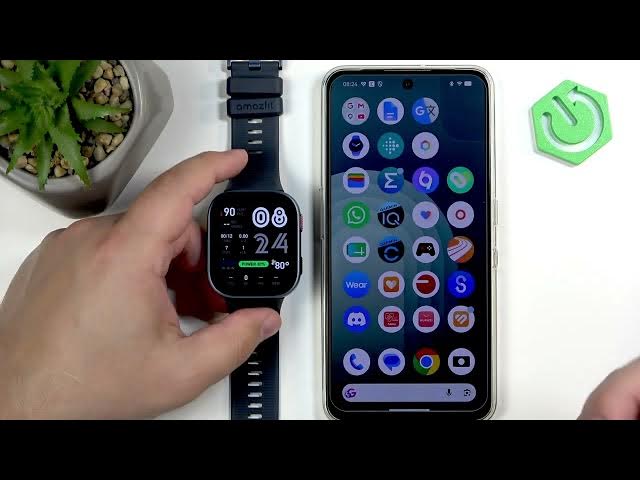
Learn practical tips and tricks to get more from your AMAZFIT Bip Max. In this video we cover how to customize button shortcuts, control music on your phone or play music from the watch, upload songs via the Zepp app, enable offline voice controls, set up the ZEPFLOW AI assistant, use Find Device and enable Glove Mode. All steps are shown on the watch and in the companion app so beginners can follow along and personalize their watch quickly.
How to customize shortcuts on AMAZFIT Bip Max?
How to upload music to AMAZFIT Bip Max using the Zepp app?
How to enable offline voice controls on AMAZFIT Bip Max?
0:00 Intro — meet the AMAZFIT Bip Max and what we’ll cover
0:10 Button shortcuts overview — default actions for upper and lower buttons
0:46 How to customize shortcuts — Menu → Settings → Preferences → Shortcut buttons
1:55 Music control — play on-watch music player and basic controls
3:42 Control phone music from watch — select phone as audio source and allow permissions
5:48 Upload music to your watch — Zepp app → Device → Music → Add → Transfer
8:01 Offline voice controls — set language, wake-up mode, and available commands
11:33 ZEPFLOW AI assistant — assign to a shortcut, voice responses and language options
14:04 Find Device — use watch quick panel to ring phone or Zepp app to ring watch
15:29 Glove Mode — increase screen sensitivity for gloves or screen protectors
16:45 Wrap up and final tips
#AMAZFITBipMax #BipMaxTips #SmartwatchTips #ZEPFLOW
Show More Show Less View Video Transcript
0:00
Hello everyone and welcome back to our
0:02
channel. In front of me I have Masfit
0:04
Pep Max and today I'm going to show you
0:06
a few tricks you can use on your watch.
0:09
So let's get started.
0:15
And the first thing I want to show you
0:16
is the buttons uh shortcuts. Basically
0:18
we have some shortcuts uh we can
0:21
customize for our buttons. By default
0:23
they open for example if you press the
0:25
upper button it opens the workout menu.
0:27
If you press and hold it, it opens the
0:30
zip zepflow AI uh button, lower button,
0:33
I believe it opens the menu and stuff
0:35
like that. So, there's some default
0:37
configurations, but you can customize it
0:40
as well. You can make it more
0:41
personalized. And I recommend to check
0:42
it out, play with it, and uh set it set
0:45
it up to your liking. And to customize
0:47
the shortcuts, we need to open the menu
0:49
by swiping left on the home screen, then
0:51
scroll through the menu, find the
0:53
settings icon, of course. So, we can
0:56
open the settings. Where's the settings?
0:58
Oh, I I think it should be somewhere
1:03
here. Oh, there it is. So, once you find
1:06
the settings icon, tap on it. In
1:08
settings, you need to scroll down and
1:09
find the option called preferences and
1:11
select it. And then in the preferences
1:13
menu, scroll down and look for the
1:15
shortcuts buttons and tap on it. And
1:18
here we have a list of shortcuts. We
1:20
have press upper button, pre press and
1:22
hold D. So long long press. So press and
1:25
hold the upper button, press lower
1:27
button and double press lower button.
1:29
And we can customize the shortcuts. We
1:31
can tap on one. And here you have list
1:33
of uh functions or apps you can
1:35
basically assign to the shortcuts.
1:37
Shortcut rather. And there's quite a few
1:39
as you can see. So for example, let's
1:41
say I want to open the um map by
1:46
pressing the upper button by pressing
1:48
and holding it. Let's say I want to open
1:50
the
1:52
settings
1:53
like this. And by pressing the lower
1:56
button, I want to open the
2:03
let's say weather. And by double
2:05
pressing it, let's open the
2:14
music. Okay. And once you're done
2:15
customizing your shortcuts, you can
2:17
perform them uh by going to the watch
2:20
face and then you can press the buttons
2:22
to uh use the shortcuts. As you can see,
2:26
it is working
2:28
uh the way I set it up. So, I really
2:31
recommend to check it out. um set it up
2:34
to your liking, make your watch more
2:35
personalized, more um easy to use, more
2:38
convenient to use. Another thing I want
2:40
to show you is the music control.
2:41
Basically, you can use your watch to
2:42
control the music um on your phone. So,
2:45
you can use it to control the music on
2:47
the phone or you can also uh listen to
2:51
the music directly on the watch because
2:53
you can upload some songs to your watch
2:54
and use it to listen to music, which
2:56
could be quite useful if you don't want
2:58
to carry your phone on the workout and
2:59
you just want to go with your watch. Um
3:02
to control the music you simply open the
3:04
menu. So swipe left on the home screen.
3:06
Then find the option called music and
3:09
tap on it. And here we have this is the
3:13
uh option to listen to music to directly
3:15
on the watch. So this is for for this
3:17
purpose specifically. So you can use uh
3:20
this menu to basically go through the
3:23
songs, go previous, control the music
3:25
directly on your watch. and shuffle. You
3:28
can add music to favorites, running
3:29
music, you can adjust the uh volume. So,
3:33
this is the player uh that you can use
3:35
to listen music from your watch. But if
3:38
you want to use your watch to control
3:39
the music on your phone, you need to
3:41
grab your phone. Your phone needs to be
3:43
paired, of course, with your watch. And
3:45
you will need to allow uh permission. I
3:47
believe
3:48
if you open the app,
3:51
go to the devices here, you find the
3:57
uh notifications
3:59
and if you see any popup about the uh
4:03
missing permissions, tap on it and allow
4:06
the required permissions right here in
4:07
the in the notifications. And once you
4:09
allow them, the music control should
4:11
should work. So now if you start playing
4:13
uh music on your uh phone, give me a
4:15
second. Do I have Spotify? I do. So,
4:18
let's open the Spotify and start playing
4:21
some music.
4:24
Okay.
4:26
And we're playing the music on our
4:28
phone. To control the music on your
4:31
watch. So, if you want to use your watch
4:32
to control the music, you can swipe um
4:36
left to open the menu, find the audio
4:38
control.
4:40
And as you can see, right now we're on
4:43
the watch music, but you can tap on the
4:45
source, select phone music, and the
4:47
watch should detect that you're playing
4:48
the music, and you can again use it to
4:51
control the music on your uh phone. So,
4:54
that could be quite useful if you're uh
4:57
doing some workout like running and
4:58
stuff like that. And let's say you have
5:01
your watch in your pocket, uh, not
5:02
watch, uh, phone in your pocket or
5:04
backpack, and you don't want to pull it
5:06
out each time you want to change the
5:07
song or something. You can use your
5:09
watch to control that music on your
5:11
phone. Uh, okay.
5:16
Uh, you should be able also
5:22
swipe up. Yeah, here it is. So, if you
5:26
swipe up on the home screen, scroll
5:28
through the list of short shortcuts or
5:30
cards, you should see the music card.
5:33
And here you can play and pause the
5:35
music as well. And you can tap on it to
5:38
open the music controls as well. Okay.
5:42
Another thing I want to show you is also
5:44
connected to music and it's how to
5:46
upload the music to your watch. So
5:48
basically, if you want to use your watch
5:50
as a music source, you can upload the
5:52
music to it and then use these songs to
5:55
listen to them basically during the
5:56
workout or whatever you like to do. And
5:58
to uh upload the music, of course, your
6:00
watch needs to be uh paired with your
6:02
phone.
6:04
Uh and once the devices are paired
6:06
together, you need to open the Zap
6:07
application and the app. You need to tap
6:10
on device icon to open the device page.
6:12
And on this page, you need to find the
6:15
option or app called music. You need to
6:17
tap on it and here we can upload music
6:20
to our watch. You can tap on add. Uh it
6:23
will open the files and here for example
6:26
I have three songs. I can select all of
6:28
them or you can select only one. Then
6:32
the music are selected or the file music
6:34
files rather and then we can tap on
6:36
transfer. It will start uploading and
6:38
once it's done the songs will be added
6:40
to our watch. So let's wait. Actually
6:43
this might take a while. So I'm going to
6:45
come back to you once it's done.
6:52
Okay, it's almost done uploading with
6:55
the last song. As you can see, the
6:56
transfer is complete. We can tap on the
6:58
check mark. And now uh if you go to your
7:02
watch and go to the um music, I believe.
7:08
Swipe up. Here you have my playlists and
7:11
you have all music for example. And you
7:14
have your songs right here. And you can
7:15
play them if you want to. Of course, you
7:17
can create more playlists. So if you
7:18
swipe up, go to my playlist. Uh
7:22
or can you? Or maybe you need to do it
7:24
in the app. No, not in the app as well.
7:27
So
7:29
apparently you can't create the
7:31
playlists
7:33
only favorites.
7:36
Yeah.
7:40
What if you press and hold one? Nope.
7:42
Okay. So, you have pre-existing playlist
7:44
right here. We have favorites and
7:45
running music. And you can add songs to
7:47
them as well if you want to. So, you can
7:49
uh find the song, tap on edit, select
7:51
the song, and then um add to running
7:54
music or add to favorites. Okay. And
7:56
again, you can listen to the music on
7:58
your watch, which is quite nice. So,
8:00
that's how you upload the music. Next
8:02
thing I want to show you is the offline
8:04
voice controls. Basically, you can use
8:06
voice controls to uh or offline voice
8:09
controls to control features on your
8:11
watch, which could be quite useful. And
8:13
to use it, you need to first go to
8:15
settings
8:18
uh go to the voice assistant
8:21
and offline voice controls. And here we
8:25
have wake up mode. So that's how we
8:27
basically set set up how to activate the
8:30
mode the or yeah the mode basically the
8:34
assistant it will start listening and we
8:36
have different ways to activate it. Then
8:38
we have the also voice commands which if
8:40
you want to control something you will
8:41
need to check the voice commands. And
8:43
here we have for example system controls
8:45
for for some reason
8:48
these are in Chinese I believe that's
8:50
Chinese I think but I might be wrong. Um
8:54
but
8:57
I'm pretty sure you can check them in
8:58
English as well. Oh because the language
9:02
for the offline voice control was set to
9:04
Chinese even though the watch is in
9:06
English. very weird. Anyway, so first
9:09
change the offline voice uh control
9:11
language. I'm going to select English.
9:12
Select whatever you like. And then if
9:15
you go to the commands and the commands
9:16
should be in your language now. And as
9:19
you can see, we can control for example
9:20
do not distur mode. We can say enable
9:22
DND, disable DND, smart DND and stuff
9:24
like that. So there's quite a few
9:26
commands. Check them out. And to use the
9:28
um offline voice control, go to wake up
9:32
mode settings. And here we have uh
9:34
different ways to wake up the uh
9:38
assistant. Uh this is the default one.
9:41
Respond respond within 5 seconds after
9:43
you turn your wrist. So basically if you
9:45
flick your wrist with your watch, it
9:46
will start listening uh within 5
9:48
seconds. But I'm going to activate the
9:52
um the second option respond within 5
9:55
seconds after the screen lights on. So
9:58
So if you wake up the screen, it will
9:59
basically start listening. This is the
10:01
easiest way to wake to use it. And now
10:03
let's say it's activated. So we can go
10:06
back to the watch face. Uh turn off the
10:08
screen and then wake it up and it should
10:11
start listening. For some reason it
10:14
opened the menu instead. Interesting.
10:16
Can you like stop?
10:19
Let's try again.
10:22
It still opens the settings first thing
10:24
we do. Oh, now it's working. Or not.
10:29
Let's see.
10:32
Wake up the screen. Open DND.
10:36
So, it is listening.
10:38
So, it works. For some reason, it's a
10:40
bit wonky.
10:42
Uh, it opens the settings. I think it's
10:44
the shortcuts I have set up. They're
10:47
kind of interfering, but um, let's try
10:50
again.
10:53
Come on. Turn off the screen. Thank you.
10:58
Enable DND.
11:01
This time it worked. Enable DND. So,
11:05
it's a bit wonky for me because I have
11:07
different shortcuts set up and it's kind
11:09
of interfering, I think.
11:11
Disable DND,
11:14
but it works. You can use it to control
11:16
your watch. It could be quite useful. I
11:18
recommend to check it out. set it up the
11:19
way you like and then use it to control
11:22
your watch without pressing any buttons
11:23
which could be quite nice um and quite
11:28
um
11:30
not yeah convenient more convenient to
11:32
use. Okay, another uh thing I want to
11:35
show you is also connected to this.
11:37
Basically, this is the Zepflow AI uh
11:41
assistant basically. And to use it,
11:43
first you need to enable the way to uh
11:46
activate it. And to do it, of course, we
11:47
need to go to settings, go to the
11:51
uh shortcuts. So, go to preferences
11:55
and shortcut buttons. By default, it's
11:57
the upper button, and I'm going to also
11:59
set it to this. So, I'm going to use the
12:01
long press button for it. and find the
12:05
uh Zep flow. So, it's called Zepflow.
12:08
Select it. And now I have the ways to
12:10
activate the voice assistant. Also,
12:13
let's go to the voice assistant
12:14
settings. And here we have Zepflow.
12:18
And right here we have options for it.
12:20
We can enable the voice responses. We
12:22
can uh choose type of the voice. We have
12:24
male and female.
12:27
We can also enable notification access
12:29
for it. and it will be basically able to
12:31
I believe read the notifications for you
12:33
and stuff like that. So if you want to
12:35
use it, you can always enable it. Then
12:38
we have the show AI notification
12:39
assistant. We can enable it and disable
12:41
it. And finally, we have the language
12:43
and you can select the language you
12:44
would like to use for your assistant.
12:47
And now once you done setting it up and
12:49
you have the ways to activate it,
12:51
activate it.
12:54
Uh we have a update. Okay.
12:58
Uh, what's the weather like?
13:01
For some reason, it's not listening.
13:03
Let's try again.
13:05
What's the weather like?
13:10
>> What's the weather like?
13:16
>> It's sunny with a temperature of 81° F.
13:20
Stay hydrated.
13:20
>> So, it is working. It was a bit wonking
13:22
at the beginning for some reason. I
13:24
don't know why. Uh, let's try again.
13:28
uh turn up the brightness,
13:35
>> increase the screen brightness.
13:36
>> So, you can also use to use this uh
13:38
assistant to control some of the aspects
13:40
of your watch, not every uh aspect. And
13:44
you could use it to check the weather
13:45
and other stuff. This is like a AI
13:48
assistant they call it, but I don't know
13:50
how capable it is. So, recommend to
13:53
check it. It could be quite useful for
13:54
you.
13:56
Okay, another thing I want to show you
13:58
is the
14:01
basically feature
14:03
called find device. You can use this
14:05
feature to find your watch or your phone
14:08
basically you can use one device to find
14:10
another one which could be quite useful
14:12
if maybe you misplace your phone or
14:15
watch somewhere and you can't find it.
14:17
You can always use your watch or a phone
14:19
to find another device. And to use it on
14:21
the watch, you grab your watch, you open
14:23
the uh quick panel. So, swipe down.
14:27
Come on. Swipe down from the top of the
14:28
screen like this. Swipe more. So, you
14:31
can open the whole uh panel. Look for
14:33
the icon that looks like this. Like the
14:36
phone icon with the uh I don't know
14:38
vibration or something like this. And
14:40
you can tap on this icon and the phone
14:44
will start vibrating. Uh it's on the It
14:48
should make sound. All right. You need
14:49
to tap on play sound.
14:52
Oh, that's quite loud. Okay, I know why
14:54
it's not playing constantly. So, you can
14:56
play sound as well, but it starts with
14:58
the vibration. And hopefully, it will
15:01
let you to locate your phone easier. And
15:04
to use the phone to locate the watch,
15:06
you open the zap application.
15:10
You go to device. You go to uh device
15:15
settings. Was it? No, here. Find device.
15:19
My bad. It's below the applications
15:22
and the watch will start making sound
15:23
and vibrating and hopefully that will
15:26
allow you to locate your watch quite
15:27
easily.
15:29
Okay. And last thing I want to show you
15:31
is the glove mode. This is a bit obscure
15:35
feature but if you're using gloves and
15:39
you have problems with a touch screen or
15:42
if you have a screen protection on your
15:44
watch on your screen and sometimes it's
15:46
not as responsive. If it's a bit wonky,
15:49
you can always try to turn on the glove
15:50
mode. And what it does, it increases the
15:52
sensitivity of the screen and hopefully
15:55
it will improve your uh experience. And
15:58
to use it, you need to of course open
15:59
the settings,
16:02
go to the
16:04
uh preferences,
16:06
and here find the glove mode. Select it.
16:10
By default, it will it will be of course
16:12
disabled. You can even read what it
16:14
does. Like I said before, it increases
16:16
the sensitivity of the screen. So, it
16:18
could be useful if you're using gloves
16:20
or some um uh screen protection on your
16:24
uh watch. You can enable it and
16:27
hopefully that will solve your problems.
16:29
If you have problems with the touchcreen
16:30
when you're using gloves or the screen
16:33
protection, check it out. I recommend
16:35
it. It could be a lifesaver.
16:38
Okay, and that's about all when it comes
16:40
to this watch. So, if you found this
16:43
video any helpful, please consider
16:45
subscribing to our channel and leaving a
16:47
like on the video. Thank you for
16:49
watching and see you in the next one.
#Science