
VIVO Watch GT 2 – How to Set a Custom Watch Face (Photos via App)
Jun 15, 2026

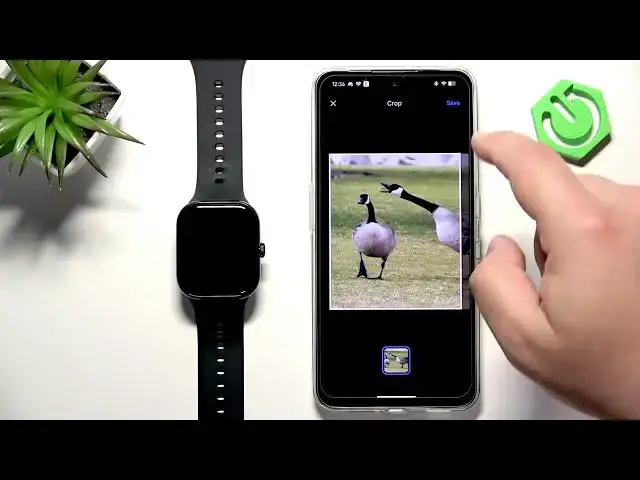
In this video I show how to set a custom watch face on the VIVO Watch GT 2 using your phone and the Origin Health (Android) or VIVO Health (iPhone) app. You will learn how to pair the watch via Bluetooth, open the app, go to Devices → My Faces → Installed, select the Photos face, edit it, pick images from your camera or albums, crop and upload, and customize layout, font, color and widgets. I also show how to add multiple pictures and change the switching behavior so your watch cycles images when you wake the screen. This is the easiest way to use your own pictures as a personalized watch face on the VIVO Watch GT 2.
How to set a custom watch face on VIVO Watch GT 2?
How to use photos as a watch face on VIVO Watch GT 2 with the VIVO Health or Origin Health app?
Where is the Photos watch face option in the VIVO Watch GT 2 app?
0:00 Intro
0:20 Pairing and opening Origin Health / VIVO Health app
0:40 Go to Devices → My Faces → Installed
0:53 Select the Photos watch face and tap Edit
1:06 Choose Photo (camera) or Choose from albums
1:28 Crop the image and upload to the watch
1:51 Customize layout, font, color and widgets
2:21 Apply the custom watch face and add more pictures
2:44 Change watch face switching behavior (wake screen)
3:03 Wrap up and subscribe
#VIVOWatchGT2 #CustomWatchFace #WatchFacePhotos #VIVO
Find out more:
Show More Show Less #Science