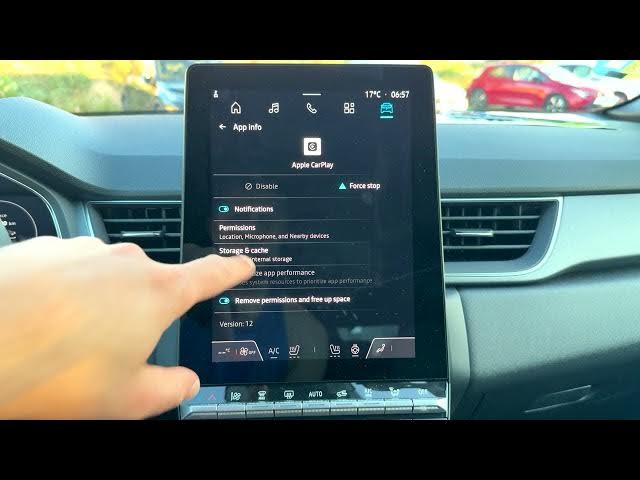

Renault Captur – How to Manage App Settings
Jun 5, 2026

Learn how to manage app settings on your Renault Captur infotainment system. In this video we show step-by-step how to open the Apps menu from the home screen, view all apps, check storage and cache, force stop an app, change permissions, set default apps (browser, phone, SMS), use the permission manager, find unused apps, and adjust special app access such as notification settings and Wi-Fi control. These simple steps help you tidy apps, protect privacy, and free storage on your Renault Captur.
How to manage app permissions on Renault Captur?
How to change default apps on Renault Captur?
How to clear app storage and cache on Renault Captur?
0:00 Intro — What we'll show
0:05 Open the home screen and tap the Apps icon
0:13 Go to Settings → Apps
0:25 View all apps & app info (storage, recently opened)
0:50 App options: Force stop, Permissions, Storage & Cache
1:12 Permission manager overview (contacts, location, etc.)
1:36 Unused apps — find and manage apps not used for a month
1:43 Set default apps (browser, digital assistant, phone, SMS)
2:04 Special app access: modify system settings, notifications, Wi-Fi control
2:27 Wrap up — tips and subscribe
#RenaultCaptur #CarApps #AppPermissions #CarSettings
Find out more:
Show More Show Less #Science