
Renault Captur – How to Add a New Profile
Jun 5, 2026

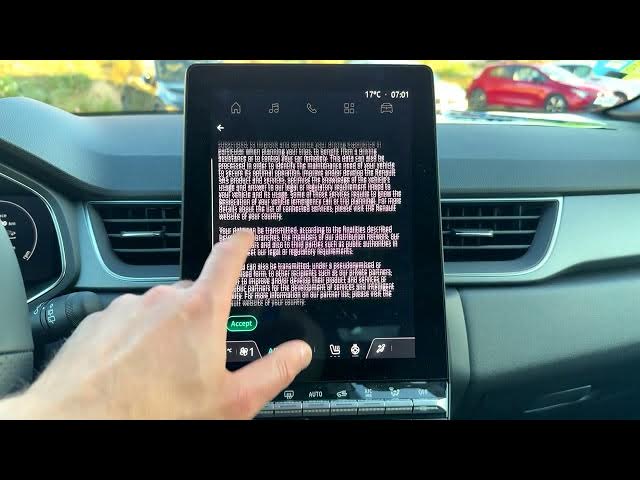
This video shows how to add a new user profile on the Renault Captur infotainment system step-by-step. You will learn how to start from the Home screen, open the Apps icon, go to Settings (gear), find Profiles & Accounts and tap the + button to create a new profile. The clip explains choosing language, accepting legal terms, optionally signing in to Google, enabling Google services, selecting a profile lock (pattern, PIN, password or none), picking an avatar and profile name, and checking privacy settings. Follow these clear steps to create a personalized profile for each driver and keep apps, settings and accounts organized on your Renault Captur.
How to add a new profile on Renault Captur?
How to create a user profile on Renault Captur infotainment system?
Where is Profiles and Accounts in Renault Captur settings?
0:00 Intro – what we will do
0:03 From Home screen → open Apps icon
0:13 Go to Settings (gear) and scroll down
0:24 Open Profiles & Accounts menu
0:38 Tap + to add a new profile and confirm
0:53 Choose language and accept legal terms
1:20 Sign in to Google or skip; enable Google services
1:56 Choose profile lock (pattern/PIN/password/none)
2:21 Edit profile name, avatar and privacy settings
2:59 Finish and check new profile in Profiles & Accounts
#RenaultCaptur #CarProfile #Infotainment #AddProfile
Find out more:
Show More Show Less #Science