0:01
Welcome. Infilme is an Infinix Note 60
0:04
Pro and today I'll show you how you can
0:07
enable and also set up your do not
0:17
So to get started, you'll want to swipe
0:20
down from the top right side of your
0:23
screen. And this will bring down all of
0:25
your toggles. And somewhere between here
0:29
we should have our do not disturb mode
0:30
which typically looks like this a moon
0:32
icon. Now let me just ensure that this
0:34
is the icon by clicking right here this
0:37
button. It shows me labels for it and it
0:40
is do not disturb mode. If you see it
0:42
somewhere in this list great but if you
0:44
don't can swipe down and find it in this
0:46
list right here after clicking on that
0:48
you know icon right here in the corner
0:50
that was. So in here these are titles
0:53
that you can add. Uh just make sure that
0:55
you have below 24. If you try to add
0:57
more than 24, you can see you get this
0:58
popup. Up to 24 switches can be added.
1:01
If that is something that you're seeing,
1:02
you can just remove uh one from here and
1:05
then add a different one. And there you
1:07
go. From there, go back and can see the
1:11
toggle stays added in here. So now that
1:13
you have your do not disturb mode added
1:14
in here, you can hold it and then select
1:17
more settings and you can customize it a
1:22
little bit. Now we have very minimal
1:25
customization right here but I will go
1:27
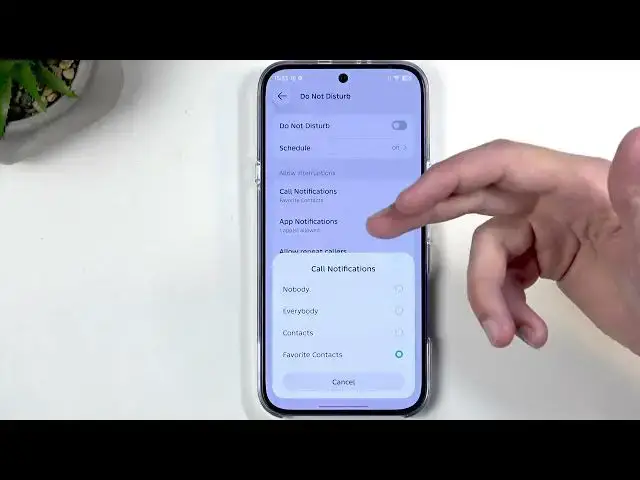
over this. So for call notifications
1:30
this uh allows us to select who will be
1:31
able to call us and we have uh nobody
1:34
everybody contacts so people that are
1:36
saved in your contacts list or only
1:41
Then we have apps notifications. So in
1:44
here you can select which kind of app
1:45
can be pestering you about whatever it
1:47
wants to pester you about even when do
1:49
not disturb mode is enabled. So you're
1:51
basically allowing s by toggling on some
1:54
of the applications. So let's say I want
1:56
to allow clock. All right. I just
1:59
allowed clock to give me notifications
2:01
when do not disturb mode is enabled.
2:04
And then allow repeated callers. Uh this
2:07
basically means that if someone calls
2:08
you twice within a 15inut period, they
2:11
will bypass whatever you have selected
2:15
And u it's a good option for emergency
2:19
purposes. Now, lastly, we have schedule
2:22
up here and uh it's off or you can
2:24
select a custom one. There's only one
2:26
that you can have right here,
2:27
unfortunately. Uh and you can just
2:30
choose start time, end time, and then
2:33
what days of the week you want it to run
2:37
If you turn it on, it automatically will
2:39
basically be toggled on. So, if the time
2:42
appro comes around, which is 1000 p.m.,
2:44
it would then automatically turn the do
2:49
Anyway, once everything is set up in
2:51
here, we can uh close this up, find the
2:53
toggle, and either tap on it to
2:55
immediately turn it on or alternatively,
2:58
what we can do is hold it. And it looks
3:02
like we actually have to have it turned
3:04
on first. So, you know what? Take it
3:07
back. You can turn it on by just tapping
3:09
on it. And you can hold it to then show
3:11
you some uh timers. So you can once you
3:15
enable it then hold it and quickly
3:17
choose for instance that you want it to
3:18
run for two hours at which point this
3:21
mode would automatically turn itself off
3:22
after 2 hours which means that you don't
3:24
need to remember about it. The device
3:25
will turn it off for you and that's
3:27
pretty good. Now we do have this weird
3:30
intervals. So double over the previous
3:32
one. So 1 hour 2 4 8. And that's
3:34
everything that we got. And if you don't
3:36
choose any of these it's going to be on
3:38
always. And that means that you will
3:41
need to remember to turn it off
3:42
yourself. Otherwise, this will run
3:43
indefinitely in the background. And to
3:46
turn it off, you can do that. Just click
3:48
on it again. And once more, uh, with the
3:51
even timer, so 2 hours, 4 hours,
3:53
whatever you selected, you can still
3:55
click on this to turn it off regardless
3:57
of the timer being reached or not.
4:02
So, there we go. Now, I hope you found
4:03
this video helpful, and if you did,
4:05
don't forget to hit like, subscribe, and