0:00
Hello everyone and welcome back to our
0:02
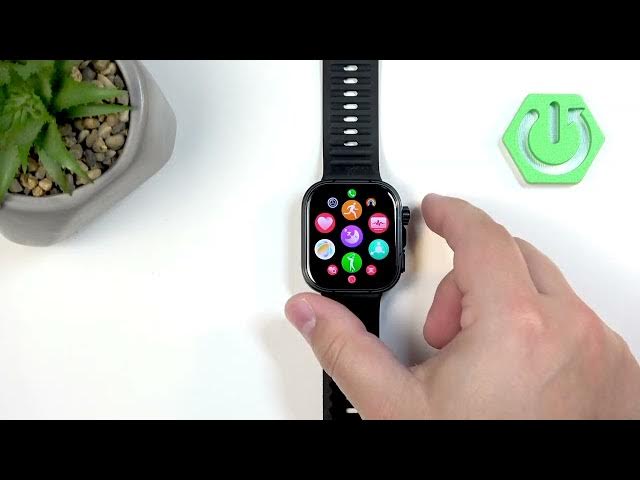
channel. In front of me I have Huawei
0:04
Watch Fit 5 Pro and today I'm going to
0:07
show you how to enable and how to
0:09
disable uh the do not distur mode on
0:11
this watch. So let's get started.
0:20
First thing you will need to do is to
0:21
wake up the screen on your watch and you
0:23
can do it by pressing the uh chrome
0:25
button. After you wake up the screen,
0:26
you should see the current watch face,
0:28
the home screen. And you can swipe down
0:30
from the top of the screen uh to open
0:32
the quick panel. And on this panel, you
0:34
will see bunch of icons. And one of them
0:37
will be this focus. Uh if not, it could
0:40
be called something like do not disturb
0:41
mode or sleep mode. Basically, uh by
0:43
default, it's right here in the bottom
0:45
left corner of the menu. Um, and it can
0:49
be uh called differently because if you
0:52
enable some kind of mode, the focus
0:54
won't will change to the mode that you
0:57
used the last time. So basically, it it
0:59
could be do not disturb mode or sleep.
1:00
That's why I'm saying it could be called
1:02
differently. Anyway, tap on this focus
1:05
icon. And as you can see, we have do not
1:07
disturb and sleep mode. We want to
1:08
enable do not disturb. So we can uh tap
1:11
on it, tap on the check mark to confirm.
1:13
And the mode will be enabled. And as you
1:15
can see the focus icon changed to the do
1:17
not distur mode. That means that the
1:20
mode is enabled and now the
1:21
notifications are muted on your watch.
1:23
So you can basically go through this
1:26
situation you want to go without being
1:28
disturbed which could be for example
1:29
sleeping meeting at work and stuff like
1:31
that. And once you've done and you want
1:33
to disable the mode, you open the quick
1:35
panel again. Tap on the icon. Tap on the
1:37
do not disturb. The do not disturb mode
1:39
will be disabled. But if you go back to
1:42
the quick panel, the focus icon won't
1:44
come back. It will be do not distur
1:46
mode. And if you enabled um sleep mode
1:50
earlier, it will be the sleep mode
1:51
because it remembers the uh name of the
1:53
mode you enabled the uh most recently
1:57
basically. Okay. And the icon is back to
2:00
gray. And if you go back to watch face,
2:02
the icon from the watch face is gone.
2:03
Watch face rather is gone. That means
2:05
that the uh do not distur mode is
2:07
disabled. You can also enable schedule
2:10
for do not distur mode. Basically, it
2:11
will turn on automatically and turn off
2:14
automatically. And to do that, you need
2:16
to uh open the menu, go to settings, go
2:20
to focus mode, and here tap on do not
2:24
disturb. And right here, we can scroll
2:26
down and we have the schedule category.
2:28
And basically, we can create our own
2:30
schedule, or you can use the
2:31
pre-existing one. I'm going to add mine.
2:34
So, I'm going to tap on add time. And
2:36
here we have the start time and time and
2:37
repeat. Start means when the do not
2:39
distur mode will be turning on of course
2:41
and means when it will be turning off
2:43
and then repeat on which days it should
2:45
repeat. Uh so let's tap on start. Set it
2:48
by swip swiping up and down on uh
2:51
arrows. Stop going back please. Let's
2:54
set it to something like 10:30 p.m.
2:58
and tap on okay. Then the end time
3:01
something like 8:30 I would say
3:09
and the repeat option again you can
3:11
choose the days on which the schedule
3:13
should be active and you can choose all
3:15
of them only specific ones depends what
3:17
you like and then scroll down and tap on
3:19
okay and here we have our schedule we
3:21
can confirm and now it's it will appear
3:24
right here on the list and you can oh no
3:26
it's here and it will turn on
3:28
automatically you can turn it on or off
3:30
by tapping on the switch. You can tap on
3:32
the schedule to customize it to edit.
3:35
And here we can change the time and and
3:37
repeat option. You can also remove the
3:39
schedule if you don't like it anymore by
3:41
tapping on delete and tapping on the
3:43
check mark. And basically that's how you
3:45
set up a schedule. I recommend to check
3:46
it out. It's quite a nice option. Okay,
3:50
and that's about all when it comes to do
3:51
not distur mode. So if you found this
3:53
video helpful, please consider
3:55
subscribing to our channel and leaving
3:57
the like on the video. Thank you for
3:58
watching and see you in the next time or