0:01
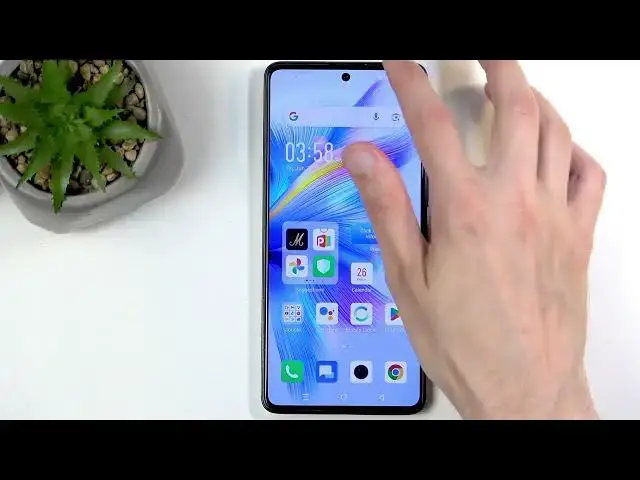
Welcome. In front of me, I have the
0:03
Infinix Note 30 VIP. And today, I'll be
0:07
showing you how we can enable your power
0:09
saving mode on this device.
0:18
Okay, so let's just get straight into
0:20
this. And to start off, all we need to
0:22
do is swipe down from the top right side
0:25
of our screen, which will bring down our
0:27
toggles. That's what we're looking for.
0:29
And there's a bunch of them. And uh they
0:31
also don't have labels, but we can swipe
0:33
down again. And now we have labels. And
0:35
here we're looking obviously for the
0:37
power saving mode, which if it's not
0:42
I surely can't see it. So maybe I'm
0:43
blind, but I don't think I'm this blind.
0:47
So we're going to click right here on
0:49
these three dots, and then we're going
0:51
to select edit shortcut switch.
0:54
Swipe down. And everything below here
0:56
are toggles that I can add. And I can
0:59
already see one power saving mode, which
1:01
is the ultra power saver. I'm gonna add
1:08
Where's the other one though?
1:19
interesting. Okay, so I'm going to stick
1:21
with this one. I'm going to quickly
1:23
check this option, power boost. So, I'm
1:25
going to hold it instead of tapping on
1:43
So, this is actually power saving mode,
1:45
interestingly enough. And here it's
1:47
called power boost. Now, I didn't know
1:50
that by boosting power, I'm also
1:51
boosting battery life. Uh that's why the
1:54
confusion came in because that is the
1:57
most way to call this toggle
2:00
because other devices allow you to
2:02
overclock them. And usually that would
2:04
be something along those lines. Power
2:05
boost as boosting your power means that
2:08
efficiency is increased which of the
2:11
devices performance which means you're
2:13
sacrificing battery life. Here it looks
2:15
like Nfinex is a little bit of you know
2:17
uh and they called this option
2:20
basically power saving uh option power
2:24
boost instead of what it's supposed to
2:25
be and the next if you're watching this
2:29
change this is stupid. Um so anyway you
2:33
can enable this enable power boost. I I
2:37
don't know why it just sounds so stupid
2:38
when I say it. Um, and yeah, that as
2:42
you've seen right here, supposedly it
2:45
estimated, let me just go back and turn
2:46
it off. Actually, uh, close. Anyway, it
2:50
actually estimated that with it on, we
2:52
get about 1 hour of extra battery life.
2:54
So, we're extended by just a measly
2:56
hour. And right now, we're getting
2:59
actually three three and a half hours of
3:01
battery life. So, you know what? One
3:02
hour isn't actually that bad. This is
3:05
pretty damn good boost in in battery
3:08
life. I'm not going to lie. Uh now it is
3:13
But still it is a significant increase
3:16
in battery life. And then if you pay
3:19
attention to the lower one, ultra power
3:21
saver. This one is the more extensive
3:24
kind of way of preserving battery. And
3:26
as you can see, this one basically
3:28
triples your battery life. So instead of
3:30
3 hours, we're estimating 10 hours um of
3:34
battery life. I'm not sure if it's
3:36
adding it. Let's see.
3:38
Okay. So, no, it basically triples it.
3:41
So, yeah, uh look at it as a
3:42
multiplicative of three uh to what you
3:45
have right now. And this one.3.
3:52
uh that's basically uh the two different
3:54
modes. Now, you can view them through
3:55
the settings like I did or you can
3:57
interact with them through here. So,
3:58
this is the normal power saving mode.
4:01
Looks kind of weird, but it is what it
4:03
is. And for some reason takes us to the
4:05
settings of turning it on. So you can
4:06
click right here to then turn it on. It
4:09
does several things which I didn't
4:10
mention before. So you can see dark mode
4:12
was enabled automatically. Screen
4:14
refresh rate would be reduced. Uh
4:16
features of the device also would be
4:17
suspended. So applications running in
4:20
the background would basically when
4:21
you're not using the device uh won't be
4:23
able to connect to network and this is
4:25
done to preserve battery life but it
4:27
results in things like for instance
4:28
WhatsApp uh not giving you any kind of
4:32
messages when you're not using the
4:34
device. So be aware of that.
4:37
While the other mode, the ultra, let me
4:40
just show you how that one looks like.
4:42
This one will be a one that you want to
4:45
utilize when you have like right now
4:48
maybe 3 hours of battery life and you're
4:50
just starting your day and you won't be
4:52
able to charge your phone for another, I
4:54
don't know, 7 hours. Plop that.
4:57
Sacrifice a lot of usability from your
5:04
You also are limited to six
5:05
applications. And here is your home
5:07
screen, by the way. So, we don't have
5:10
any wallpaper. We have only these
5:11
toggles to utilize. There's no
5:13
notifications, no toggles to pull down.
5:15
Six applications at best. And every
5:17
other application is permanently
5:19
suspended. As long as the ultra power
5:21
saving mode is enabled. To leave this
5:24
mode because we can't really pull down
5:26
the thing. You can click right here on
5:32
And you can see it reverts all the
5:34
changes and brings me back to the normal
5:38
So with that being said, I hope you
5:41
found this video helpful and if you did,
5:43
don't forget to hit like, subscribe, and