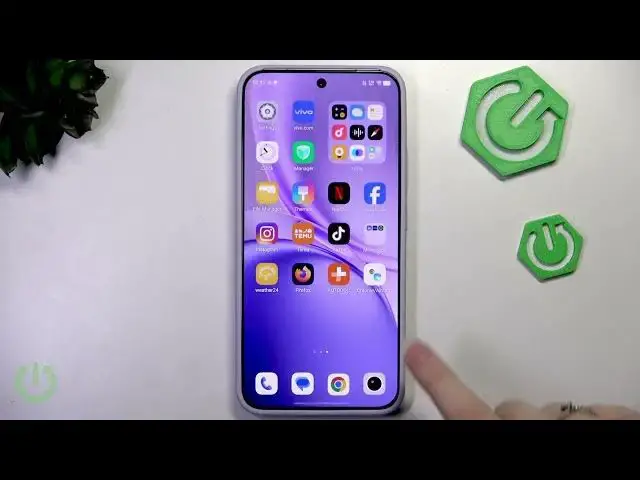

VIVO X300 FE – How to Use Split-Screen Multitasking
Jun 15, 2026

Learn how to use split-screen multitasking on the VIVO X300 FE. In this short, easy guide you will see every step: open Recents, enable split-screen, choose a second app, resize and swap apps, save an app combination to the home screen, convert a window to a floating or pop-up window, and close or remove split-screen. Perfect for multitasking and running two apps at once on your VIVO X300 FE. Follow along and try each step on your phone to get comfortable with split view and floating windows.
How to use split-screen multitasking on VIVO X300 FE?
How to create an app pair on VIVO X300 FE?
How to convert split-screen to a floating window on VIVO X300 FE?
0:00 Intro — what you'll learn
0:06 Open Recents and enable split-screen
0:30 Select the second app, resize and swap apps
0:39 Save an app combination to the Home screen
0:53 Close split-screen or return to full screen
1:01 Convert bottom window to floating/pop-up or drag to trash
1:11 Outro and final tips
#VIVO #VIVOX300FE #SplitScreen #Multitasking
Find out more:
https://www.hardreset.info/devices/vivo/vivo-x300-fe/
Follow us on Instagram ► https://www.instagram.com/hardreset.info
Show More Show Less #Science