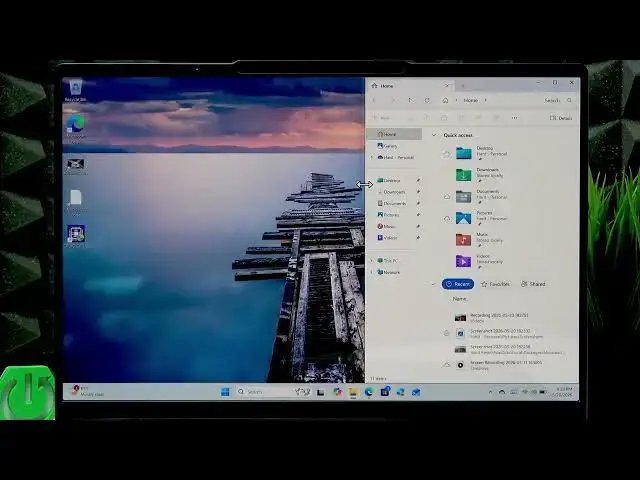

LENOVO Yoga Slim 7 – How to Enter Split Screen
Jun 15, 2026

In this video you will learn how to use split screen (multi-window) on the LENOVO Yoga Slim 7. I show simple, fast ways to place two or more apps side by side, resize each window, and snap apps into positions using the window top bar or the square (maximize) icon. These steps help with multitasking, productivity, and managing multiple apps on one display. Clear, easy steps you can follow right now on your Yoga Slim 7.
How to enter split screen on LENOVO Yoga Slim 7?
How to put two apps side by side on LENOVO Yoga Slim 7?
How to resize split screen windows on LENOVO Yoga Slim 7?
0:00 Intro – What you will learn
0:06 Open the two apps you want to use
0:17 Drag the top bar of one window to the side to split
0:31 Resize each app by moving the divider
0:50 Use the square/restore icon to choose snap positions
1:04 Drag the top bar to the top to place windows (up to four)
1:16 Quick recap and finish
#Lenovo #YogaSlim7 #SplitScreen #Multitasking
Find out more:
https://www.hardreset.info/devices/lenovo/lenovo-yoga-slim-7/enter-split-screen/
Follow us on Instagram ► https://www.instagram.com/hardreset.info
Show More Show Less #Science