0:00
Here I have Infinix Zero 5 and let me show you how to use top tricks on the following device
0:12
So at the very beginning let's start by using the home screen. Let's here find and select settings, scroll down and here we need to choose the sleep
0:19
cleanup and here we can use this really amazing feature so we can automatically clean up the
0:24
memory garbage and close some unnecessary application. And the lock screen time exceeds one hour with the setting time
0:31
So let me do it, here let me enable this feature, let's choose the start time and the end time
0:37
Now you can use the sleep cleanup and you can clean your system overnight
0:41
So let me leave it, now let's go for the next trick, let me show you the gesture and smart
0:45
motion right here. So here you've got a couple of useful features, for example you can use three finger screenshot
0:51
So now you can swipe down with three fingers to take a screenshot and that's it
0:56
You can also for example enable tap to wake so you can double click to lock or unlock
1:01
the screen and you can also set up the one handed mode. So right now we are using the following 4.7 inches and now if you use upper bar and here
1:11
let's do it twice and if you tap the one handed you will use the one handed mode
1:16
So let's tap outside the area or the following key to disable this mode and this is really
1:22
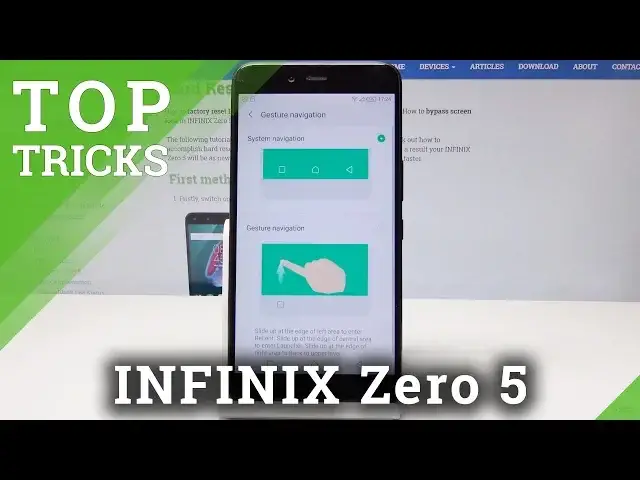
useful thing. Now let's go next, let me show you the gesture navigation, let's go back to list of settings
1:28
choose gesture navigation and right now we are using the standard panel of keys right
1:33
here but you can use gesture navigation right here. So now you can just swipe right to go back, you can also swipe in the middle to open the
1:43
home screen, you can use swipe left to open the reset task, let me show you
1:52
That's it and if you would like to go back to the previous setup let's here find the
1:57
gesture navigation and choose system navigation right here. Alright let's go back, now let me show you the next trick, so let me show you the uplock
2:06
So here let's use the XOS family, choose security and tap uplock
2:12
So you can use uplock for example by using the pattern, let's draw some pattern, let's
2:17
do it again and you can setup the security questions, so let me do it, tap done
2:24
The uplock is enabled so now you can use the app list, for example you can lock let me
2:30
say the drive, tap lock and now if you go to the drive right here you will need to open
2:45
the uplock to access this mode, this application. So that's it, now let me show you the last trick, so let me show you the phone manager
2:54
really powerful thing. So let's here find and select XOS family again, choose phone manager and here you can for
3:01
example use the lightning boost so you can optimize the device, you can clean up the
3:05
memory, you can also use clear trash so you can remove the trash files
3:14
And basically that's it, here you can also use other stuff, for example you can check
3:19
out data traffic management. So everything went well, thank you for watching, please subscribe our channel, leave thumbs