0:00
Hi everyone. In front of me I've got
0:02
iPhone with iOS 26 and let me share with
0:05
you how to secure your privacy.
0:12
So in this video I'd like to cover I'd
0:16
like to focus on the core privacy
0:18
controls like the location, contacts,
0:21
photos and tracking. I'd like to explain
0:24
what they do and how to manage them
0:28
management of those sections is required
0:31
at least once. So let me begin with
0:34
location services. We need to open the
0:37
settings. Let me go back to show you the
0:39
full path. Here in the settings let's
0:42
scroll and find the privacy and security
0:45
and to be honest this is the only
0:47
section we will navigate in. So just
0:50
focus on the privacy and security.
0:52
So here at the very top we've got
0:54
location services. So let's tap on it.
0:57
Now we've got the list of all apps that
1:00
are currently using location. I mean
1:03
they have access to the location
1:06
and when they have it. So for example,
1:09
while using, when shared, never, etc.
1:12
Moreover, if you will tap on the
1:14
specific app for some of those apps you
1:16
will also see precise location. So if
1:18
you've got it turned on, I highly
1:20
recommend to tap on it and turn it off.
1:22
So your device will share not the
1:24
precise location but the approximate
1:26
location which is best because you just
1:29
you know securing your own privacy.
1:33
here you can also decide how you want to
1:37
allow the location access. So never ask
1:40
next time or when I share or while using
1:42
app. And to be honest in my personal
1:45
opinion it is the best to use while
1:48
using the app. Thank [snorts]
1:51
thanks to it your device will simply
1:56
unnecessary continuous background
2:00
it will not track you all the time, only
2:02
when you're really using the app. So,
2:05
that's why I think it is the best. And
2:07
what I highly recommend to do here is to
2:09
simply go through all of those
2:11
all of those apps. For example,
2:13
calendar. Do we really need to use the
2:15
location to use the calendar? Not really
2:18
sure. And the precise location? Let's
2:20
turn it off. And it could be while using
2:23
app. Why not? Or never. It's completely
2:26
up to you how you want to
2:28
how you want to set it.
2:29
So, this is what to do in the location
2:32
services. Moreover, I forgot to mention
2:35
as you can see next to specific apps you
2:37
will have this arrow. You can have this
2:39
one or I mean the gray one or the purple
2:42
one. And here we've got the
2:43
instructions. So, the purple one
2:45
indicates that this item has recently
2:47
used your location. So, in our case,
2:49
system services. And a gray one
2:53
it didn't Oh, sorry. It has used your
2:56
location in last 24 hours. So, this is
2:58
how you can also track which app was
3:02
tracking your location basically.
3:06
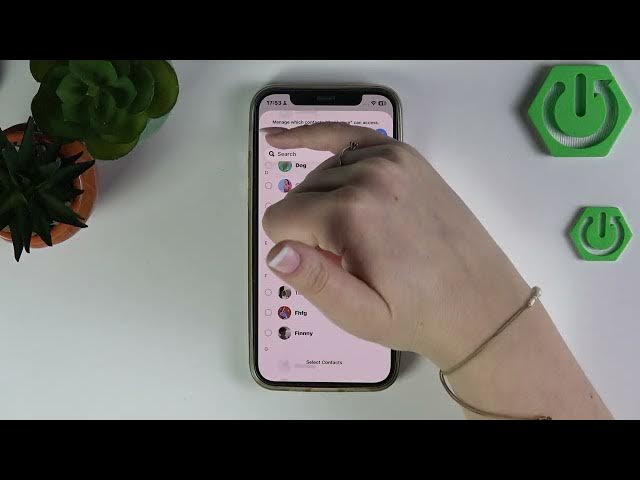
are the contacts. And
3:09
to be honest, I think that it is almost
3:12
the the most important thing.
3:15
So, let's go to contacts.
3:18
And here you can see the list of apps
3:22
that have requested access to to your
3:25
contacts. And I highly recommend to
3:27
simply go through the list, review it,
3:31
and carefully decide whether
3:34
those apps really need the access to
3:37
your contacts. It really matters because
3:41
contain not only your data, not only
3:44
your personal information, but also
3:46
others people. So, I think that it is
3:49
really crucial to check whether
3:52
the contacts have the
3:55
I mean which apps have the access to the
3:59
contacts and it is the same situation
4:01
just up on the specific app. You can
4:02
choose from none, limited access or full
4:06
If it if it comes to limited access, you
4:09
need to edit. I mean select specific
4:13
contacts. So, you can just go through
4:15
the list and choose the contacts to
4:18
will be will have the
4:21
the access. So, this is how it works
4:24
here or none, obviously.
4:27
If if it is the app that really doesn't
4:29
need the contacts, then just mark
4:33
Again, we will just go back to this
4:36
privacy. We just go back to this privacy
4:38
and security. And other thing that I
4:40
highly recommend to check are your
4:45
Obviously, it works the same just like
4:47
the previous option. So, you can just go
4:49
through the apps and check which one
4:52
should have the access to your photos
4:54
and which one really not. So, for
4:56
example, this one has limited access. We
4:59
can set full access or none.
5:01
And again, if you've got limited access,
5:04
you can select specific photos. And um
5:11
managing this section, I mean the
5:13
photos, will simply minimize unnecessary
5:16
exposure of personal content to anyone,
5:24
Another thing is the tracking, which is
5:26
right here under the location. So, just
5:31
You can turn if it is turned on, allow
5:33
apps to request to track, just turn it
5:35
off by tapping on this switcher because
5:38
it prevents apps from basically asking
5:40
for the permission to track your
5:42
activity across other apps and websites.
5:45
So, it basically reduces this cross-app
5:48
profiling using used for
5:51
for targeted advertising, for example,
5:53
and limits how much behavioral data is
5:55
collected about you. So, let's be
5:57
honest, we don't really want any kind of
5:59
data to be collected about us.
6:01
So, make sure that this option is turned
6:08
what I also highly recommend to just
6:11
finish this video to kind of wrap it up,
6:14
I highly recommend to develop a simple
6:17
habit. So, every few weeks you should
6:20
revisit revisit this privacy and
6:23
security section. And I highly recommend
6:26
to review all of the new apps that
6:28
you've downloaded and that
6:30
requested access to the location, for
6:33
Also, review the apps that gained access
6:35
to the contacts or photos because, as we
6:37
said, those those sections contain
6:41
[clears throat] also the data that is
6:42
not only yours, but also different
6:44
people. And also track the all of the
6:47
settings of the app after installing new
6:53
you have to be aware that permission
6:55
that permissions can change over time as
6:57
apps upgrade, for example, or request
6:59
new access. So, sometimes you can just
7:01
miss the the the situation that the app
7:05
started to track you or something like
7:10
that will be all. Thank you so much for
7:11
watching. Please hit the subscribe
7:13
button and leave the thumbs up.