Up next in 10


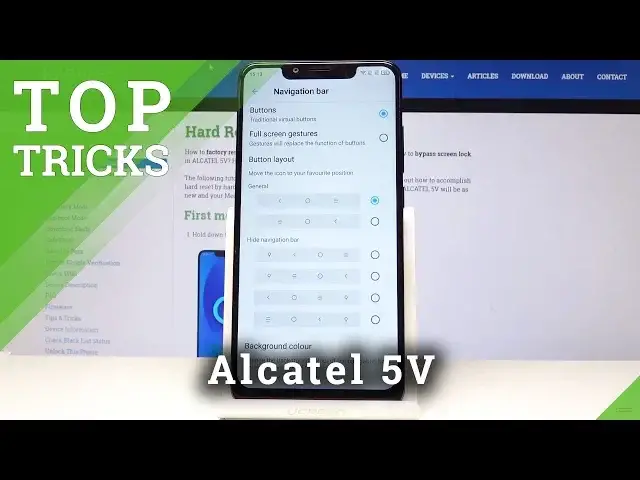
Do you want to make your life easier with presented super features available in your Alcatel smartphone? Watch the following video tutorial in order to discover cool options and learn the best tricks and use them in the future.
How to get access to secret options in ALCATEL 5V? How to get the best solutions in ALCATEL 5V? How to activate super feature in ALCATEL 5V? Where to find the best apps in ALCATEL 5V? How to enable hidden options in ALCATEL 5V?
Read more information about ALCATEL 5V:
https://www.hardreset.info/devices/alcatel/alcatel-5v/hardreset/first-method/
Follow us on Instagram ► https://www.instagram.com/hardreset.info
Like us on Facebook ► https://www.facebook.com/hardresetinfo/
Tweet us on Twitter ► https://twitter.com/HardResetI
Show More Show Less View Video Transcript
0:00
Welcome
0:07
In front of them is an Altel 5v and today I will show you couple tweaks and tricks that you can do on this device
0:13
So we'll start off with the gesture navigations which will basically remove the buttons that you see on the bottom
0:19
and make them into swiping ones. And to do it we'll go into the settings
0:25
and then under the display you will find navigation bar so right here and you have a couple options for the ones that you have
0:34
that are by default enabled the normal buttons you can change the layout you can pin it and
0:40
kind of make it hide and stuff like that or you can enable the full screen gestures and get a couple
0:47
page of basically preview on how to use it but basically swipe up to close swipe up and hold
0:53
to go into recent and swipe from the sides as a back button basically
0:57
basically, it doesn't matter which side you swipe from, it will always act as a back button
1:04
So moving on, we're going to go into hiding the atrocious notch
1:09
that is right here, kind of unreasonably big. And to do it, we can go back to where we were
1:16
which is under the display, and you will literally find it under the navigation bar
1:21
as you can see, notch. From here when you go, we can flip it off
1:25
and it will mimic a... in a way just a bigger top of the screen
1:32
Turning basically everything white and the display block. I'm not sure if this is actually an Ammolet display or not
1:40
It looks fairly good like it's not on. So it works fairly well
1:46
But to me it's kind of whatever, although it's not as truly hideous
1:53
So moving on, we're going to go into a option that is fairly good
1:57
if you a typical commuter and use public transportation a lot and for instance when you trying to log into somewhere and start typing the password and it starts showing every character of your password So whoever
2:12
looking at it can easily, if it has some kind of sense, can look at each letter of it and
2:18
remember it and get basically the password. So there's a way of actually making it hidden. So every
2:24
time you actually type in the letter, it's never visible. It's always as a just a blank spot
2:30
or a dot more accurately. And so to enable it, we'll go into security
2:37
So go to settings to the main screen and security and location
2:44
And from here, it should be somewhere, there is, show passwords, which I'm not sure why it's not disabled
2:52
Probably would have been better as it disabled by default than enabled. But so when you turn it off, now, for instance, if I go to
3:00
What would be a good place? Oh, play store. Sign in. So I'm just going to..
3:17
Let it work. So now, as you normally remember, when you write a single letter
3:24
it will show up instead of a dot for like a second or so
3:29
And now it's just an email. immediate dot. So no one can look over your shoulder and check out what password you're writing in
3:38
So a fairly nice thing. I really find this helpful. So moving on, we're going to go into the
3:45
developer options. So for instance, you want to shorten the animations that you have like this
3:53
raising up as you just seen or whenever you tap on it and kind of zooms into the screen. You can
4:00
either shorten them make them longer or altogether remove them basically and to do it we'll go back
4:07
into the settings go all the way down to i guessing it going to be under system Yep And about phone And from here you should see build number which is right here Tap it seven times It will get a little message that you are now on developer mode
4:26
And oh, you are now a developer. And once that is visible, you can go back. And you should find somewhere
4:37
I'm just going to search for it. Developer options, so it's under system and developer options
4:46
So right here. And from here, I have a fairly wide list of things you can change
4:52
Primarily, they will cater more to developers as name states. But there is like ones that I would find useful as a normal user
5:02
Right here, the window animation scale, transition animation scale, and animation duration scale
5:07
and basically what those mean is for instance animation duration scale or animation transition animation scale let's go with this one
5:16
and if i get for instance 10 time longer you get this glorious slow motion of window shades
5:27
and if you make it for instance off and the same it will basically once you pull up it will be instant
5:36
no animation. So something like it. And then you can also go with
5:46
as you can see it works like this. You can change animations of it
5:54
Or as I said previously you can basically remove them all together as well
5:58
like so. And now they're instant. There is no latency between them
6:05
I'm going to revert it back to the normal one which is animation scale 1 x as the default and we going to move into the last thing which is the fingerprint options basically and let go back to the settings the main page of settings and from here security unlock
6:30
and then fingerprint sensor and from here we have a couple things that you can do with the
6:36
fingerprint at the back apart from unlocking your device so we can use it to take photos
6:41
not very useful clear notifications might be handy go back to the home screen would be nice if it would
6:51
actually work immediately not by holding it for like I'm going to demonstrate it see where is it
6:58
it's somewhere here so I'm going to say I'm holding it now and it takes solid couple of
7:05
seconds for it to actually turn off so that isn't also very useful but you have a
7:11
it for pickup calls and you have also you can use it to show notification panel those are the two
7:17
ones that i would find useful so on someone calling you can actually just up the sensor to pick up
7:22
and the notification it's fairly nice if you're holding a phone you can just swipe it down like so
7:29
to bring up the notification panel and also swipe up to put it back away and it especially is
7:36
super handy let's say if you have a bigger display this one is fairly
7:41
reasonable size so I guess it's equally as equal and challenged to reach it either with your thumb
7:49
from the top or with the sensor but when you have like some kind of massive display it it gets kind of
7:56
chaotic to try to reach for that for the top to pull down the notification so something like
8:01
the sensor swipe is really handy in my opinion so those would be the all tweaks and tricks that
8:09
I wanted to share and if you found this video helpful don't forget to like subscribe and
8:14
thanks for watching
#Science