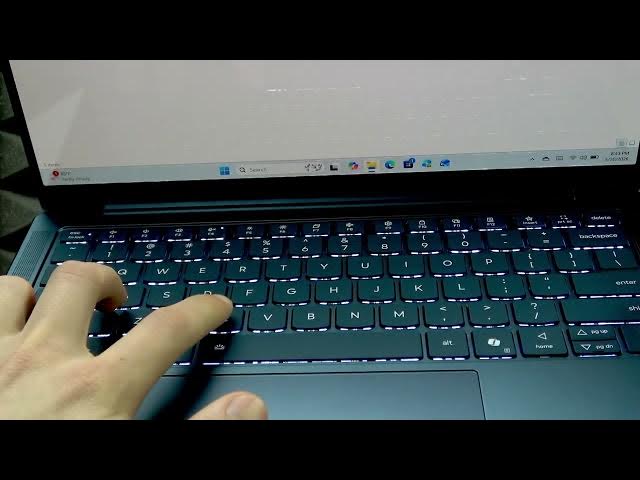

LENOVO Yoga Slim 7 – How to Copy and Paste
Jun 14, 2026

In this video I show how to copy and paste on your LENOVO Yoga Slim 7. You'll learn multiple easy methods: using File Explorer toolbar (Copy, Cut, Paste), the right-click context menu, keyboard shortcuts (Ctrl+C / Ctrl+V / Ctrl+X), and the Windows clipboard history (Windows+V). I demonstrate copying files in the same folder, cutting and moving files, and how to enable and pick items from the clipboard so you can paste the exact clip or file you need.
How to copy and paste on LENOVO Yoga Slim 7?
How to use clipboard history on LENOVO Yoga Slim 7?
How to cut, copy and paste files on LENOVO Yoga Slim 7?
0:00 Introduction – what this video covers
0:10 Open File Explorer and find the file
0:18 Copy and Cut using the File Explorer toolbar
0:40 Paste behavior: copy creates a duplicate, cut moves the file
1:04 Right-click context menu: copy, cut and paste
1:25 Keyboard shortcuts: Ctrl+C, Ctrl+V, Ctrl+X
1:44 Clipboard history: press Windows+V and Turn On
2:00 Wrap up and subscribe
#LENOVO #YogaSlim7 #CopyPaste #WindowsTips
Find out more:
https://www.hardreset.info/devices/lenovo/lenovo-yoga-slim-7/copy-and-paste/
Show More Show Less #Science