0:00
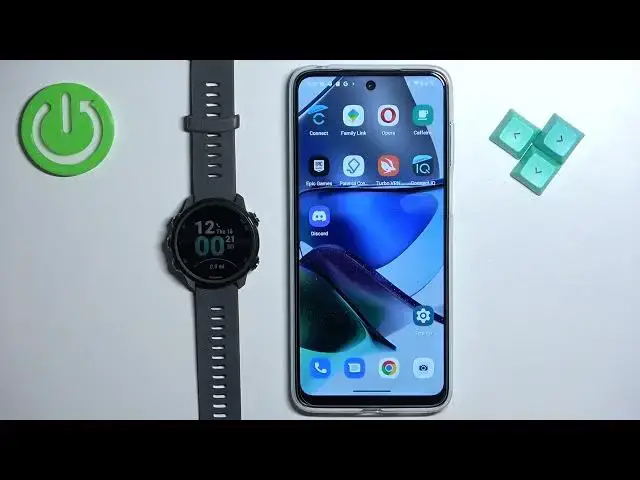
Welcome. In front of me I have Garmin for Arundre 245 and I'm going to show you how to
0:07
enable the phone notifications for this watch on the Android phone. Basically if you want to
0:12
receive the notifications from your phone on the watch. Before we start, if you want to receive
0:21
the notifications from your phone on this watch, your watch needs to be paired with a phone via the
0:26
Garmin Connect application. Once the devices are paired together, we can continue and now we need to make sure that the required permissions are allowed
0:35
and enabled to send the notifications from our phone to our watch
0:41
So we need to open the settings on our phone so let's tap on the settings icon
0:48
In settings, scroll down and find the option called notifications, tap on it
0:58
scroll down and find the option called device app and notifications on the older
1:03
versions of Android you will need to find the option called notification access and
1:10
you can find it in an option called a special app access and where is it somewhere
1:20
here and apps then special app access And in older versions of Android you will have the notification access option
1:36
But on the newer versions of Android, you will have the option code device and apps notifications
1:42
And once you open this menu, you will see the list of applications. And as you can see, we have two categories, allowed and not allowed
1:49
And Garmin Connect is on the not allowed list. If it's on the allowed list, you can close the settings, but if it's not allowed list or it's not the allowed option, you need to tap on the app, tap on the switch next to Allow Notification Access, tap on Allow, and then you can go back
2:06
It will appear on the allowed list. It means that the notification access or device and app notifications are enabled for the Connect application, and we can close the settings now
2:16
Also, find the Garmin Connect icon on your phone, press and hold on it, then tap on the App Info
2:25
to open the App Info menu for the application, tap on the permissions, and here we need to make
2:31
sure that the couple permissions are enabled. We need call logs, contacts, phone and SMS for the notifications to work
2:41
So let's tap on call logs, tap on allow, go back. Contacts allow, go back, phone, allow, go back
2:51
SMS allow and go back You can also allow the calendar permission if you want to It not required but if you want to you can allow it Okay and once you done with the permissions
3:08
you can close the app menu or up info menu and now we can open the Garmin Connect application on the
3:13
phone. Tap on the menu icon to open the menu, scroll down, tap on Garmin devices
3:19
tap on the 4-A-runner-245 to select it. On this page, find the option called sound and alerts, or sounds and alerts
3:30
Here, tap on smart notifications, and here we can customize the settings for the notifications
3:36
We can enable or disable the notifications during an activity. So basically, when you're tracking the activity on your watch, like running, cycling and stuff like that
3:46
And then we can tap on show to select the type of... notifications to appear on your watch
3:53
and you can select all notifications, calls only, and calls and texts
3:57
Select the one in like by tapping on it. Then you can tap on alert, and you can select the type of the alert
4:02
You have tones, tones and vibration only. Okay. Next we have not doing an activity
4:09
So basically, when you're using your watch and you're not tracking activity
4:14
and you can enable and disable the notifications for it. You can tap on the show
4:19
to select the type of notifications you want to see. Tap on alert to select the type of alerts and then you can tap on timeout and choose how quickly the notifications will disappear from your screen when they arrive on the watch
4:36
And once you're done, you should be able to receive the notifications. So once you allow the permissions, required permissions, enable the notification access
4:45
and enable the notifications in the application. So I'm going to send myself a message on Discord
4:53
As you can see, we got the notification on our phone and also on our watch
4:59
If you miss the notifications on the watch, you can always press the up or down button on the home screen to scroll through the list of widgets
5:06
Find the widget that looks like this. This is the notification widget
5:10
As you can see, here we have our notification. We can press the start button to enter
5:14
Then we can see how many notifications we got. And you can select the notification, press the start to open it and read it
5:21
And then we can also press the start to open it and read it. Press the Start to open this menu and we have dismiss, Markas Red, Reply and Block Up
5:28
I'm just going to tap or rather select dismiss and press the Start button to clear it
5:33
Okay. And that's how you enable the phone notifications for this watch on the Android phone
5:40
Thank you for watching. If you found this video helpful, please consider subscribing to our channel and leaving the like on the video