Up next in 10


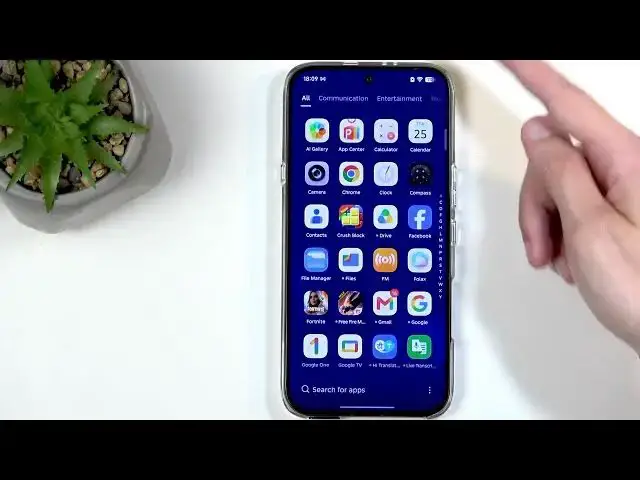
This video shows how to safely factory reset (hard reset) an INFINIX Note 60 using the Settings menu. You will learn what data is erased, why you should back up photos, contacts and app data first, and two practical backup options: Google Backup and INFINIX Mobile Cloner. After the backup section we walk step-by-step through Settings → System → Reset phone → Erase all data, confirm your screen lock and start the reset so your Note 60 returns to the Android setup screen.
How to factory reset INFINIX Note 60?
How to back up INFINIX Note 60 before reset?
How to use Mobile Cloner on INFINIX Note 60?
0:00 Intro – what this video covers
0:10 Why you must back up before a factory reset
0:38 Google Backup explained – limits and what is restored
5:41 Mobile Cloner – best option for full device transfer
8:08 Start: open Settings and go to System
8:18 Select Reset phone and choose Erase all data
8:47 Confirm screen lock and final erase step
9:13 Reset in progress – wait for Android setup
11:02 Reset finished – device ready to set up
#INFINIX #INFINIXNote60 #FactoryReset #HardReset
Find out more:
https://www.hardreset.info/devices/infinix/infinix-note-60/hardreset-second-method/
Show More Show Less View Video Transcript
0:02
Welcome. In front of me is an Infinix
0:04
Note 60 and today I will show you how
0:07
you can hard reset this phone through
0:09
settings.
0:16
So,
0:18
uh to get started, I do want to quickly
0:20
talk about uh some important things like
0:23
backing up your device. As resetting
0:25
your phone does delete basically all of
0:27
the data from your device. So, if you
0:28
have anything like photos, contacts,
0:31
videos, applications, or anything along
0:33
those lines that you would like to
0:34
preserve, you should make a copy of it.
0:36
Now, I will show you a couple ways that
0:38
you can do this. Um, at least one way
0:40
that I'm going to show you and one that
0:41
I'm going to talk about because as far
0:44
as I'm aware, NFX doesn't have its own
0:46
way to to do the second option. I'm
0:48
going to quickly check though. Oh, no.
0:50
They actually do. Mobile cloner. Okay.
0:52
So, I'm going to show you both. I'm not
0:55
going to actually be backing up the
0:56
devices. that will take a little bit too
0:58
long. But I'll be showing you how we can
1:00
go about them and the benefits and
1:01
drawbacks. So, let's start off with the
1:03
most common one, the one that is
1:04
probably going to be the easiest and uh
1:07
also the worst one, which is Google
1:09
backup. We can open up settings and
1:10
scroll all the way down to system and in
1:12
system find backup uh to Google Drive.
1:17
And
1:19
you can see right here we have photos,
1:21
videos, and other device data. and it
1:23
tells me that they are both being backed
1:25
up which can define this by this check
1:27
mark. If you have the green check mark
1:29
that means that your data has been
1:30
backed up and it is being proactively
1:32
backed up. Now uh we can actually click
1:35
on these and for instance for Google
1:38
photos you can see it space right here
1:40
15 GB in total. 15 GB is the amount of
1:45
storage you get for free from Google
1:47
with your Google account. That's also
1:50
where your photos and videos will go to.
1:52
And if your photos and videos library
1:54
exceeds 15 gigabytes, the rest of the
1:56
thing that goes over that 15 gigabytes
1:58
gets left behind. So, as a backup of
2:02
photos and videos, it's pretty bad
2:03
because let's be honest, you probably
2:05
might have more than 15 GB of photos and
2:07
videos, especially when you have videos
2:09
in 4K 60 frames or even 8K. So, it's
2:14
absolutely useless in this case, which
2:16
means that you potentially need to do a
2:18
backup of photos and videos manually.
2:20
But you can, for instance, just grab a
2:22
cable, plug it in, and move to your
2:23
computer quite easily as there's a DCIM
2:26
folder in in the actual when you open up
2:30
the folder on your computer, and you can
2:32
just grab that entire thing that is
2:34
representative of your photos and videos
2:36
or just general media on your phone.
2:40
Now if we go back to the other device
2:42
data, what it tells us is that other
2:44
device data is things like uh our
2:47
contacts, call history, device settings,
2:49
apps, updata, SMS, and MMS messages. Now
2:53
I am here to tell you that this is just
2:55
loadout Um number one, calling
2:58
this a backup is blatant lie. It's not
3:02
backing up half of this data actually.
3:04
uh the things that is bucking up is the
3:06
things that you produce as a unique data
3:10
and that Google can monetize by
3:12
basically making some ad profiles and
3:14
selling this information. So your
3:16
contacts, call history and u SMS
3:21
messages, anything that can be fed to
3:22
the uh the corporate bullshittery to
3:26
feed to their AI algorithms and also
3:29
advertisements is what they're going to
3:31
take and back back up. Um now things
3:34
that would actually matter to you maybe
3:37
applications or updata if you don't know
3:39
updata is responsible for for instance
3:41
information such as let's say you have
3:44
Netflix and Netflix is signed in with
3:46
your account when you open it up usually
3:49
you don't need to resign in that's up
3:51
data that is keeping that information
3:55
that data isn't being backed up ever
3:58
u so uh other things like applications
4:01
uh if they came from outside of Play
4:03
Store. They don't exist to Google.
4:06
Google treats them as an unwanted child.
4:10
If you didn't get it from Play Store,
4:12
you didn't get it at all. So, they will
4:15
just completely ignore it when back
4:17
backing up this data. Uh, and
4:19
applications that did come from Play
4:20
Store, uh, well, they're not any better
4:22
either because Google Backup doesn't
4:25
actually back them up. What it does is
4:27
the equivalent of giving itself a little
4:29
sticky note with the names of
4:30
applications that you used to have on
4:32
the device that Google when restoring
4:34
will need to redownload from play store.
4:36
Now you may wonder what happens if the
4:40
application no longer exists on play
4:42
store and that would be the right thing
4:44
to wonder because if an application no
4:46
longer exists on play store it sure
4:47
ain't getting downloaded from there such
4:50
as Yuzu. Nintendo made sure that the any
4:52
kind of uh shred of uh of this
4:55
information has been scrubbed. They
4:57
literally scoured the uh multiverse to
5:01
to find every possible user emulator
5:04
that was available and made sure that
5:06
it's Gonzo, right? You can still
5:08
probably find it somewhere on the
5:09
internet, but it's no longer on Play
5:11
Store. Um so
5:15
you might have downloaded it from Play
5:17
Store when it was there for a brief
5:18
time, but it no longer is there. And
5:20
even though you backed it up by Google's
5:22
terms, uh, yeah, you're not restoring
5:24
that because that backup is worth
5:26
Um, so just be aware of it. Now, better
5:31
way to back up your device because I
5:33
kind of spend time explaining how to not
5:36
do it in a way is going to be
5:40
this right here, mobile cloner. Now,
5:42
this is something that can use
5:45
if you're migrating your data to another
5:49
device that would also be an Infinix.
5:52
Now, if you are if you have a old phone
5:56
that is not an Infinex or maybe you're
5:58
moving to a new phone that also isn't an
6:00
Infinex, you would need to most likely
6:02
use a different application. You use the
6:05
application of the company like Infinex.
6:07
uh mobile cloner is Infinex's
6:10
application and they do this or create
6:12
this application to help you move data
6:14
to their devices and between their
6:16
phones and any other times you will need
6:19
to use basically the application of the
6:22
phone you are moving right now the data
6:24
too.
6:26
So, as a example, if I'm resetting this
6:28
device and I'm moving I either I have an
6:32
old Samsung that I have lying around or
6:34
I'm moving to this one. What I could do
6:35
is download smart switch, which is
6:38
Samsung's application for this. And it
6:40
looks almost exactly the same. The
6:42
purpose is exactly the same. So,
6:44
download smart switch on this phone. I
6:47
would launch it on this one and on this
6:48
one and connect these two phones
6:50
together. I would select that this is an
6:51
old device. This is the new one. uh old
6:53
and new basically uh defines uh if
6:56
you're sending or receiving data. Old
6:59
means that you're sending, new means
7:00
that you're receiving the data. Uh and
7:03
technically you can use this both ways.
7:04
So I could reset this and this is my old
7:07
phone. I can move the data to it, right?
7:09
Using smart switch. And if I reset this
7:12
phone, I can then move back the data to
7:14
this phone. But I would need to download
7:15
now on Samsung mobile cloner because
7:18
again I'm now moving again the data back
7:21
to So I need to use the application of
7:23
the phone I'm moving the data to.
7:26
And this one will be the best. It this
7:28
process creates a connection between
7:30
these two phones uh through a hotspot
7:33
and then allows me to move over every
7:35
shred of data regardless where it
7:37
originated from and regardless how much
7:39
of it is. As long as the amount of data
7:42
that I'm trying to move doesn't exceed
7:43
the phone's capability,
7:46
uh I I'm fine. And it is going to be
7:49
much better way to go about this. It
7:51
seems a little bit convoluted
7:52
considering you might need to use two
7:53
different applications for this if you
7:54
want to move data from and back to it.
7:57
Uh but believe me, uh this is a small
7:59
price to pay for a much better process
8:02
than what you get with Google.
8:05
Now, with that out of the way, let's get
8:07
into the actual resetting. I wasted
8:09
already 8 minutes of your time, so let's
8:11
open up settings and just get quickly to
8:13
this. We're going to go into system
8:15
again, and this time around, we're going
8:16
to select reset phone. And here you want
8:19
to choose erase all data.
8:22
Give it a moment. It will load loaded
8:24
the data that will be removed which
8:26
includes things like your Google
8:27
accounts that are signed in on the
8:28
device. They will be removed from the
8:30
phone. Not generally just from the
8:32
phone. Uh you have things like your
8:34
system app data and settings, downloaded
8:36
apps, music, photos, and basically all
8:38
user data. Obviously, this doesn't
8:40
really matter as our device should have
8:41
been backed up by now. That's what I
8:43
wasted 8 minutes of your life for. So,
8:45
we're going to click on erase all data.
8:47
And if you have some kind of screen
8:48
lock, which I do, you will need to
8:50
confirm it right here.
8:52
Once you do so, click on a check mark.
8:55
It gets you this pop-up. Erase all data
8:57
permanently. All of your personal
8:58
information, including downloaded apps
9:00
and uh SIMs will be deleted. You cannot
9:04
undo this action again. Our data should
9:06
have been backed up. So, erase all data.
9:09
Give it a moment and it will begin
9:11
factory resetting itself. Now, this
9:13
process will take about 1 to two minutes
9:15
to finish up. And when it's finished, we
9:17
will be presented with Android setup
9:19
screen. So I'll be back once that is
9:21
visible for me.
10:59
And as you can see, the process is now
11:02
finished and you can set up your device
11:03
however you like. So if you found this
11:06
video helpful, don't forget to hit like,
11:08
subscribe, and thanks for watching.
11:12
I'm also not sure why the SIM card
11:13
showed up. It should have been popped
11:14
out. just
11:19
Oh, there we go.
11:24
Okay.
#Science