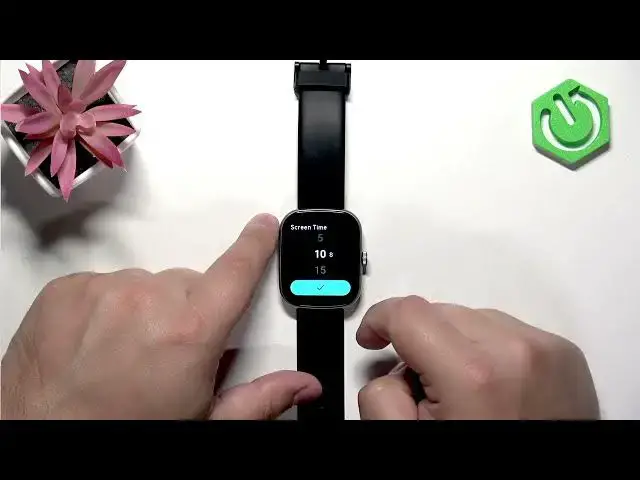

IMIKI Frame 2 Lite - How to Change Screen Timeout
Jul 2, 2026

In this video I show how to change the screen timeout (screen time) on the IMIKI Frame 2 Lite so the display turns off after 5, 10 or 15 seconds of inactivity. You will learn how to wake the watch, open the menu, go to Settings → Bright (Brightness) and select Screen time to save battery and avoid accidental taps. This quick walkthrough is perfect if you want to extend battery life or make the screen turn off faster on your IMIKI Frame 2 Lite.
How to change screen timeout on IMIKI Frame 2 Lite?
How to set screen time on IMIKI Frame 2 Lite?
Where is the screen timeout setting on IMIKI Frame 2 Lite?
0:00 Intro - what we will change
0:10 Wake the watch and open the menu
0:28 Open Settings and find Bright/Brightness
0:38 Select Screen time and choose 5s, 10s or 15s
0:57 Confirm selection and test the screen timeout
1:08 Outro and subscribe for more tips
#IMIKI #Frame2Lite #ScreenTimeout #Smartwatch
Find out more:
https://www.hardreset.info/devices/imiki/imiki-frame-2-lite/screen-timeout/
Follow us on Instagram ► https://www.instagram.com/hardreset.info
Like us on Facebook ► https://www.facebook.com/hardresetinfo/
Show More Show Less #Science