0:00
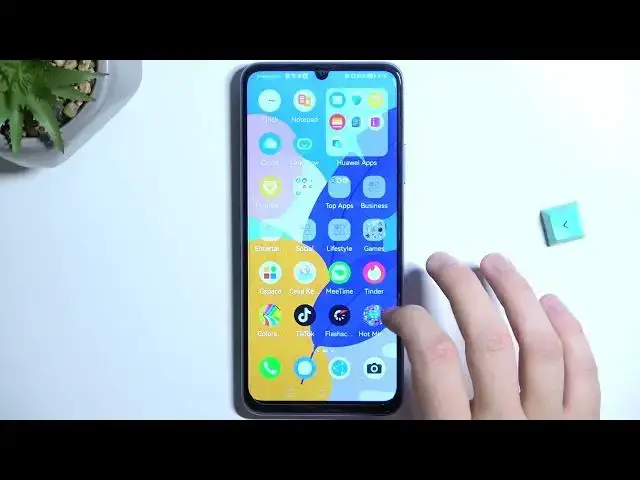
Welcome guys, so today I am with the Huawei Y-7T
0:03
and I'm going to show you how easy you can get Google services on this smartphone
0:12
Okay, so the first step you have to remember to be connected to the Wi-Fi network or mobile data
0:17
Right now you have to open the Petal Search application. You have to find it on your phone and that's the default application
0:23
You don't have to download it from the app gallery or the browser, just open it
0:28
In my case, it's in the tools and the health. but you will find it in the home screen or the app drawer menu
0:35
Right now we have to tap right here on the search bar and type G-space
0:41
It will automatically move us to the app stop and then we have to get this application
0:46
As you can see it's also available in the app gallery. So click to install
0:51
Now just be patient and wait for the download. Okay, right now we can open
1:05
Click start. Accept all of this permission that pops on your screen
1:11
Click to continue. Okay, and as you can see, right now we are in the application
1:19
So, and that's some kind of information that necessary permissions are not enabled
1:23
So we can tap right here, and we can enable the battery
1:29
Optimize permission Right now we can simply go back and as you can see right here we can find like YouTube Facebook WhatsApp and a few other apps
1:40
So what do we have to do? At the first we have to tap on this, on one of this icon with this fire and the right upper corner
1:48
So for example, let's start from the YouTube. And right now we'll be moved to the Play Store
1:52
So we have to tap to sign in. Okay, I'm going to click one more time
1:58
because it's not working in my case. Okay, so as you can see, it was a little bit laggy
2:03
but you have to just tap for a few times. And right now we have to input our email
2:10
our Gmail account actually. Okay, you can also close this notification. Click next
2:22
And right now we have to input our password, so let me just do this out of the camera
2:28
Okay, I did it and right now just tap next. After a few seconds, you will be in the Google Play Store and that's the information who will be using this device
2:40
Of course, I'm going to use it. Tap agree, just like you log into the normal Android phone
2:46
You can also enable the backup the Google Drive. That's also another information that we are detected as honor 8x and yeah, that's some kind of the bug that sometimes appears
2:58
right here So even when you already sign in with your account you have to make it for another time So don worry that something that also happened in my case okay that weird
3:13
we can try to go back let's see what's going to happen okay it definitely takes so much time
3:22
so if you have the same problem and just try to go back we can close this application
3:32
open it for another time. Okay, so looks like we are not login with our account because the Play Store is still not
3:48
available right here. So let's try to open this YouTube application for another time
3:58
Okay, and right now it works. So basically we have to restart the application
4:02
So what we can do right now, we can just install the YouTube, for example
4:07
We can go for the other searches, like we can get to Facebook
4:12
As you can see, right now we are just in the Play Store. So we can get any application that you own
4:16
We can also get the TikTok. And right now, we can simply go back
4:28
As you can see, here we are. That's the Google Play Store that is working. That's our account
4:32
Let's go back. And here is our G application As you can see when we download any of this application this red fire from the right upper corner will disappear So right now we can just open the YouTube for example
4:50
That's also the notification at the bottom that YouTube is opening. That's some kind of the ad. We can close it
4:59
No, I don't want to use the YouTube Premium. And there it is. As you can see, we are on the YouTube
5:04
Everything is fine. It's working. There's also our account already login. It's synchronized with the Google Play Store
5:18
The Facebook is also available. And yeah, that's how it works. When you tap on the plus, you can also clone apps that you already have on your phone
5:34
And if you want to open the Play Store for another time, you have to use the application
5:38
with this red fire in the right upper corners. For example, when we tap on the WhatsApp, we will be smoothly moved to the Play Store
5:47
As you can see, there is. So yeah, that's all for this video
5:54
That's how we can get the Google Play Store and that's how we can use the Google services
5:58
on the Huawei Y-70. If you find this video helpful, just remember to the like, comment