0:00
Hello everyone and welcome back to our
0:01
channel. In front of me I have
0:04
Xiaomi Watch S5 and today I'm going to
0:07
show you how to pair this watch with the
0:10
So, let's get started.
0:17
If you want to pair your watch with your
0:19
iPhone, first you will need to turn it
0:20
on. And to do it, press and hold the
0:22
lower button right here and keep holding
0:23
it until you see the uh Mi logo on the
0:27
And once you see the logo, release the
0:28
button and wait until the watch is done
0:30
booting up. And after the watch boots
0:32
up, you probably will see this list of
0:33
languages on the screen. Find the
0:35
language you would like to use and then
0:37
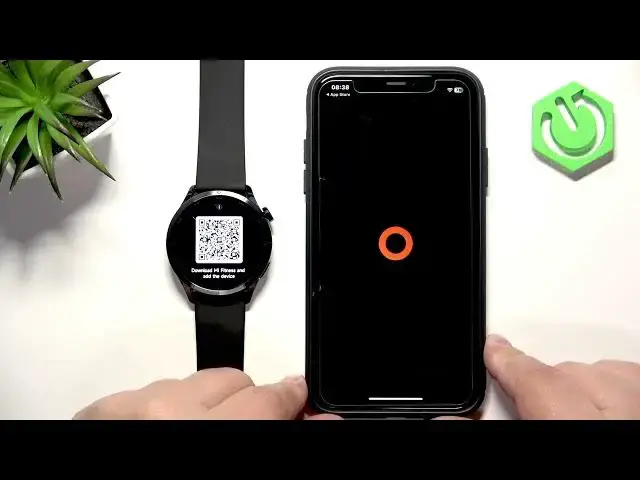
tap on it. And then you will see the QR
0:39
code which tells you to download and
0:40
install Mi Fitness application. And you
0:43
can use this code to download the
0:44
application or you just can go to your
0:52
Uh tap on search, type in Mi Fitness.
0:59
And on the list of applications, you
1:03
uh the app on the list right here.
1:06
You can then install it.
1:10
And after it's done installing, you can
1:12
open it. And then we can continue. So,
1:14
let's wait until the application is done
1:18
Let me actually lower the brightness a
1:24
Yeah, that's a bit better.
1:31
Okay, the application is done
1:32
installing. We can tap on open.
1:41
Uh check the first box.
1:43
You don't need to check the second one
1:45
if you don't need don't do don't want
1:46
to. Basically, by checking it you enroll
1:49
in the user experience program.
1:52
Then we need to select the region. So,
1:54
tap on region, scroll through the list,
1:55
find the region you want to use.
1:58
And once you're done, tap on next.
2:02
You will see the health page. Now tap on
2:05
And it will ask you to log in into
2:06
Xiaomi account. If you don't have one,
2:08
you can always create one by tapping on
2:09
create account right here. Then use it
2:11
to log in. I already have one, so I'm
2:35
Okay. Check the box, tap on sign in.
2:40
Apparently, I entered the incorrect
2:50
Yeah, the password was wrong. And after
2:52
you log in, you'll probably see a lot of
2:54
pop-ups about the permissions.
3:00
And then you can tap on add device.
3:03
Allow the required permission.
3:06
The app should detect your watch. Tap on
3:08
the watch to select it.
3:11
Tap on the check mark to confirm.
3:15
Allow the required permission.
3:19
Again, the permission.
3:22
And here you can check or uncheck the
3:28
automatically update the watch.
3:30
So, if you uncheck this box, your watch
3:31
will update automatically when the
3:34
uh connection to Wi-Fi is enabled.
3:36
If you don't care, you can uncheck it.
3:38
If you want to use it, check the box,
3:41
And then select the preferred layout of
3:43
the app menu and resume.
3:46
And here we have some more
3:48
uh permissions for like incoming calls
3:50
and notifications. You can skip this if
3:51
you don't care. but if you want to use
3:53
this feature, tap on resume and allow
3:55
the required uh permissions.
4:04
Okay. And [snorts] once you're done with
4:05
the permissions, you should see the
4:06
device page, and on it you should see
4:11
S5. And if you skip the tutorials on the
4:15
the watch should be ready to use as
4:18
And that's how you pair this watch with
4:22
If you found this video helpful, please
4:23
consider subscribing to our channel and
4:25
leaving a like on the video. Thank you
4:27
for watching, and see you in the next