0:00
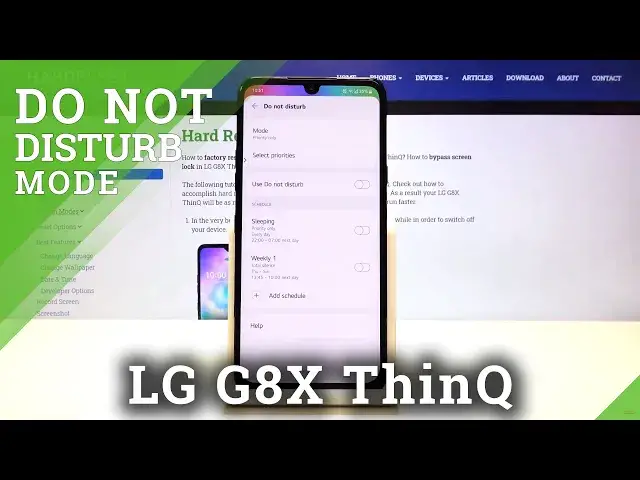
Hi everyone, here we've got LG G8X ThinQ and let me show you how to enable Do Not Disturb
0:11
mode on this device. So first of all let's begin with some customisation
0:15
So let's open the settings, then let's find sound and here we've got Do Not Disturb so
0:21
let's tap on it. As you can see here we've got some options to customise
0:24
First of all we can choose the mode so let's tap on it and as you can see now it is set
0:29
total silence so your device will silence all notifications but you can set priority
0:34
only so some selected callers or selected apps will notificate so let me pick priority
0:44
only for example and let's select priorities if you want. We can select priorities from app notifications, here we will have the list of apps which we
0:54
can activate and after tapping on this switcher we will activate all notifications from that app
1:01
Let me get back and as you can see the same situation will be with calls or messages
1:07
Let's tap on calls for example and you can priority calls from contacts, favourites
1:13
everyone or no one. Let me pick no one for example and the same situation with messages
1:19
What's more you can turn on repeated calls feature. It means that second call from same caller within 15 minutes will be not silenced
1:29
But let me get back. If you want to use the Do Not Disturb mode right now simply tap on the switcher right
1:34
next to it and as you can see it is immediately activated
1:38
What's more you can schedule the feature. As you can see here we've got the sleeping option so it is definitely installed in your
1:45
device but you can add your own schedule. Let's tap on it
1:49
You can choose from weekly option and calendar option. If you will choose the calendar option as you can see it will be based on your calendar events
1:59
But let me pick for example weekly and as you can see we can change the schedule name
2:05
you can set the dates in which you'd like to activate the Do Not Disturb mode and you
2:10
can set the hours. Simply tap on it and choose the one you want to use
2:15
You can set of course the mode so the priority only will be activated or it will be totally
2:21
silenced and if you're ready click on save. And as you can see it is immediately applied to the schedule section and it is also turned on
2:31
In order to turn it off just tap on the switcher right here. So this is the customization of the Do Not Disturb mode
2:38
If you want to have much faster access to this feature simply unroll the top bar and
2:44
let's find the Do Not Disturb mode icon. As you can see now it is activated and to turn it off just tap on it
2:55
And as you can see the device just got back to its normal state
2:59
So that's all. This is how to enable Do Not Disturb mode in your LG G8x ThinQ
3:05
Thank you so much for watching. I hope that this video was helpful and if it was please hit the subscribe button and