Up next in 10


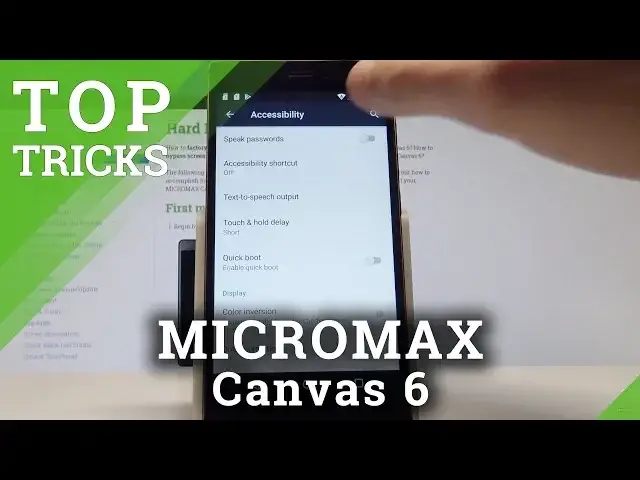
Check out the list of the best tips for MICROMAX Canvas 6. In this video, we present our top picks for most useful settings and features. Let's use hidden options and secret tricks in order to ger your MICROMAX Canvas 6 know better.
More Info about MICROMAX Canvas 6:
https://www.hardreset.info/devices/micromax/micromax-canvas-6/hardreset/first-method/
Show More Show Less View Video Transcript
0:00
Here again, Micromax Canvas 6 and let me show you top tricks for the following device
0:12
So at the very beginning let's start with the first trick. Let's open the apps icon, find and select here settings
0:20
Let's scroll down to the system tab and choose accessibility. Here let me show you the magnification
0:25
So let's go to system, choose magnification gestures and to enable this feature let's
0:29
use the same switcher right here at the top of the screen
0:33
So now you can magnify things on your screen just by triple tapping. Let me show you
0:38
Let's triple tap on the screen and now the magnification is working so here you can move
0:43
the magnification position by using two fingers. If you would like to quit magnification let's triple tap again and to disable this gesture
0:51
let's use the same switcher. Alright let's go for the second trick so let me show you advanced color settings
0:58
Let's scroll down in accessibility to the bottom of the list and here you can use color inversion
1:04
All you have to do is use this switcher and you can check out this effect so you can use
1:10
inversion of your color. To disable this mode let's use the same switcher
1:15
You can also here use color correction so here you can choose correction mode
1:21
It could be red green for example or blue yellow and to go back to the default settings
1:28
let's disable this color correction. Let's go back and let me show you the third trick so let me show you the advanced screen menu
1:37
So if you would like to customize your screen you have to open your home screen and let's
1:41
simply hold down somewhere on the screen. So let's hold your finger and here you can choose wallpaper
1:47
You can for example choose widgets. So let me choose for example the calendar
1:51
You have to hold and drag. Now you can use your calendar widget and you can also here go to settings or play some
2:01
music by using this player. That's it. Let's go for the next trick so let me show you scheduled power on and off
2:09
Let's use apps icon. Here let's choose settings and if you would like to use scheduled power on and off let's
2:16
find this feature under system and you can for example power on your device every day
2:24
at 7. You can repeat this every Monday, every weekend. You can just customize those rules
2:32
You can also switch off your device in the exact time and you can also choose the day
2:42
of the week right here. So that's it and now let me show you the last trick
2:47
Really useful one. The hidden mode called engineer mode. Let's just use font dialer and let's use this secret code so let's enter asterix pound
2:59
asterix pound, three six, four, six six, three three, pound asterix, pound asterix
3:11
The engineer mode just pops up. You can navigate here by tapping appropriate options
3:16
You can use here telephony to use auto answer, select pound mode
3:20
You can see the information. You can also use connectivity tab to test your bluetooth, wifi and FM receiver
3:29
You can test your hardware features such as audio, camera, display. You can see location settings, log and debug and also others
3:38
For example here you can set up your font. So that's it
3:43
If you would like to quit this mode let's use back key and basically that's it
3:46
Everything went well. Thank you for watching. Please subscribe our channel, leave thumbs up under the video
#Science