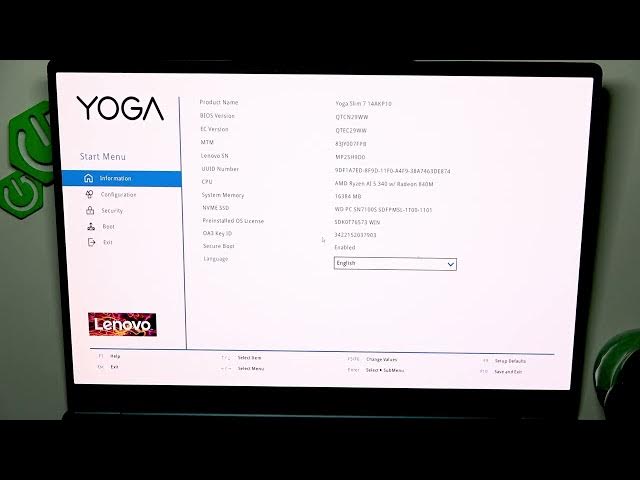

LENOVO Yoga Slim 7 – How to Enable or Disable Enhanced Biometric Security
Jun 7, 2026

Learn how to enable or disable Enhanced Windows Biometric Security on your LENOVO Yoga Slim 7. In this short, clear video you will see the exact steps in BIOS: shut down the laptop, power on and press F2 to open BIOS, go to Security → Enhanced Windows Biometric Security, change the setting to Enabled or Disabled, then press F10 to save or press Esc to exit without saving. This helps control Windows Hello and fingerprint behavior for privacy or troubleshooting on the Yoga Slim 7.
How to enable Enhanced Windows Biometric Security on LENOVO Yoga Slim 7?
How to disable Enhanced Windows Biometric Security on LENOVO Yoga Slim 7?
Where is Enhanced Windows Biometric Security in LENOVO Yoga Slim 7 BIOS?
0:00 Intro
0:09 Shutdown and prepare to boot
0:18 Boot into BIOS (press F2)
0:27 Open Security menu
0:41 Change Enhanced Windows Biometric Security (Enable/Disable)
0:55 Save and exit (F10) or exit without saving (Esc)
1:03 Outro
#Lenovo #YogaSlim7 #BiometricSecurity #WindowsHello
Find out more:
https://www.hardreset.info/devices/lenovo/lenovo-yoga-slim-7/
Follow us on Instagram ► https://www.instagram.com/hardreset.info
Show More Show Less #Science