
LENOVO Yoga Slim 7 – Enable or Disable Reverse Charging (Always On USB)
Jun 7, 2026

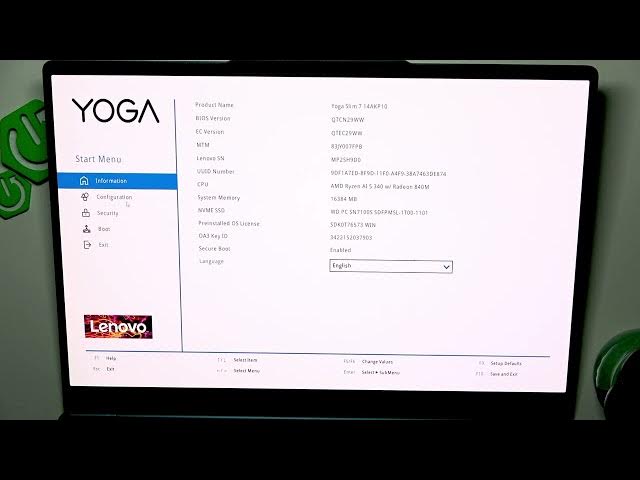
In this video you'll learn how to enable or disable reverse charging (Always On USB) on the LENOVO Yoga Slim 7 by using the BIOS settings. I show the exact steps: shut down, power on, press F2 to enter BIOS, open Configuration, find the Always On USB option and switch between Enabled and Disabled. You will also see how to save changes with F10 or exit without saving using Esc. This quick guide helps you control whether your laptop charges external devices via its USB ports and is useful for power management, portability, and battery life control. Keywords: LENOVO Yoga Slim 7 reverse charging, Always On USB BIOS, enable Always On USB, disable reverse charging, Yoga Slim 7 BIOS settings, how to toggle reverse charging.
How to enable reverse charging on LENOVO Yoga Slim 7?
How to disable Always On USB on LENOVO Yoga Slim 7?
Where is the Always On USB setting in LENOVO Yoga Slim 7 BIOS?
0:00 Welcome and overview
0:06 Why you need to change reverse charging
0:16 How to enter BIOS (shutdown, power on, press F2)
0:31 Open Configuration in BIOS
0:46 Find the "Always On USB" option
0:53 Toggle between Enabled and Disabled
1:14 Save changes with F10 or exit with Esc
1:27 Outro and subscribe reminder
#Lenovo #YogaSlim7 #ReverseCharging #BIOS
Find out more:
https://www.hardreset.info/devices/lenovo/lenovo-yoga-slim-7/
Show More Show Less #Science