0:00
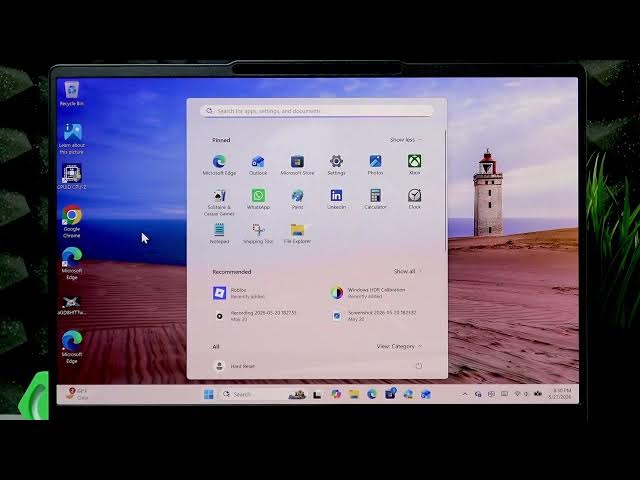
Welcome. In this video, I will show you
0:01
how to resolve screen flickering on your
0:03
Lenovo Yoga Slim 7 laptop.
0:10
Try by resetting the graphics driver. To
0:13
do that, you just have to press shift,
0:16
control, Windows, B. This will make your
0:20
screen blink for a while, and this will
0:23
reset your graphics driver. After that,
0:26
the problem should be gone in most
0:27
cases. However, if you still experience
0:30
in it, you can also try restarting your
0:32
laptop. And even uh if after the restart
0:35
your screen is still flickering, try
0:37
opening the task manager. To do that, uh
0:41
you can either use control, alt, delete
0:43
combination of keys, which will transfer
0:45
you to this page where you can open task
0:51
the other way to open the task manager
0:53
is by using the control, shift, and
0:56
escape combination of keys.
0:58
And the last one is right-clicking your
1:02
taskbar and opening task manager by
1:04
selecting it. So, what we want to do is
1:09
screen flickering is present on the task
1:12
manager window. And if it's not, then
1:15
the issue is a third-party application
1:17
that you're using. So, what you have to
1:19
do is uninstall or update your
1:21
third-party application. But, if you're
1:24
still experiencing the screen flickering
1:31
uh on the on the taskbar
1:34
on the in the task manager, then you're
1:37
going to have to uh roll back your
1:40
graphics driver. To do that, we have to
1:42
uh go to start menu and search for
1:48
Then, here we want to find
1:58
expand display adapter section, then uh
2:01
double-click your graphics driver.
2:09
And if this option is available, you can
2:12
roll back your graphics driver. However,
2:15
if it's not, that means that your uh
2:17
driver wasn't recently updated. And in
2:19
such case, we have two solutions. We can
2:22
either update all the drivers
2:23
automatically or manually. To do this
2:26
automatically, we have to open Lenovo
2:28
Vantage application, which should be
2:29
preinstalled on your laptop. You can
2:35
start menu, but if you can't, you can
2:37
still download it from the Microsoft
2:41
right here. Just search for Lenovo
2:43
Vantage, and you will find it very
2:47
Uh here we want to check for updates, so
2:49
just click check for updates uh on the
2:53
and wait until the scan is completed.
2:56
After the scan is completed, you'll be
2:57
given the list of updates you can
3:00
Uh so, take your time and install the
3:03
the updates. Otherwise, uh you can uh
3:06
update your device manually by going to
3:08
the web browser, then uh going to
3:15
Here we want to select PC, and then
3:18
detect product. Or if you don't If you
3:20
can't detect product, you can of course
3:22
use the serial number, which can be
3:24
found on the label on the backside of
3:27
Now, here we want to go to
3:30
drivers and software,
3:32
then under manual update, select
3:35
select drivers option.
3:39
Then find display and video graphics,
3:42
and here you'll find your AMD VGA driver
3:46
or uh any other driver uh that is uh
3:50
suitable for your laptop. Just install
3:53
this driver, or rather download it.
3:56
And after that, we'll be able to install
3:58
it. So, now let's get back for a moment
4:02
Lenovo Vantage application. Now, we can
4:04
click view details to see what updates
4:07
we're missing. And as you can see, it's
4:12
Which can actually sometimes cause this
4:13
issue. So, I recommend uh hitting the
4:16
checkbox next to it and select install
4:21
wait until this uh update is installed,
4:23
and then to uh complete the
4:25
installation, you're going to have to
4:26
restart your computer and wait until
4:32
let's try manual graphics driver
4:35
reinstallation. So, just run the
4:45
Select your language, then click okay.
4:47
Accept the agreement, click next, and
4:49
then make sure to hit install, and click
4:51
next once again, then install, and then
4:53
wait until the graphics driver is
5:02
Okay, so the driver is installed
5:04
successfully. In case of graphics
5:07
driver, in most cases, we have to
5:09
restart the laptop in order to apply
5:10
changes. If you're still experiencing
5:13
screen flickering, definitely go to the
5:15
start menu, power options, then restart.
5:17
After that, the screen flickering should
5:19
be gone. If not, then it's most probably
5:22
uh the hardware issue with your display.
5:24
And in such case, you should definitely
5:26
reach out to Lenovo customer support
5:27
service, or just uh take your laptop to
5:29
the nearest repair center so that they
5:31
can uh take care of your device.
5:37
And that's pretty much it. Thank you for
5:39
watching this video. If it helped you,
5:40
please consider subscribing to our
5:41
channel, leave us a like in the comment
5:43
below, and I'll see you in the next one.