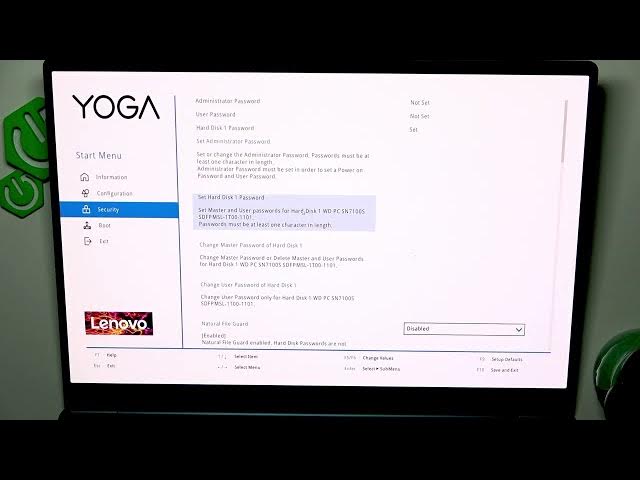

LENOVO Yoga Slim 7 – How to Add or Remove Hard Drive Password
Jun 7, 2026

In this video I show how to add or remove a Hard Drive Password on the LENOVO Yoga Slim 7. You will learn how to enter the BIOS (press F2 during boot), navigate to Security → Set Hard Disk 1 Password, set the Master Password and Hard Disk User Password, and how to remove them by leaving fields blank. I also explain how to save changes with F10 or exit without saving with Esc, and give a tip to write down your password so you don't lose access. This step-by-step BIOS guide is ideal if you want extra security for your internal drive or need to clear a password before selling or servicing your laptop.
How to add a hard drive password on LENOVO Yoga Slim 7?
How to remove a hard drive password on LENOVO Yoga Slim 7?
How to enter the BIOS and find Set Hard Disk 1 Password on LENOVO Yoga Slim 7?
0:00 Intro – What we will do
0:06 How to enter BIOS (turn off, then press F2 while booting)
0:25 Open Security → Set Hard Disk 1 Password
0:34 Set Master Password – enter and confirm
0:53 Set Hard Disk User Password – enter and confirm
1:11 How to remove passwords – leave fields blank for removal
1:53 Save changes with F10 or exit without saving with Esc
2:02 Outro and final tips
#Lenovo #YogaSlim7 #HardDrivePassword #BIOS
Find out more:
https://www.hardreset.info/devices/lenovo/lenovo-yoga-slim-7/
Show More Show Less #Science