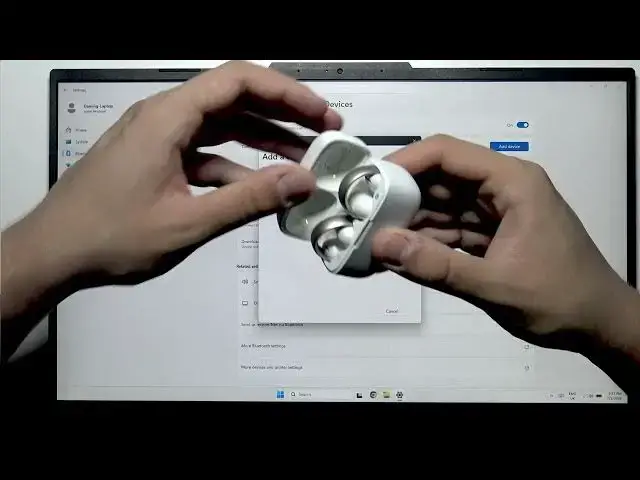

How to Pair SOUNDCORE AeroClip with Windows PC
Jul 2, 2026

Learn how to pair your SOUNDCORE AeroClip earbuds with a Windows PC quickly and reliably. This short video walks you through every step: open Windows Settings from the Start (right-click the Windows logo), go to Bluetooth & devices, choose Devices, tap Add device → Bluetooth, put your AeroClip into pairing mode by holding the button for about 5 seconds until the LED flashes, then select the AeroClip on your PC to connect. These steps work on Windows 11 and Windows 10. If the earbuds do not appear, try toggling Bluetooth, restarting the earbuds, or moving closer to your PC for a stronger signal. Clear, simple, and fast pairing for SOUNDCORE AeroClip earbuds.
How to pair SOUNDCORE AeroClip with Windows PC?
How to connect SOUNDCORE AeroClip to Windows 10 or Windows 11?
Where is Bluetooth settings to pair SOUNDCORE AeroClip on Windows?
0:00 Intro and what we will do
0:06 Open Windows menu and go to Settings
0:21 Open Bluetooth & devices then Devices
0:30 Tap Add device → Bluetooth
0:49 Put AeroClip in pairing mode (hold button ~5s until LED blinks)
1:00 Select AeroClip from the list and connect
1:02 Connection confirmed — you're done
#SOUNDCORE #AeroClip #Windows #Bluetooth
Find out more:
https://www.hardreset.info/devices/soundcore/soundcore-aeroclip/
Follow us on Instagram ► https://www.instagram.com/hardreset.info
Show More Show Less #Science