0:00
Hi everyone, in front of me I've got a Cubot Max 3 and let me share with you
0:04
how to enable the nightlight or eye comfort mode. So basically first of all I'll show you how to customize this mode
0:15
and then much faster access to it. So let's begin with opening the settings
0:20
Now let's scroll down just a little bit to find the display
0:23
and here on the third position we've got the nightlight which is the name of the
0:27
eye comfort mode in this device. So after entering it you can see that
0:31
we've got let's say two different options thanks to which we can customize this mode. So first of all let's turn it on
0:39
And as you can see after turning it on the screen will turn a little bit yellowish or even amber and it is in order to filter the blue light
0:47
It will be also much much easier for you to look at the screen at the dim light
0:51
So if you are a night owl and you like to use your phone
0:54
during night then this mode is for sure for you. So here thanks to the switcher we can change the intensity of that feature
1:02
So by going to the left we can make it much much cooler. It's almost invisible I would say a little bit dull
1:09
and by going to the right you can make it much much warmer. Unfortunately on the
1:13
camera you cannot see it but trust me it's almost orange here. I mean in real life
1:17
So just set it like you want to. Right here we've got another option to customize the night light so we can
1:24
schedule that feature. Currently we've got this option turned off which simply means that we can easily turn on and off the night light
1:33
manually but we can turn it on at custom time on or from sunset to sunrise. So which simply means that from sunset to
1:41
sunrise your device will automatically decide when the sunset and sunrise are. Probably they will be network based or location based
1:48
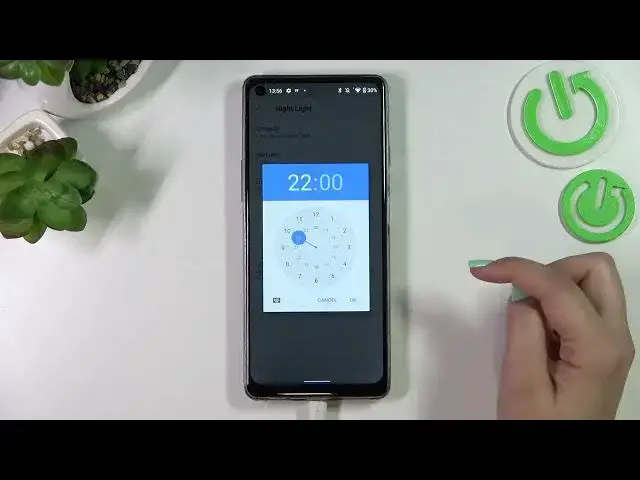
And here on the custom time you can freely tap on it and freely pick the start time. So let me pick
1:54
maybe something like I don't know maybe something like that. Tap on OK and
2:01
the end time at 6. And as you can see the device immediately changes the colors of the display. It is of course because we are
2:08
between the start and the end time. So this is how to customize it. I will
2:13
stick with the none option. And basically this is the whole customization of this feature and if you'd like to have much faster access to
2:19
it after the whole customization just unroll the top bar fully. And here we have to go to the right in
2:26
order to find the icon night light. If you've got some problems with that if you cannot find the night light
2:32
no worries. Just tap on this edit icon and under it you will have some
2:38
additional icons which you can use. Just tap on it hold it and drag it to
2:42
the first panel to have much faster access to it. So that's how it works and basically of course right now it is turned on
2:48
You can turn it off just by tapping on it and the screen will immediately get
2:52
back to its normal state. And again you can turn it on the same way. So basically that's all. This is how to
2:58
use the night light and how to customize the night light or eye comfort
3:02
mode in your Cubot Max 3. Thank you so much for watching. I hope
3:07
that this video was helpful and if it was please hit the subscribe button and leave the thumbs up