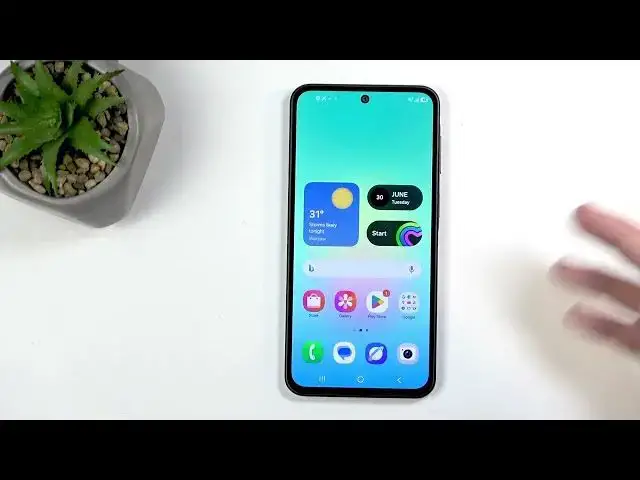
0:01
Welcome. In front of me is a Samsung
0:05
and today I will show you how you can
0:08
enable power saving mode on this device.
0:21
uh you will want to swipe down from the
0:24
top of your screen. To be more precise,
0:26
top right side. That's where the toggles
0:28
And in this section right here, you want
0:29
to swipe down again, which will extend
0:32
the list of visible toggles and also
0:34
give you the labels for them, hopefully
0:35
revealing the power saving mode, which
0:37
you can see right here for me. Now, if
0:39
you don't see this toggle in this list
0:40
right here, you will be able to add it
0:42
by clicking on this pencil icon all
0:47
right at the bottom you'll have add a
0:49
control. Click on this
0:51
and find the power saving mode somewhere
0:53
in this list right here.
0:56
I'm going to quickly check for
0:59
it. So, it's under system options, you
1:01
can see right here, power sa- saving.
1:05
and there is nothing else. I was looking
1:07
for other modes, which I do believe
1:08
Samsung does have, but it looks like you
1:11
just don't have a toggle for it.
1:13
Anyway, I'm going to go back.
1:14
You would have uh obviously just tapped
1:16
on the toggle itself. Uh so, let me just
1:18
demonstrate it. So, tap on the toggle,
1:20
gets added. Though, it doesn't get added
1:21
to here, it will get added to the bottom
1:24
of the page. You can grab it from here
1:27
and move it back into
1:32
And you can see it's now added here, but
1:36
So, and in case once it's in here, you
1:38
can simply tap on the power saving
1:39
toggle. Uh it turns on dark mode and
1:42
does some other things like reduces
1:43
screen refresh rate, uh app re-
1:47
application refreshes in the background
1:49
when you're not using the device
1:51
and some other things.
1:53
One of the most important thing that it
1:58
applications. So, it kind of terminates
2:00
the applications in the background so
2:03
operate when you're not using your
2:04
device. So, as an example, applications
2:06
such as uh WhatsApp. When you're not
2:09
using your phone, might not be giving
2:11
you any kind of notifications for new
2:12
messages if you're not using the device.
2:15
If it's just laying on your table,
2:17
screen off for prolonged time,
2:21
even if you someone sent you a message
2:22
on WhatsApp, you will not know about it
2:25
because the phone has not had the
2:26
opportunity to check if someone sent you
2:31
So, something to be aware of.
2:34
Now, anyway, that's the power saving
2:36
mode. To to turn it off, you would just
2:38
find this toggle again and tap on it
2:39
once more and this would obviously
2:40
revert all the changes.
2:43
And if we hold this toggle, I hope. Yep,
2:46
there we go. We get taken to the
2:48
settings for it. And we do have, like I
2:50
mentioned, that other mode. Now, we can
2:52
turn it on right here.
2:54
And that will allow us to switch between
2:56
them. For some reason, you can't swap
2:58
them out when the mode is off, which
3:00
makes no sense, but whatever.
3:02
And uh in here you can see we have the
3:04
standard which standard it means actual
3:06
power saving mode. Just a normal power
3:09
saving mode opposed to the
3:12
And you can click on the settings for
3:14
each one of the two and uh see it. For
3:16
instance, standard what it does. So, it
3:18
limits CPU speed to 70%, increases
3:20
brightness by 10%, uh smoothness to 60,
3:22
uh dark mode, and screen timer to 30
3:25
seconds. Now, these are the ones that
3:26
you can toggle on and off.
3:28
Now, if we were to go back and switch to
3:33
go home, you can see that uh most
3:36
applications now became deactivated so
3:41
I can unsuspend them and use them, but
3:43
other than that, they're basically
3:44
suspended. And the the phone doesn't
3:47
suspend the applications that are part
3:49
of like the core system. So, things
3:51
like, for some reason, Play Store.
3:53
Uh but other ones that would make more
3:55
sense like phone, messages, and uh
3:58
clock. And that's about it, I think,
4:00
See, your messages, dialer, clock.
4:06
Now, you can obviously uh use any of
4:07
these applications that I have right
4:08
here by just clicking on them and
4:10
unsuspending them. So, I'll just say
4:12
Bixby, um unsuspend it temporarily, and
4:15
it will open it up. Now, when you close
4:17
it and stop using the device, it will
4:19
become suspended again, which goes back
4:23
application not being able to check for
4:25
updates and new messages.
4:28
So, anyway, you can also see we don't
4:30
have a wallpaper right here. And this
4:33
for the most part designed to preserve
4:34
as much battery as the phone can. Uh so,
4:38
if you're not in a pinch, you don't
4:40
need, you know, maximum amount of
4:41
battery to be available to you, um or
4:44
maximum amount of time,
4:46
then probably stick just with the normal
4:48
mode. Just keep in mind whichever mode
4:51
you used the last will be the mode that
4:53
you will be enabling right here again.
4:56
it goes back to the maximum one from
4:59
from the normal one that we used to have
5:01
first time around. So, if I wanted to
5:03
change, I would go back here.
5:05
And again, I need to turn it on,
5:07
swap to it, and now we go. And now if I
5:09
turn it on, it's going to be enabling
5:11
the standard one instead.
5:14
Now, if we go back, uh you can see right
5:16
here, uh the phone hasn't learned my
5:18
usage uh yet, uh but once it does, it
5:21
will tell you the remaining time, which
5:23
potentially would also tell you how long
5:25
the phone will last in each one of these
5:27
modes, the standard and the maximum
5:29
battery saver. So, you could have a bit
5:31
more insight in how it affects the
5:34
On Samsung though, from my experience as
5:40
gives you just several hours from normal
5:43
operation it to the power saving mode.
5:46
And it it does about double the battery
5:51
when you go from the normal mode to the
5:54
maximum battery saver.
5:57
So, it's okay. It's not the best, but
5:59
it's still pretty decent.
6:02
Getting double battery life meaning that
6:04
if your phone, I don't know, has 10% I
6:06
just assume and it tells you that it's
6:08
going to be last, I don't know, 2 hours,
6:11
Uh with maximum you're now going to be
6:13
getting essentially 4 hours of remaining
6:16
battery life, which is pretty good.
6:21
that's about it. So, I hope you found
6:23
this very helpful and if you did, don't
6:25
forget to hit like, subscribe, and