0:00
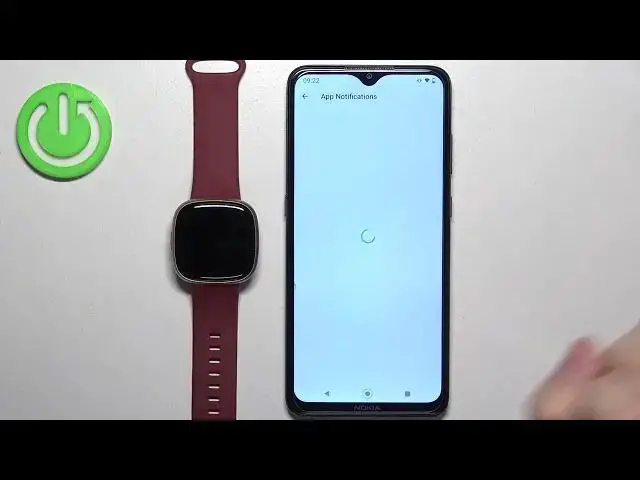
Welcome! In front of me I have Fitbit Versa 4 and I'm gonna show you how to
0:05
enable the phone notifications for this watch on the Android phone. Basically if
0:10
you want to receive the notifications from your phone on your watch
0:17
Before we start if you want to receive the notifications from your phone on
0:21
your watch your watch needs to be paired with a phone via the Fitbit application
0:25
Once the devices are paired together we can continue and now we can open the
0:29
Fitbit application on the phone that is paired with our watch. After you open the
0:34
app tap on the icon in the top left corner to open the connected to a Fitbit
0:40
page and here you should see your Versa 4. Tap on it and now scroll down and
0:47
find the option called notifications. Once you find it tap on it. If you see
0:51
this pop-up on the screen it means you don't have required permissions allowed for the notifications to work. So you need to tap on enable notification
0:58
service. It will redirect you to this page. Here find the Fitbit application
1:03
Tap on it. Tap on the switch next to it. Tap on allow and it will bring you back
1:08
to the notifications in the app. And here you can enable notifications for the
1:14
calls, text messages, calendar events, emails and stuff like that. If you
1:19
want to enable notifications for calls tap on the switch and allow required
1:23
permissions. There's quite few of them. Next we have the text messages. Here you
1:28
can turn them on or off and select the default text app. Then we have calendar
1:34
events notifications. Again you can turn them on or off and select the default
1:39
calendar app. Then we have the email. You can turn on or off or select the
1:45
specific app or default app. And then we have app notifications. And here we can
1:50
enable and disable notifications for specific apps on your phone. And how it
1:55
works is basically if you enable notifications for example for Discord and you receive notification from Discord on your phone that notification
2:04
will be forwarded to your watch. But if you disable it you will see it only on
2:08
your phone. It won't be forwarded to your watch. That's how it works. So enable the
2:11
notifications for the apps you want. And right here we can also enable or disable
2:17
the voice replies. We can set up quick replies for different apps if you want
2:21
to. And you can also enable the option to always vibrate. Enable transliteration
2:28
That's about it basically. You can also check if the notifications are working
2:33
by tapping on the icon right here in the top right corner and tapping send a test
2:39
call notification. And you should see it on your watch. And that means that it's
2:42
working. But we can also check it with the app. So we enabled the
2:47
notifications for Discord. I'm gonna open Discord now. Okay we are logged in
2:56
So I'm gonna send myself a message. As you can see we got the message on our
3:05
phone. Let's check if we got it on our watch. And we did. As you can see. Okay
3:09
And that's how you enable the phone notifications for this watch on the
3:13
Android phone. Thank you for watching. If you found this video helpful please
3:17
consider subscribing to our channel and leaving the like on the video