0:00
Hi everyone, here we've got Asus ROG Phone 3 and let me share with you all possible ways
0:11
to block a number on this device. So first of all we have to enter the dialer because this is the place where all of those
0:18
operations will happen. And firstly let me show you how to block a number which is currently on your contact list
0:25
So let's tap on your contacts and find the contact you'd like to block. Now let's tap on it
0:30
Tap on this 3 dots icon in the right upper corner and on the very first position we've
0:34
got add to block list so simply tap on it. Your device will ask you if you really want to do it because you will no longer receive
0:41
any incoming calls or text messages from that number. So if you are ready tap on OK
0:45
As you can see it has been added to a blacklist. Obviously you can unblock it the same way so simply tap on this 3 dots icon and tap
0:52
on remove from blacklist but let me leave it like this because we will actually check
0:56
if it worked. So now we can go back and this is how to add a number to a blacklist from your contact
1:04
list and now let me show you how to do it using let's say dialer settings because it
1:09
doesn't really matter if you will be on your contacts or the recents
1:13
All you have to do is simply tap on this 3 dots icon and tap on settings
1:18
Here we've got call blocking and block list so let's enter and here we've got two options
1:22
which are connected with blocking obviously and under it we've got the block list
1:26
So if you'd like to block the numbers which are not on your contact list or block calls
1:31
from hidden numbers just tap on those switches in order to activate those options
1:36
Now let's tap on the blacklist and as you can see here we've got the number we just
1:41
blocked from our contact list. So it worked. Obviously from this level we can add another just by tapping on this plus icon and here
1:50
we can also choose it from contacts so this is the second way to block a number which
1:54
is currently saved on your device. I will show you it later on because it's a little bit different
2:01
We can choose it from recent call logs, enter a number or we can enter a SIP number
2:06
So I will show you how to choose it from the contacts and how to enter a number manually
2:12
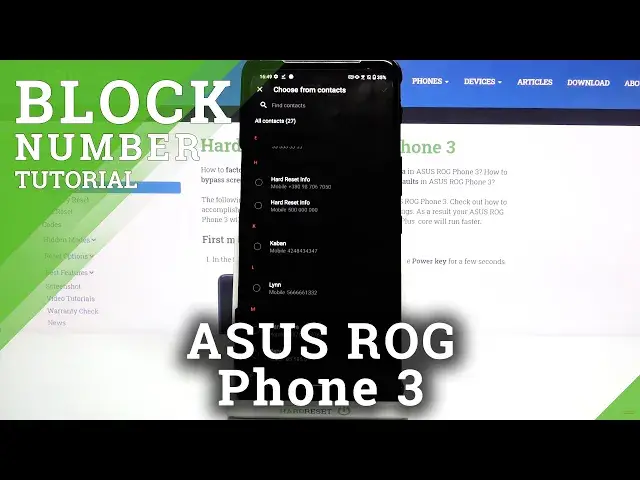
So let's tap on the very first option and as you can see we've just been transferred
2:16
to our contact list. So here I said that this option is a little bit different because here we can choose a
2:25
lot of numbers which we'd like to block so you don't have to do it one by one
2:31
So simply tap on the option, tap on the number you'd like to block
2:35
As you can see it is marked so let me pick this one also and if you're ready just tap
2:40
on this tick icon. As you can see they are immediately applied to our blacklist so which means that from
2:46
now on you won't receive any incoming calls or text messages. And now let me show you how to do it manually so simply tap on enter a number and here we've
2:54
got the keypad so we can freely enter the number we'd like to block and tap on OK
2:59
And the same situation it also immediately appears right here. Obviously we can unblock those numbers
3:06
Just tap on the one you'd like to unblock and as you can see here we've got the remove
3:10
from blacklist but not only this option. We can also customize the blocking rules so here we can decide if we'd like to block calls
3:20
and text messages from the specific number. You can block only calls so you will receive the messages
3:26
You can view contact and as I said remove it from the blacklist
3:30
So let me for example remove it from the blacklist. Let's tap on OK and as you can see it immediately disappears from our blacklist
3:38
So from now on you will receive all incoming calls and text messages
3:42
So actually that's all. This is how to block a number in your Asus ROG Phone 3
3:47
Thank you so much for watching. I hope that this video was helpful and if it was please hit the subscribe button and