
MOTOROLA Edge 70 Pro – Clear Cache & Speed Up
Jun 10, 2026

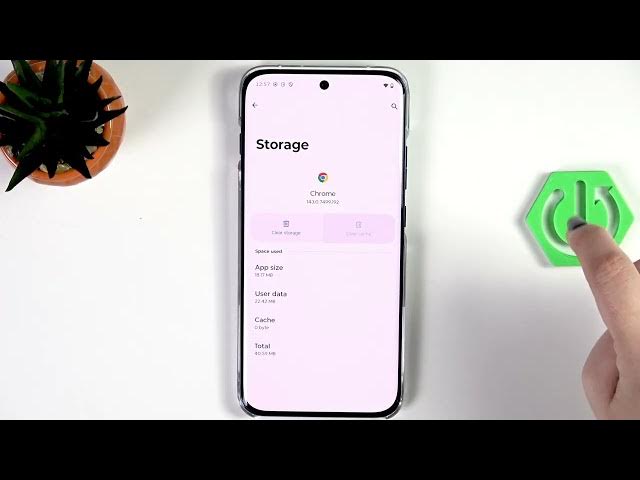
Quick and simple steps to clear app cache and speed up your MOTOROLA Edge 70 Pro. In this video I walk you through opening Settings, selecting Apps, tapping See all apps, choosing an app (example: Chrome), then going to Storage & cache and tapping Clear cache. I also explain what cache files are, why they can slow your phone, why there is no built-in one-click clear-all option, and why I don’t recommend third-party cache cleaners. Follow these steps to free storage, reduce lag, and improve daily performance on your Edge 70 Pro.
How to clear cache on MOTOROLA Edge 70 Pro?
How to speed up MOTOROLA Edge 70 Pro by clearing app cache?
Where is Storage and cache on MOTOROLA Edge 70 Pro?
0:00 Intro – what we’ll do
0:08 Open Settings and find Apps
0:19 Tap See all apps to view installed apps
0:28 Pick apps you use often to clear cache
0:55 What cache is and why clear it
1:02 Demo: open Chrome → Storage & cache → Clear cache
1:27 Note: no system option to clear cache for all apps
1:39 Warning about third-party cache cleaner apps
2:02 How often to clear cache and best practice
2:04 Outro – subscribe and final tips
#Motorola #Edge70Pro #ClearCache #SpeedUp
Find out more:
Show More Show Less #Science