0:00
Hello everybody, welcome back to 374
0:02
channel. In today's video, I will show
0:04
you how to easily fix wireless charging
0:06
not working on your Motorola Razr 70
0:16
So first, you guys need to realize
0:18
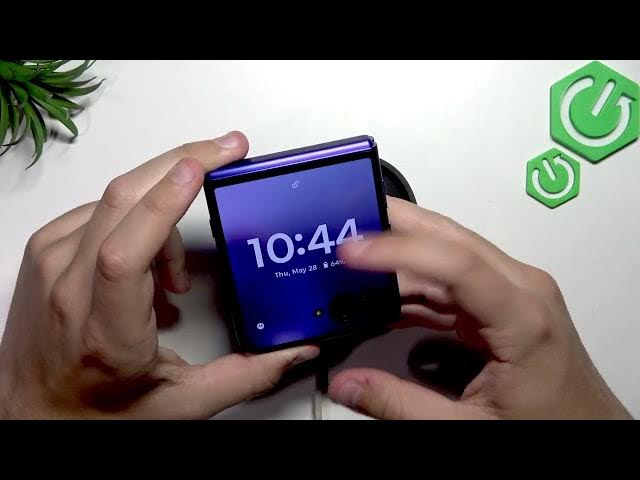
um how to place the phone properly. So
0:21
I'm going to show you. Basically, we
0:25
we got the screen and it's not
0:28
interesting to us. We look for the
0:30
Alcantara or depending on what finish
0:32
you've got on the back. I've got the
0:34
Alcantara and here we have a wireless
0:38
charger. So it's not somewhere up here,
0:40
not in the middle, it's down here.
0:43
So as you guys can see, let me place the
0:46
um part that doesn't work.
0:48
And now I'm going to simply fold the
0:54
um on the charger and
0:58
as you guys can see, it is charging.
1:01
So, it even says that wireless charging
1:05
um battery consumption.
1:07
But it is normal and now this is the
1:10
only correct alignment so that the phone
1:13
And now, as you guys can see, it is not
1:17
And of course, we can charge it like
1:22
There's no point since the phone is just
1:23
hanging off and we can simply
1:27
fold it and it will still charge.
1:30
So, make sure that you place your phone
1:32
correctly. Also, if you have any case
1:34
for your phone, make sure to remove
1:36
them. This is very important because as
1:39
um I do have a case right here, but
1:42
sometimes it's just too thick and it may
1:45
just not get the entire um energy from
1:48
the wireless charging. That's why we
1:51
that um we take the case off
1:54
and see if it works without a case. If
1:56
it works without a case, then you found
1:59
But if there's no difference, then what
2:02
you guys want to do is update your
2:03
software to fix any glitches because
2:06
wireless charging is enabled by default.
2:09
There's no setting like this in the
2:12
battery options. And as you guys can see
2:14
here, we have the battery options.
2:16
Now, the only thing that's here is just
2:18
power sharing, but it will basically
2:20
charge other devices and they will not
2:24
So, this is automatically enabled
2:26
whenever it feels like it's charging. Of
2:28
course, it turns NFC off automatically.
2:34
um what are we going to do now is scroll
2:35
to the system updates.
2:38
Click on check for updates. And as you
2:41
now we should soon see our version.
2:44
So, it is checking for updates. And for
2:46
me, I am on the latest version, but if
2:48
you guys are not, then I recommend you
2:49
updating. This is very important to keep
2:51
up with the latest version of the
2:53
software. And that's basically it for
2:55
the video. So, I hope it was helpful. If
2:57
it was, then leave a like, subscription,
2:59
and a comment. And I'll see you in the