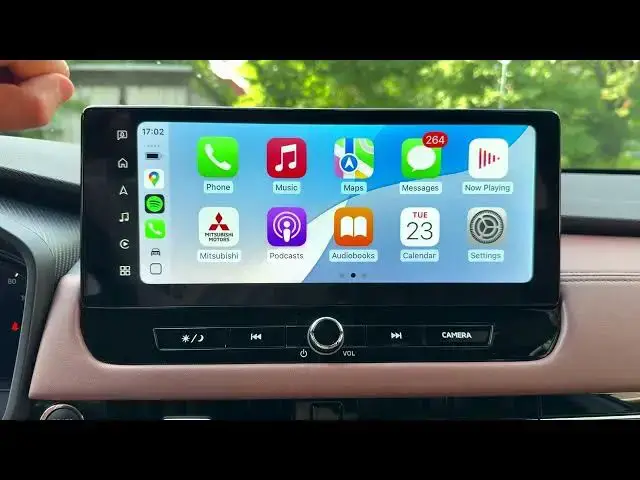

MITSUBISHI Outlander IV – How to Connect Apple CarPlay
Jun 30, 2026

Learn how to connect Apple CarPlay on your MITSUBISHI Outlander IV step by step. In this short video we show how to pair your iPhone with the car using Bluetooth, enable CarPlay, turn on the vehicle Wi‑Fi when prompted, and start using apps like Apple Maps, Google Maps, WhatsApp, Podcasts and Music. Follow the exact menu path shown on the Outlander IV display (Settings → Connections → Add device), then pair from your iPhone Bluetooth list and allow CarPlay to connect. You will also see how to change CarPlay settings (Driving Focus, Announce Messages, Appearance) and how to quit CarPlay to return to the Mitsubishi system.
How to connect Apple CarPlay on MITSUBISHI Outlander IV?
How to pair iPhone to MITSUBISHI Outlander IV via Bluetooth for CarPlay?
Where is Add device and CarPlay setting on MITSUBISHI Outlander IV?
0:00 Introduction – what we will do
0:07 Open the Outlander home screen and go to Settings
0:17 Select Connections and tap Add device
0:28 On iPhone: open Settings → Bluetooth and enable Bluetooth
0:41 Pair with "Mitsubishi Motors" from the phone list
0:54 Allow sync (contacts & favorites) and tap Connect for CarPlay
1:21 Turn on vehicle Wi‑Fi when CarPlay requests it
1:39 Apple CarPlay active – apps and features overview
2:07 How to quit CarPlay and return to Mitsubishi system
#Mitsubishi #OutlanderIV #AppleCarPlay #CarPlaySetup
Find out more:
https://www.hardreset.info/devices/mitsubishi/mitsubishi-outlander-iv/
Show More Show Less #Science