0:01
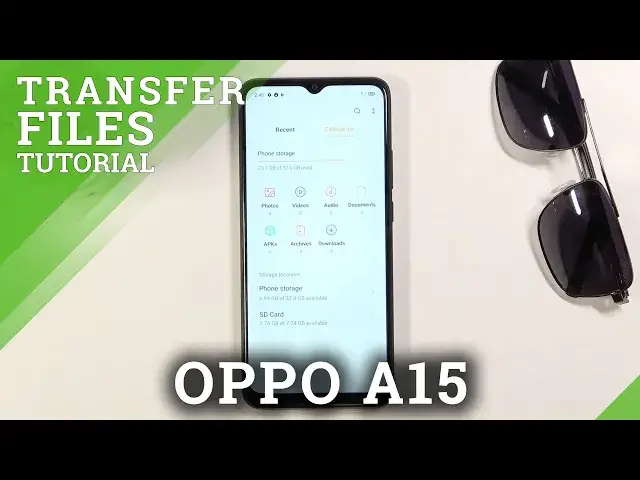
My name is OpoA15 and today I'll show you how to transfer files from your phone to an
0:14
SD card and vice versa. To get started, you'll want to open up File Manager application, which for me is right
0:22
over here. Allow whatever it wants. So once you open it up, you should see your two storages at the bottom
0:32
So we have the phone storage and the SD card. Now I'm going to start with the phone storage and touch upon a couple of folders that might
0:39
be of importance to you. So number one, and probably the most important one, will be the DCIM, which contains pictures
0:45
and videos captured with the device, as you can see right here
0:49
And it also looks like it contains screenshots as well. And then the second one will be the Downloads folder, which will contain anything that I
0:56
have downloaded through web browser, email, anything overly just downloaded gets put into
1:02
this folder. And that's primarily most of the important folders to be honest
1:08
Normally there's also Pictures folder at the bottom that contains screenshots, but we already touched upon the fact that DCIM on this device contains screenshots
1:17
So anyway, once you find your files, what you want to do is select them, and you do
1:20
so by simply holding them. As you can see, they become checked on the side
1:26
That once more. There we go. And once they become checked, you can quickly tap on other files to select more of them
1:36
Now you also have option to select all if you want to by tapping on this square right here
1:41
We'll select every file in this folder. Or if you want to select also every file, you can just select a folder that contains
1:49
all of those photos instead of selecting them individually. So I'll just go back and select the entire screenshots folder the same way I did these
1:58
files by holding it. Now whichever way you do it, it's completely up to you
2:03
But once the files are selected, you want to pick between the two options
2:07
So you can either copy the files or move them. Select which ones you want
2:12
And once you choose one of the two options, it will bring up this window right here, and
2:17
you want to select where you want to copy or move those files to
2:21
So obviously again we have the phone and the SD card as storage options
2:25
Now right now we are on the phone storage. That's where the files are located right now
2:30
So I'm just going to navigate to something completely different like the SD card
2:34
And from here, you can see folders are virtually the same. So you can navigate into folder that you want to drop it into
2:43
You can tap on the plus icon to create a new folder
2:47
Or just don't bother navigating to any folder and drop it straight to the SD card by tapping
2:52
on move here. Personally, I'm just going to go into the downloads folder and move it into the downloads folder
2:59
And there we go. And it's been moved now so I can go back and show you these files right here
3:06
So that is how you can move or copy any kind of file from one location to another
3:10
And if you found this video helpful, don't forget to hit like, subscribe, and thanks