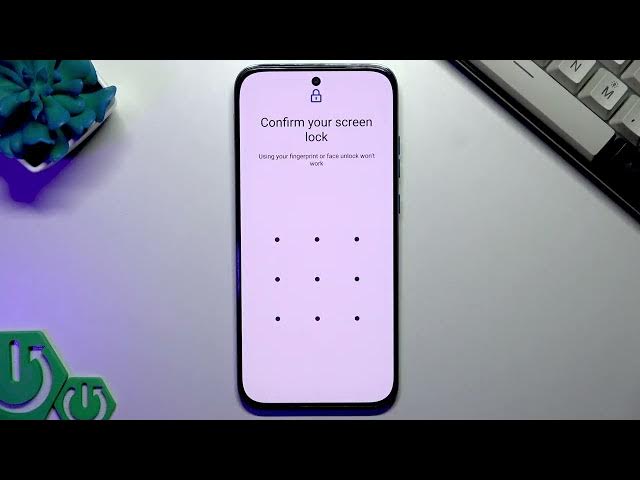

Moto G87 5G — Backup Data to Google One
Jun 3, 2026

Learn how to back up your Motorola Moto G87 5G to Google One quickly and securely. In this short video you will see how to open Settings, find the Backup or Copy data option, choose what to back up (apps, contacts, photos, settings), enable other data, tap Back up now, enter your password and sign in to your Google account. The clip also explains how automatic backups work so your data stays safe when you switch or reset your phone.
How to back up Motorola Moto G87 5G to Google One?
How to enable automatic backup on Motorola Moto G87 5G?
Where is the Backup or Copy data option on Motorola Moto G87 5G?
0:00 Introduction and overview
0:06 Open Settings and go to Backup or Copy data
0:29 Choose which data to back up (apps, contacts, photos, settings)
0:58 Tap Back up now, enter password and sign in to Google
1:02 Wait for the backup to finish
1:17 Backup complete and automatic backup info
#MotoG87 #GoogleOne #Motorola #AndroidBackup
Find out more:
https://www.hardreset.info/devices/motorola/motorola-moto-g87/
Follow us on Instagram ► https://www.instagram.com/hardreset.info
Like us on Facebook ► https://www.facebook.com/hardresetinfo/
Show More Show Less #Science