0:00
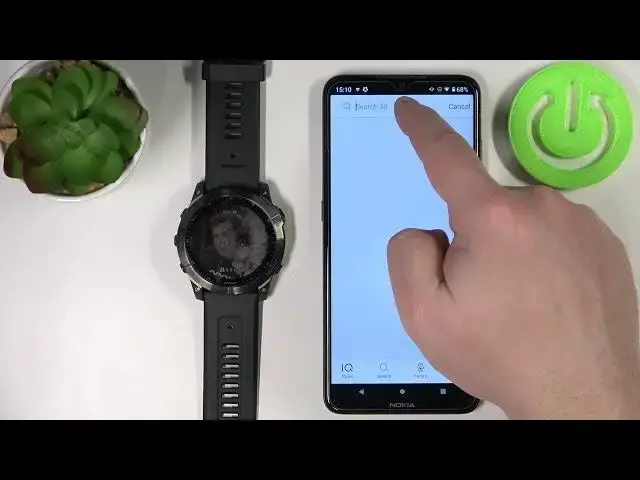
Hello! In front of me I have Garmin Fenix 7X and I'm gonna show you how to
0:11
install applications on this device. Before we start your watch needs to be
0:15
paired with a phone via the Garmin Connect application. Once the devices are
0:20
paired you will need to download and install the Connect IQ store. To do it
0:25
open the App Store on your phone, tap on search, type in Garmin IQ and tap search
0:36
You should see this application called Connect IQ store. Tap on the install
0:41
button to install it. Once the application is done installing you can tap on open button to open the
1:03
app. Here tap on welcome. Now you can continue with the account that you used
1:08
to log in in the Garmin Connect application or you can tap on switch
1:12
accounts to switch it. I'm just gonna tap on continue, check the boxes and tap on next
1:26
And here we have the store. We can basically scroll through the different
1:31
categories of apps and watch faces as you can see. Now let's find some app. For
1:37
example I'm gonna tap on search, type in calculator, then tap search and here we
1:47
have the calculator app. Let's say I want to install it so select it. Right here we
1:52
have the information about the app, updates and also we can check the list
1:59
of compatible devices by tapping right here. Let's check if the Fenix 7X is on the list. And it is so we can go back, scroll
2:14
up and tap on the install button to install the app. As you can see the app
2:20
is installing. It might take some time to install the app. Sometimes it stays in
2:24
queue for a long time. If the queue doesn't move you can minimize the IQ
2:30
store, open the Garmin Connect application and that should force the watch to sync with your phone and that would hopefully help you with
2:41
installation of the application. But once the app is done installing you can tap
2:46
on got it. That's basically the pop-up and the install button should change to
2:51
uninstall. Now we can check if the app is working. So let's press the start
2:57
slash stop button to open the favorites. Here let's scroll down. Scroll down the
3:04
list and as you can see we have the math calculator. You can tap on it, open it and
3:08
here we have the app. And it's working as you can see. And to exit it simply press the back button
3:24
And that's how you install applications on this device. Thank you for watching. If
3:31
you found this video helpful please consider subscribing to our channel and
3:35
leaving a like on the video